
Who does this: the school admin or principal.
How long it takes: about a minute per group.
Use this when students need a new section in the same academic year, for example when Nursery is split into A and B. It is done on the Promote Students page, in its Transfer mode. Nothing is promoted, and the year is not closed.
Before you start
The new section must already exist. If Class 2 has only section A, add section B on the Sections page first.
Step 1: Open the page
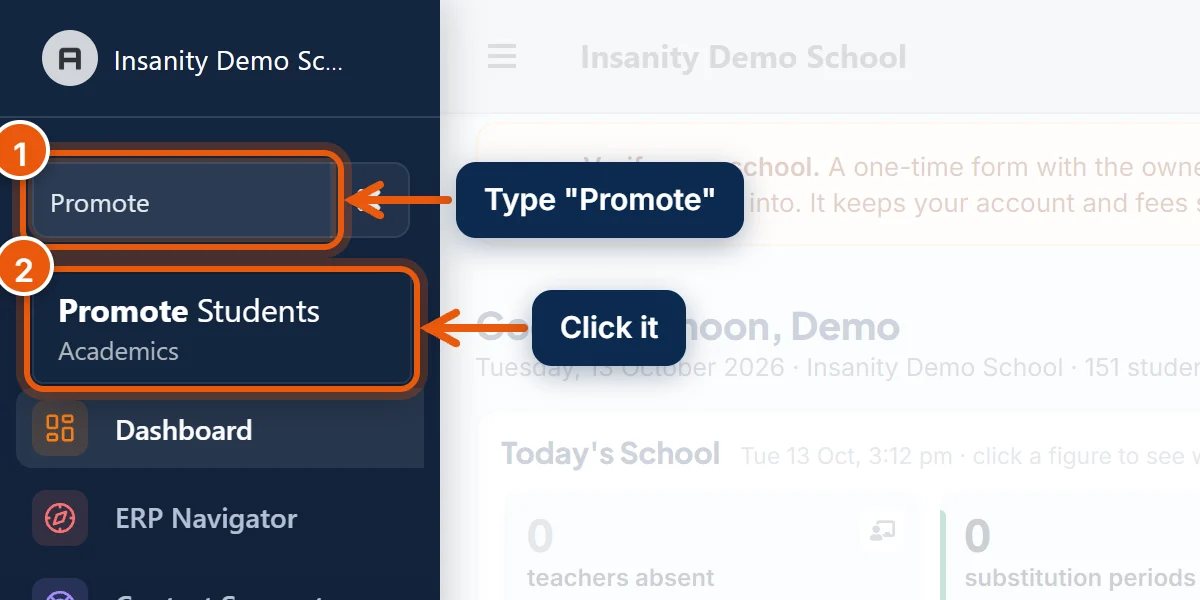
- In the search box at the top of the left menu, type Promote.
- Click Promote Students.
Step 2: Load the students who are moving
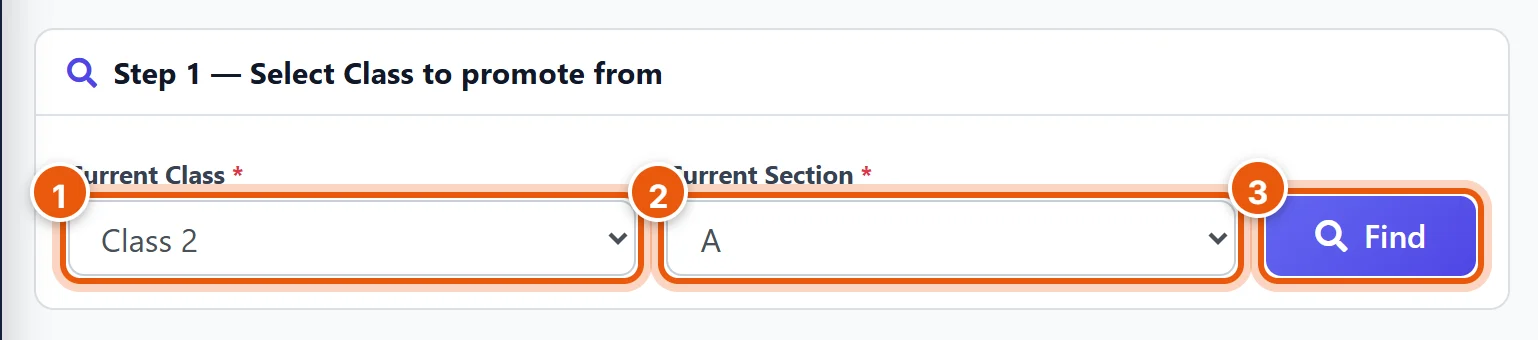
- Current Class: the class the students are in now.
- Current Section: the section they are in now.
- Click Find. The list of students in that section appears below.
Step 3: Choose Transfer and the new section
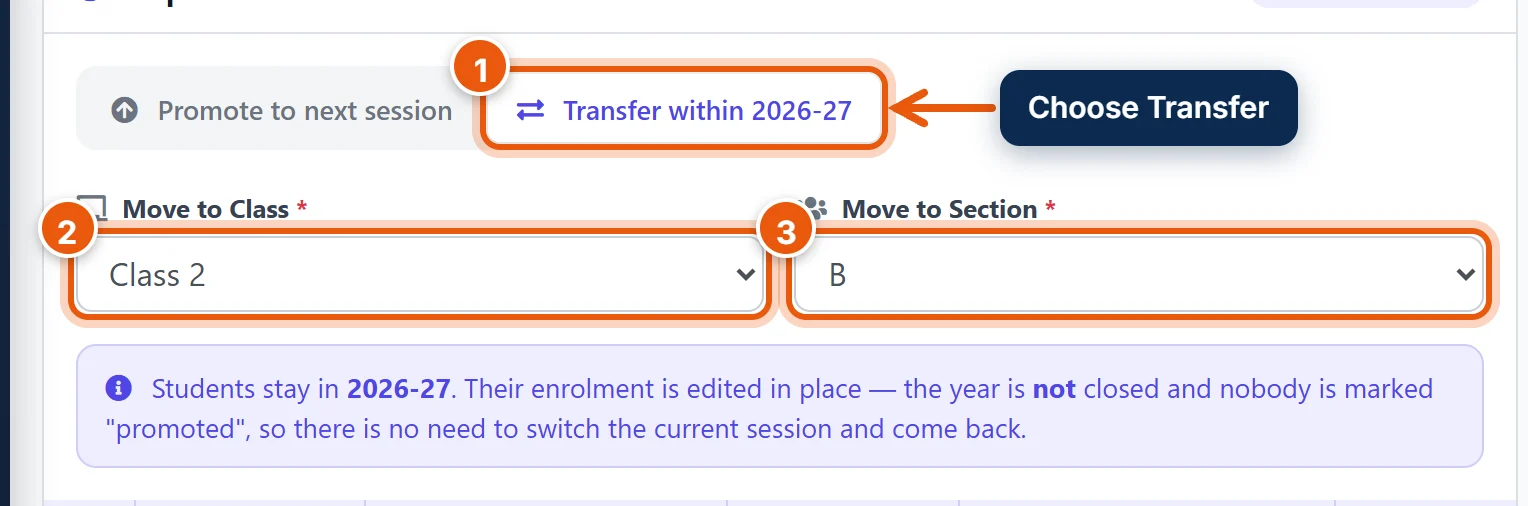
- Click Transfer within 2026-27 (it shows your current year). Do not use Promote to next session: that is for the end of the year.
- Move to Class: usually the same class.
- Move to Section: the new section.
Step 4: Tick the students who are moving
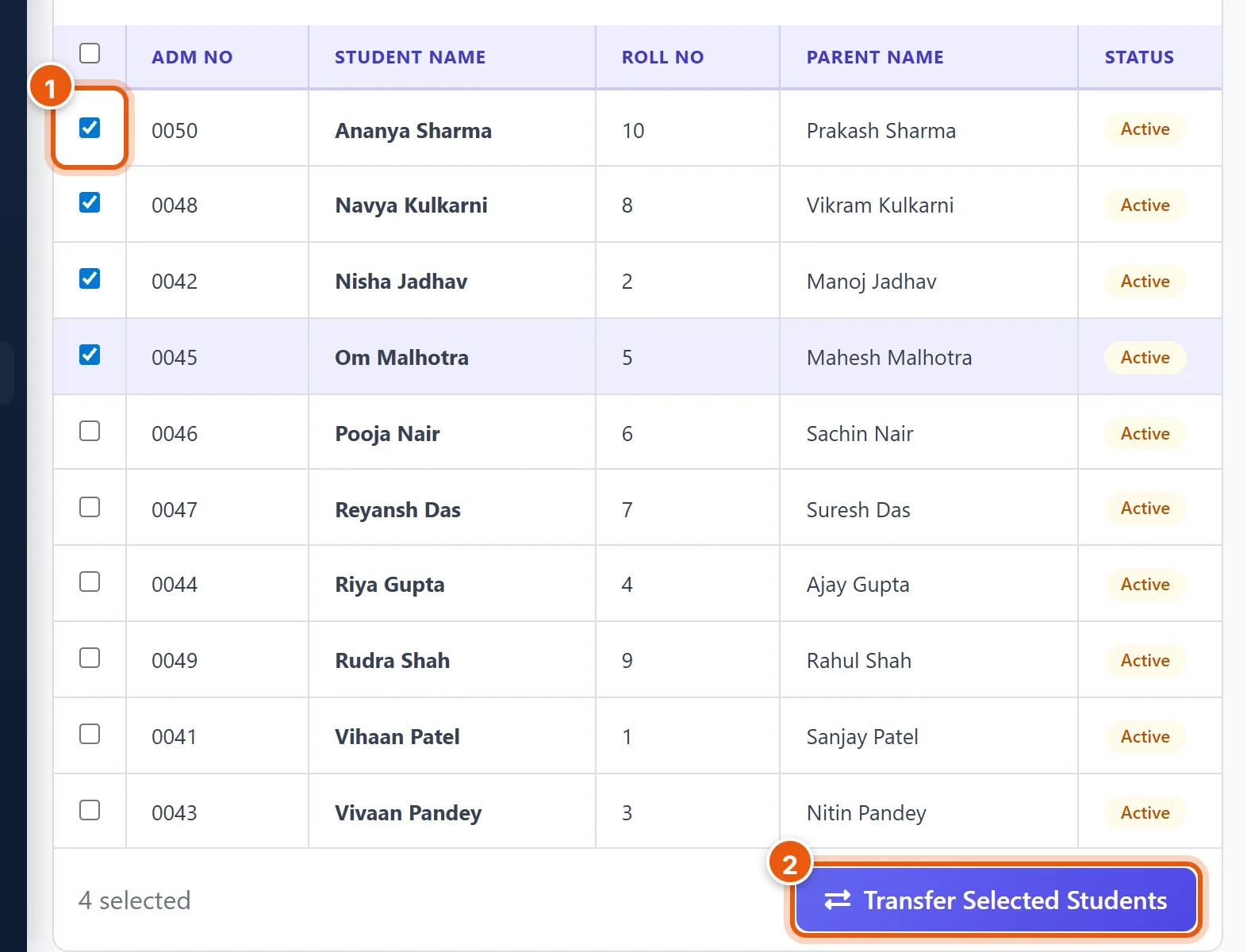
- Every student starts ticked. Untick the students who stay in their current section. The count at the bottom shows how many will move.
- Click Transfer Selected Students.
Tip: Moving only a few students out of a big section? Untick the box in the header row to clear all the ticks, then tick only the students who are moving.
Step 5: Check and confirm
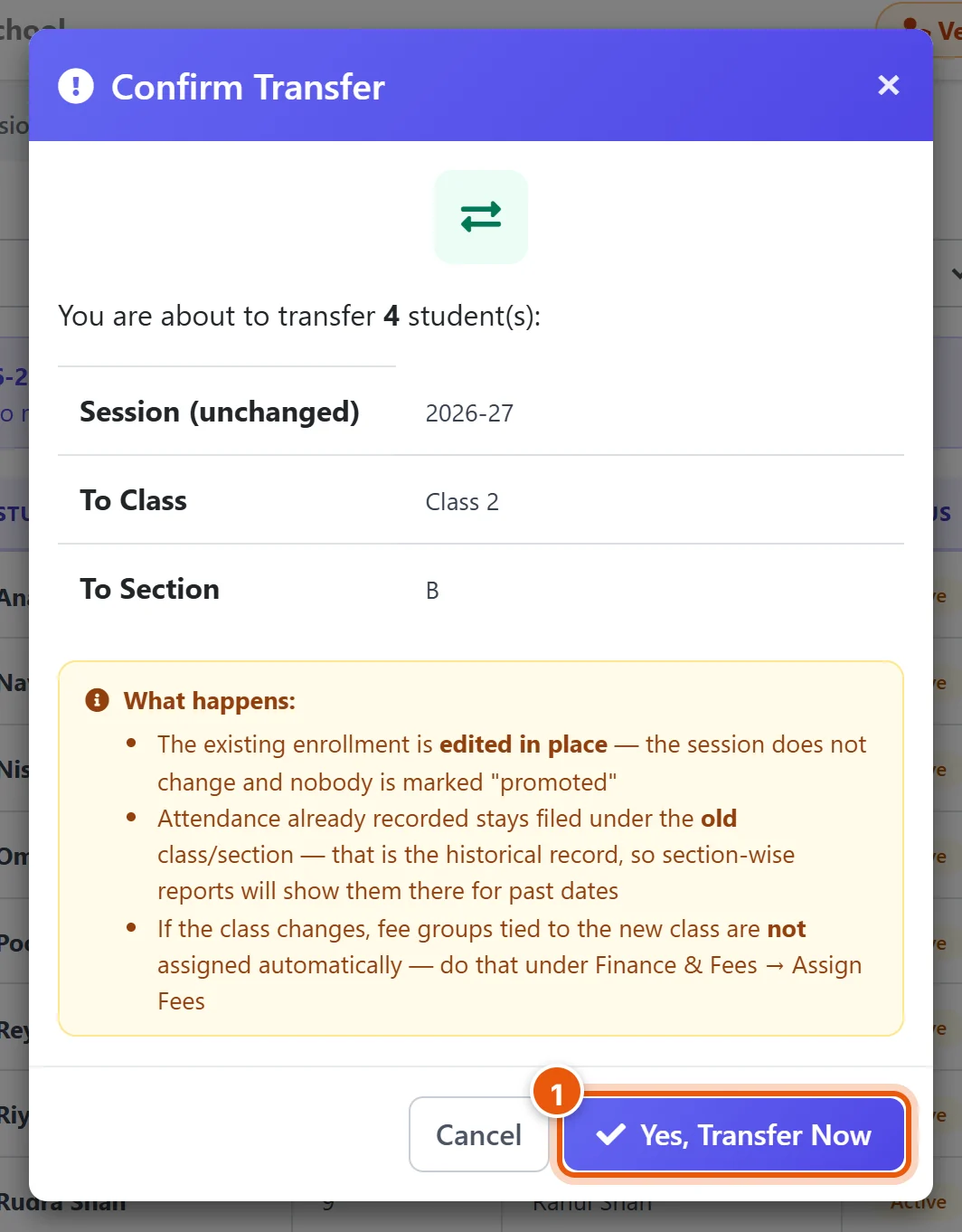
Check the number of students, the class and the section, then:
- Click Yes, Transfer Now.
A green message confirms how many students were moved. Students who were not moved stay in the list, so you can move another group right away.
What changes, and what doesn't
- Same year: the students stay in the current academic year. Nobody is marked as promoted.
- Fees: a section change does not touch fees. If you also change the class, the new class's fee groups are not added on their own. Add them in Finance & Fees → Assign Fees.
- Attendance: attendance already taken stays under the old section, because that is where the students were on those days. From now on, take their attendance in the new section.
- Exam marks: marks already entered move with the students. They are kept per class and subject, not per section, so they appear in the new section's marks list and report cards. If you change the class too, marks entered for the old class's exams do not carry over to the new class.
- Roll numbers: students keep their roll numbers. If a number is already used in the new section, the confirmation box lists the clashes and offers the next free numbers instead. Choose that unless you plan to renumber the section yourself.
- Subject teachers: the new section may have different subject teachers. Check them in Assign Class Teacher (see the related guide below).
Common problems
| What you see | Why | What to do |
|---|---|---|
| The new section is not in the list | It hasn't been created. | Add it on the Sections page, then reload this page. |
| "No active students found" | Nobody is in that class and section this year, or they were already moved. | Check you picked the right current class and section. |
| A student is missing from the list | Students who left or are suspended can't be moved. | Check the student's status in Student List. |
| Some students were "skipped" | They were already in that section. | Nothing to do. |
Related guides
Still stuck? Send us a screenshot on WhatsApp and we will guide you.
Chat on WhatsAppLast updated 13 October 2026