
Who does this: the school admin or principal.
How long it takes: about a minute per class.
When a teacher opens Enter Marks, they see only the subjects they teach. You decide which those are on one page, class by class.
Before you start
You need two things in place first:
- The teachers are added in Staff Directory, with the role Teacher. Only staff with the Teacher role appear in the list on this page.
- The subjects are linked to the class in Assign Subjects. If a class shows "No subjects assigned to this class", link its subjects first.
Step 1: Open the page
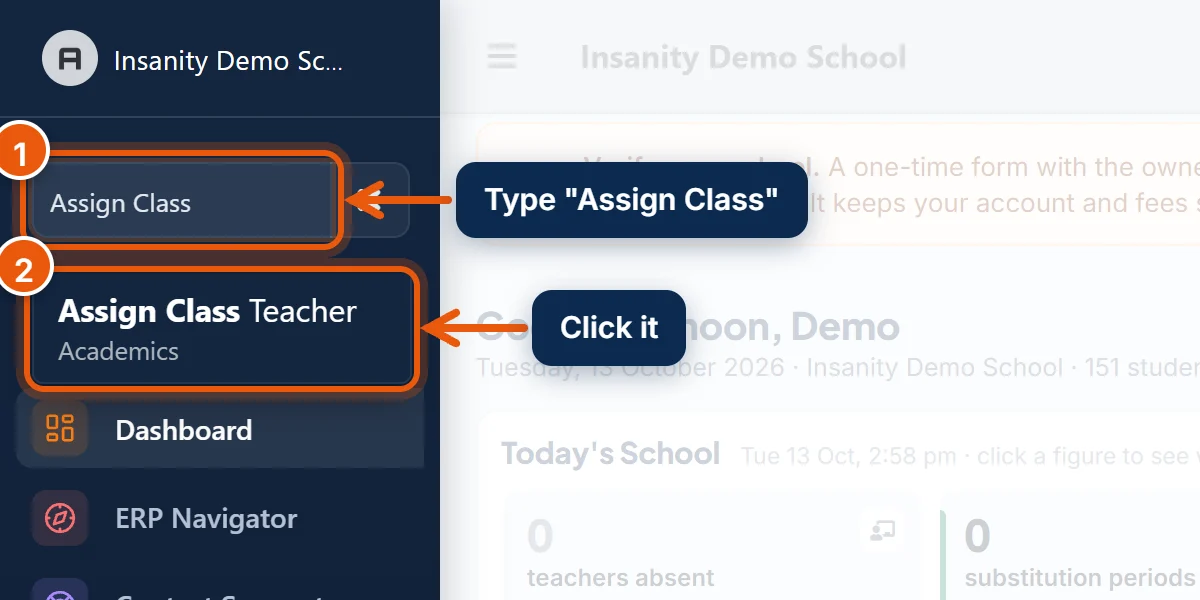
- In the search box at the top of the left menu, type Assign Class.
- Click Assign Class Teacher.
Note: The menu calls it Assign Class Teacher, but the page lets you choose a teacher for every subject. The page heading reads "Assign teachers to subjects per section".
Step 2: Choose a teacher for each subject
Every class has its own table. Each row is a subject, and each column is a section (A, B, C…).
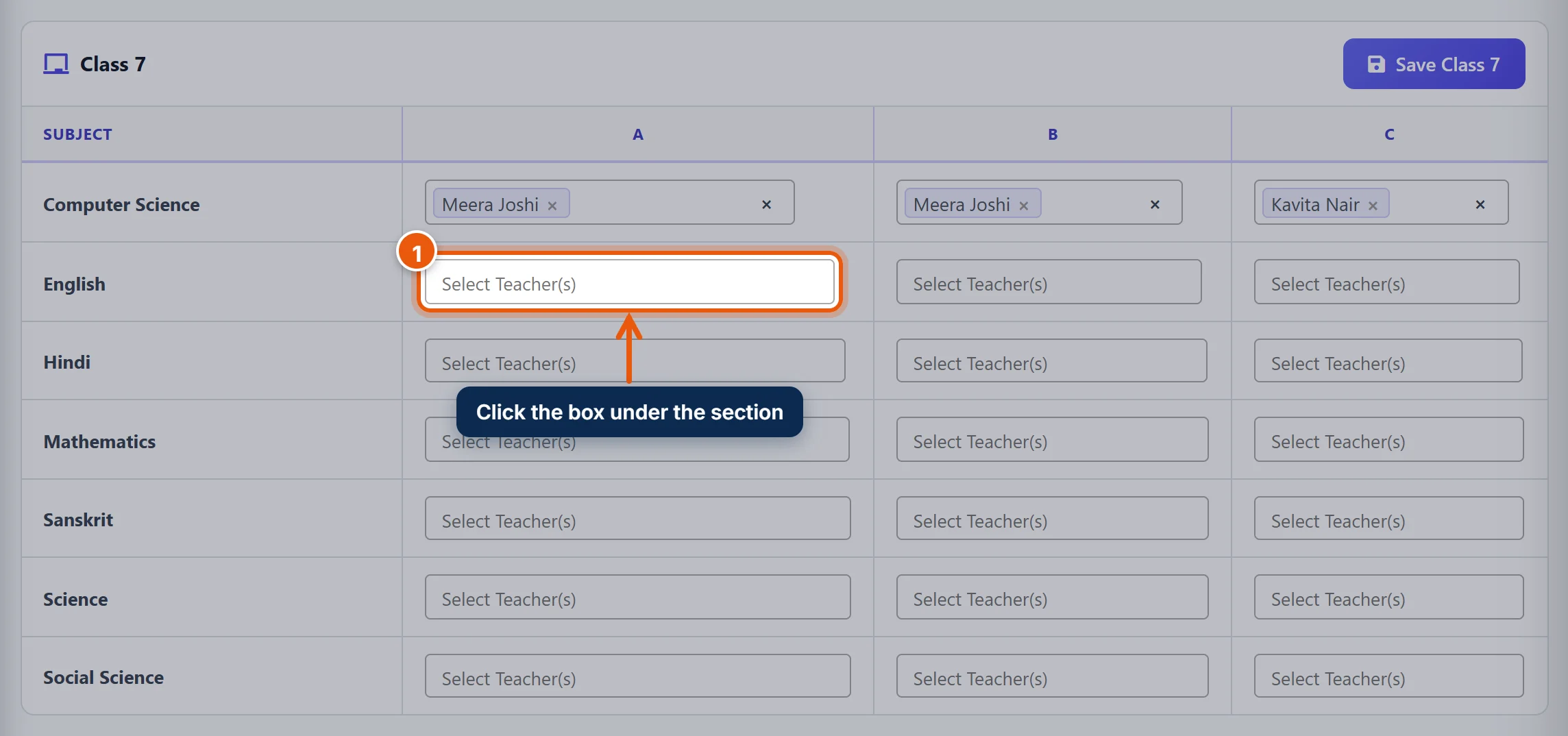
- Find the class, then click the box where the subject's row meets the section's column.
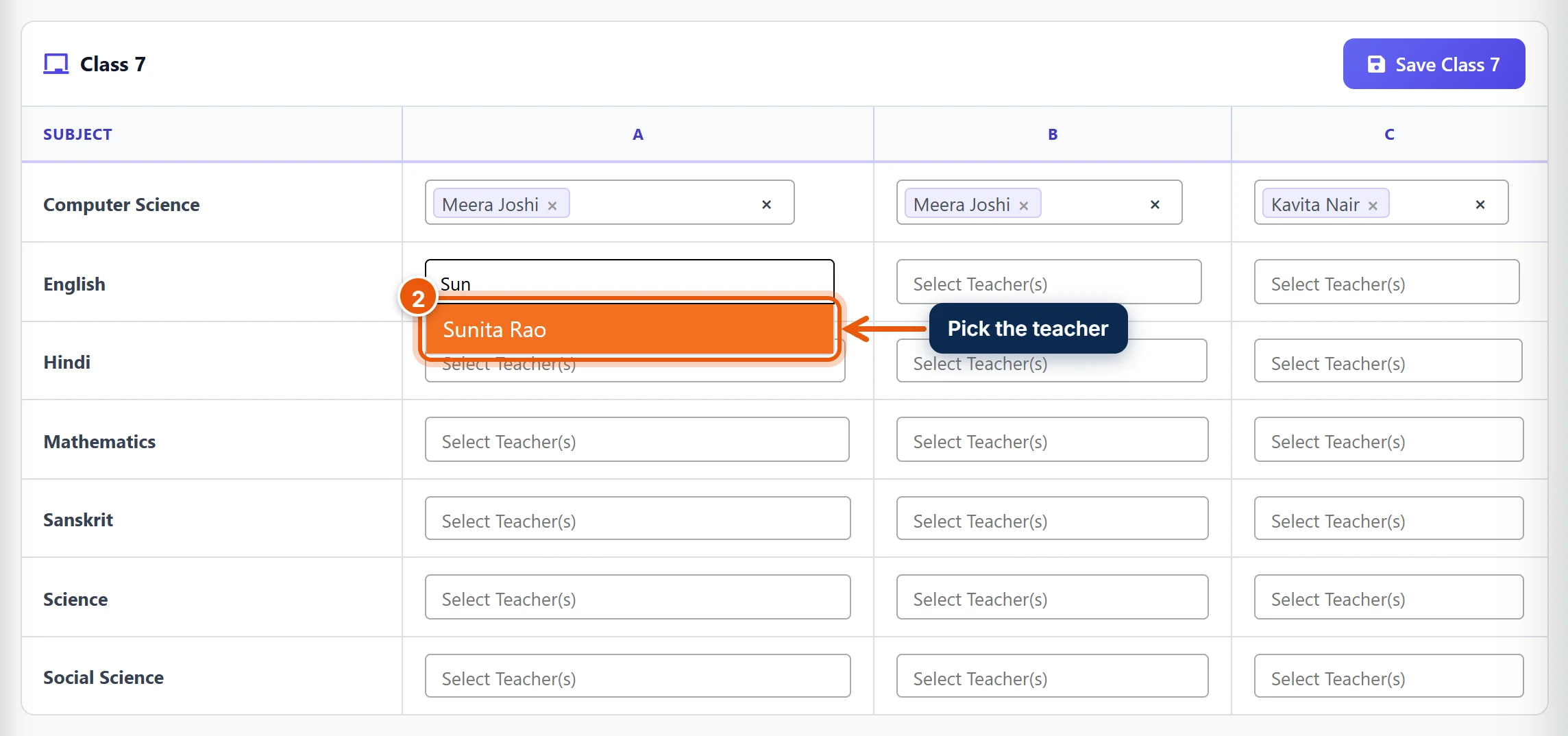
- Start typing the teacher's name and click it in the list.
Repeat for every subject and section. Different sections can have different teachers.
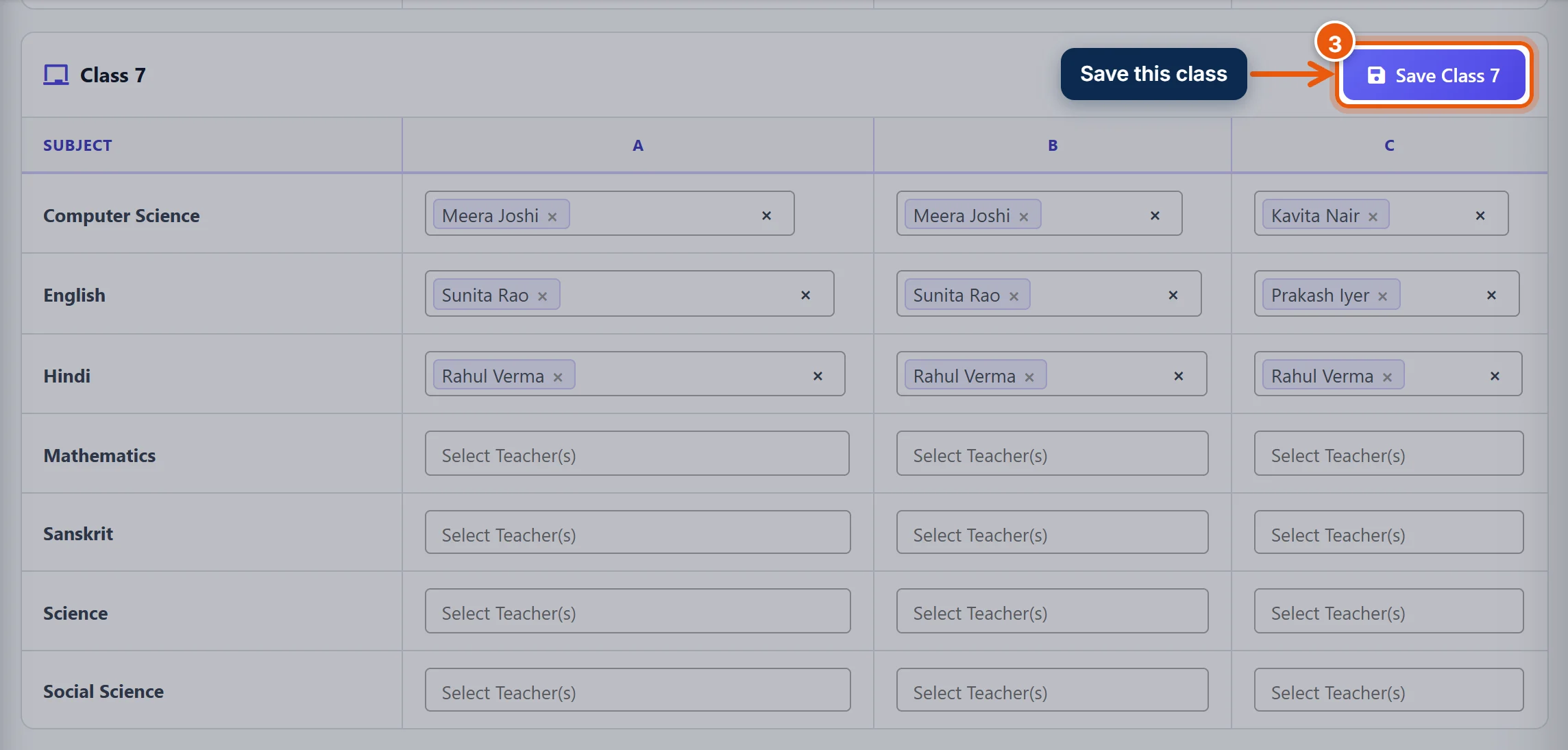
- Click Save Class 7 (the button shows your class's name) at the top right of the class's table.
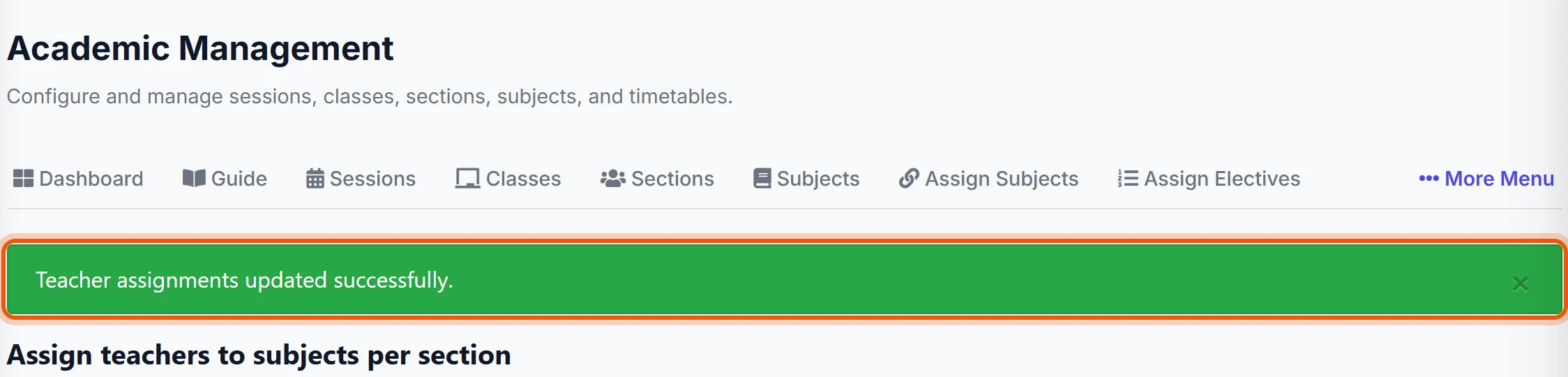
You will see the green message "Teacher assignments updated successfully."
Important: Each class saves on its own. If you change Class 6 and Class 7, click Save on both before leaving the page.
Step 3: The teacher enters marks
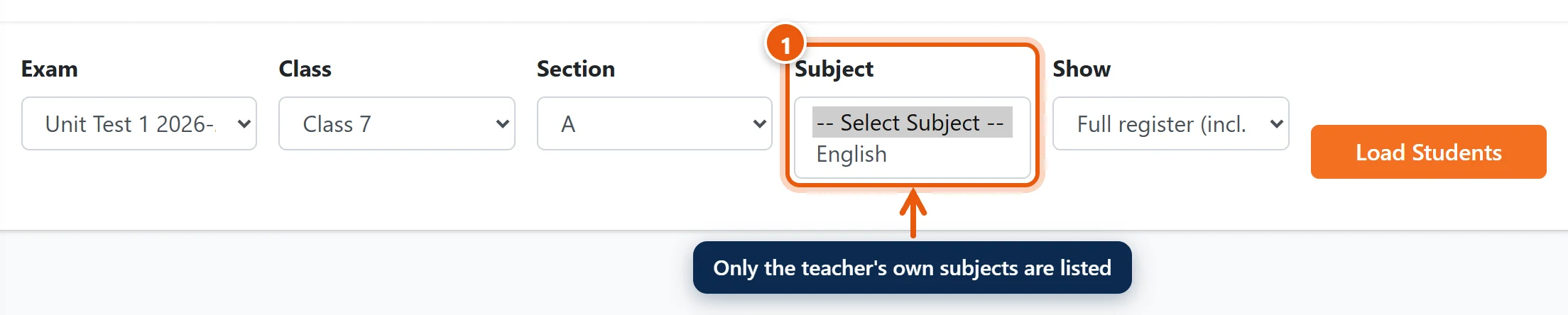
When the teacher logs in and opens Offline Examinations → Enter Marks, they choose the exam, class and section. The Subject list shows only the subjects you gave them.
Good to know
- Two teachers for one subject: you can pick more than one teacher in the same box, for example when two teachers share a subject. Both can enter marks.
- Removing a teacher: click the small × next to their name, then click Save for that class.
- A teacher changes mid-year: remove the old teacher, pick the new one, and save. Marks already entered stay as they are.
- Who else can enter marks: the class coordinator or section in-charge (set on the Classes and Sections pages) can enter marks for every subject of their class or section. A teacher with a period for that subject in the Class Timetable can too. To give someone every class, see Give teachers access to classes and sections (linked below).
- Teacher not in the list? Check their role in Staff Directory. Only staff with the role Teacher are listed.
Common problems
| What you see | Why | What to do |
|---|---|---|
| "No subjects assigned to this class" | The class has no subjects linked yet. | Link them in Assign Subjects, then come back. |
| The teacher sees no subjects in Enter Marks | They are not assigned to that class and section, or the change was not saved. | Check the class here and click its Save button. |
| The teacher can see the subject but cannot type marks | The marks were already submitted or locked. | As the admin, open the same marks in Enter Marks and click Unlock. |
Related guides
- Choose the subjects taught in each class
- Enter exam marks (for teachers)
- Add a teacher and give them a login
- Give teachers access to classes and sections
Still stuck? Send us a screenshot on WhatsApp and we will guide you.
Chat on WhatsAppLast updated 13 October 2026