
Who does this: the school admin.
How long it takes: a minute to give someone a role; about five minutes to make your own role.
A staff member's role decides what they see and can do in SchoolAlgo: which menus appear, which dashboard they get, and which pages they can open.
SchoolAlgo comes with built-in roles that every school uses. Most schools never need anything else:
| Role | Meant for |
|---|---|
| School Admin | The school's main account. Full access, including settings and subscription. |
| Principal | The head of the school. Sees the whole school, but not settings or subscription. |
| Teacher | Teachers: attendance, marks, homework, lesson plans. |
| Accountant | Fees, receipts, income and expenses, fee reports. |
| Academic Master | The academic coordinator: classes, subjects, timetable, exams and report cards. |
| Librarian | The library. |
| Receptionist | Front office: enquiries, visitors, gate passes. |
| Lead Counsellor | Admission enquiries (leads). |
| Security | Gate passes at the school gate. |
If you want someone to have more or less than a built-in role allows, make your own version of that role (Step 3). Your own roles are seen only by your school.
Step 1: Open Roles & Permissions
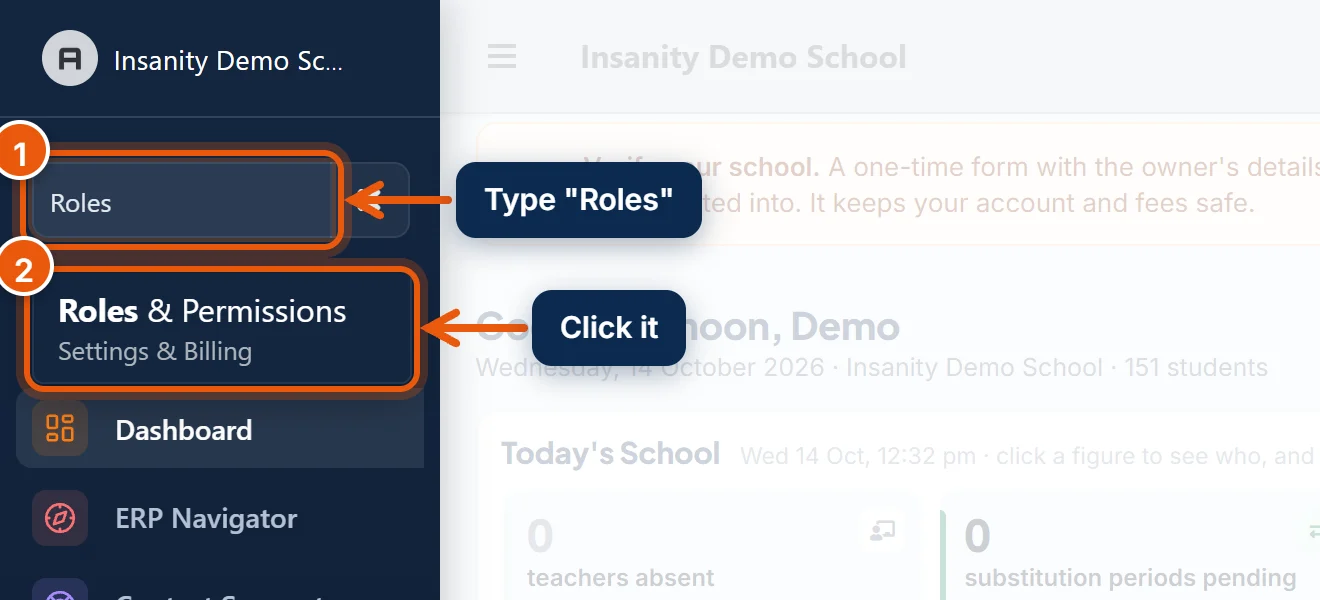
- In the search box at the top of the left menu, type Roles.
- Click Roles & Permissions. It is under Settings & Billing in the menu.
Step 2: See what a built-in role allows
The page has two parts: Your school's roles at the top (empty until you make one), and Built-in roles below. Each row shows the permission groups the role has, with the number of permissions in each group.
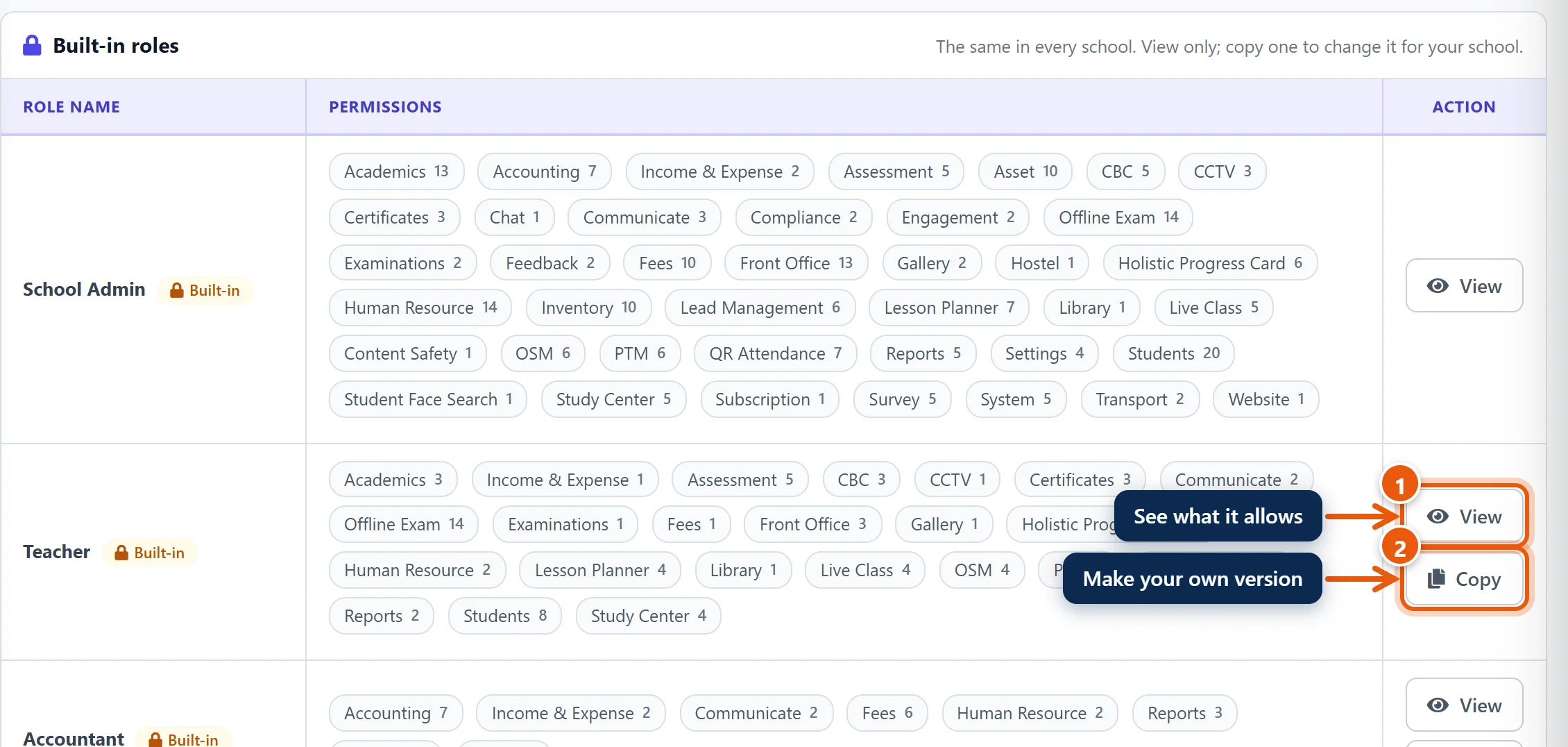
- Click View to see every permission the role has, ticked.
- Click Copy to make your own version of it (next step).
Built-in roles are the same in every school on SchoolAlgo, so you can view them but not change them here.
Step 3: Make your own version of a role
For example, you want one senior teacher to also handle admission enquiries. Copy Teacher and add the front office permissions.
- Click Copy on the role you want to start from. All its permissions are already ticked.
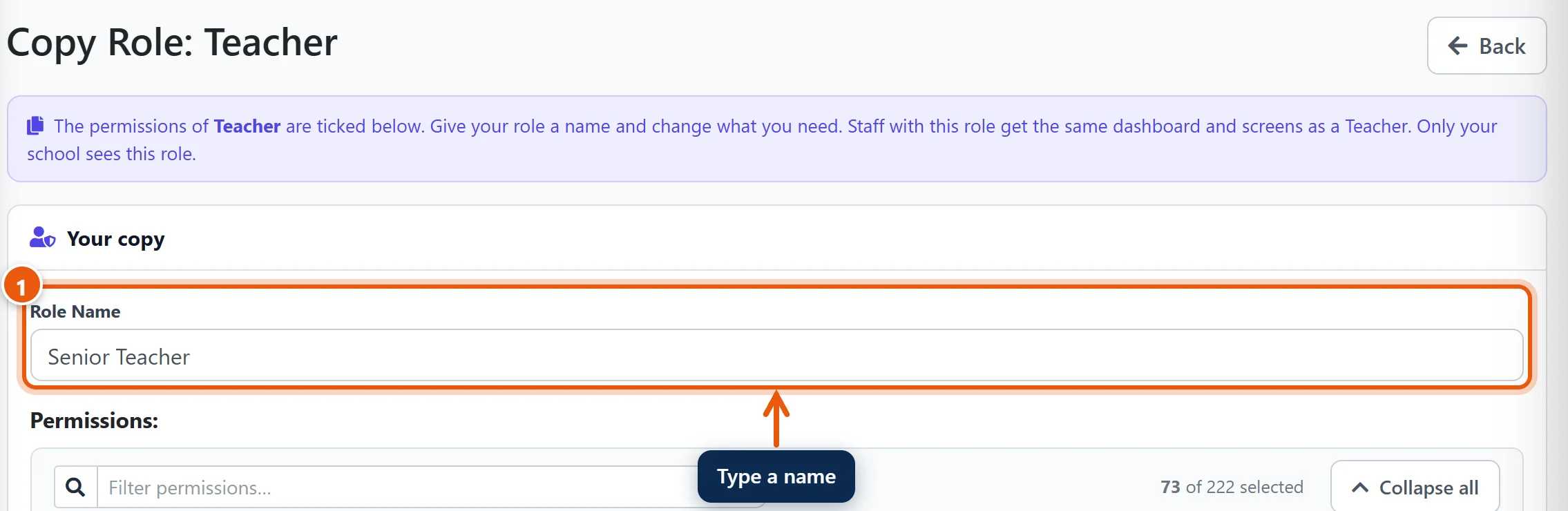
- In Role Name, type a name, for example Senior Teacher. It must not be the name of a built-in role or of another of your roles.
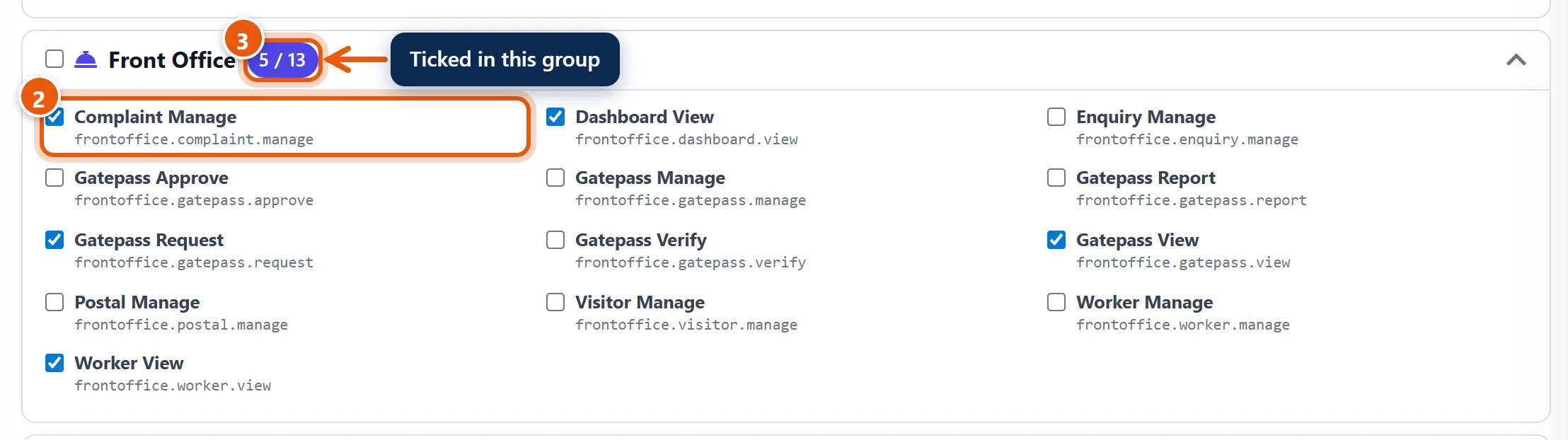
- Tick the permissions to add, and untick the ones to take away. Permissions are grouped by area (Fees, Front Office, Library and so on), and the number next to each group shows how many are ticked. To find one quickly, type in Filter permissions at the top. The tick box next to a group name ticks or unticks the whole group.
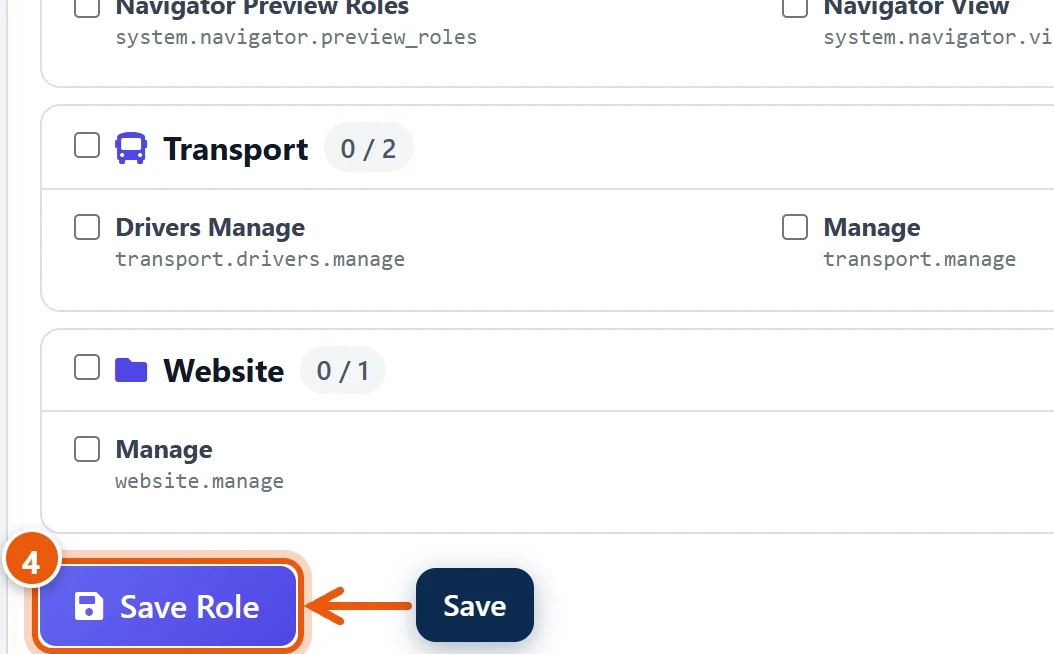
- Scroll to the bottom and click Save Role.
Your role now appears under Your school's roles:
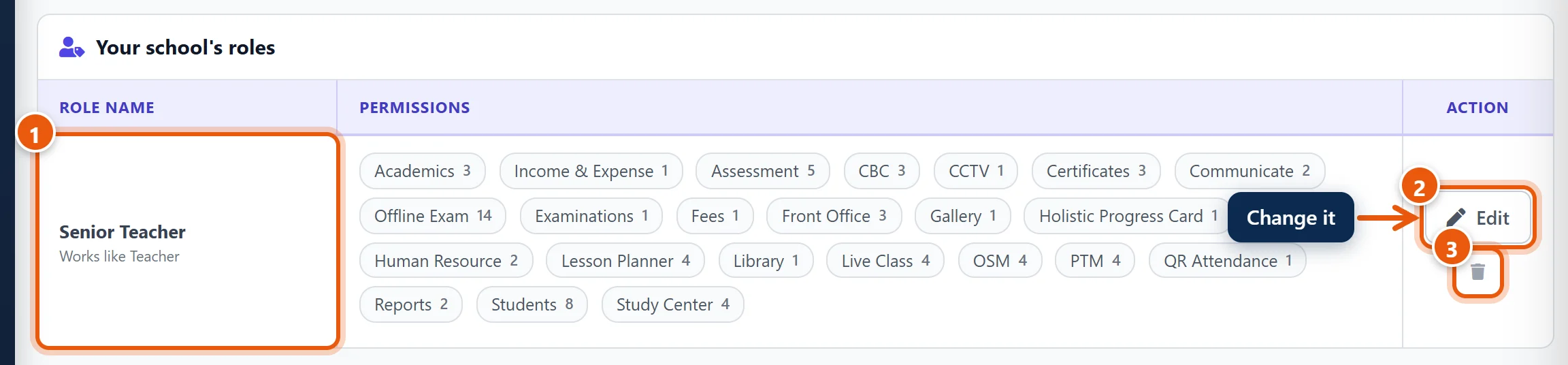
- Works like Teacher means staff with this role get the same dashboard and screens as a teacher. What they can open is set by the permissions you ticked.
- Click Edit to change the name or the permissions later. Changes apply to everyone with the role the next time they open a page.
- Click the bin to delete the role. You can delete a role only when no staff member has it. Give those people another role first (Step 4).
Tip: you can't copy School Admin, because a copy would also get the school's admin-only powers. For a deputy who needs almost everything, copy Principal.
Step 4: Give a staff member a role
Each staff member has one role. You choose it when you add them (see Add a teacher, linked below), and you can change it at any time:
- Open Staff Directory (type it in the menu search).
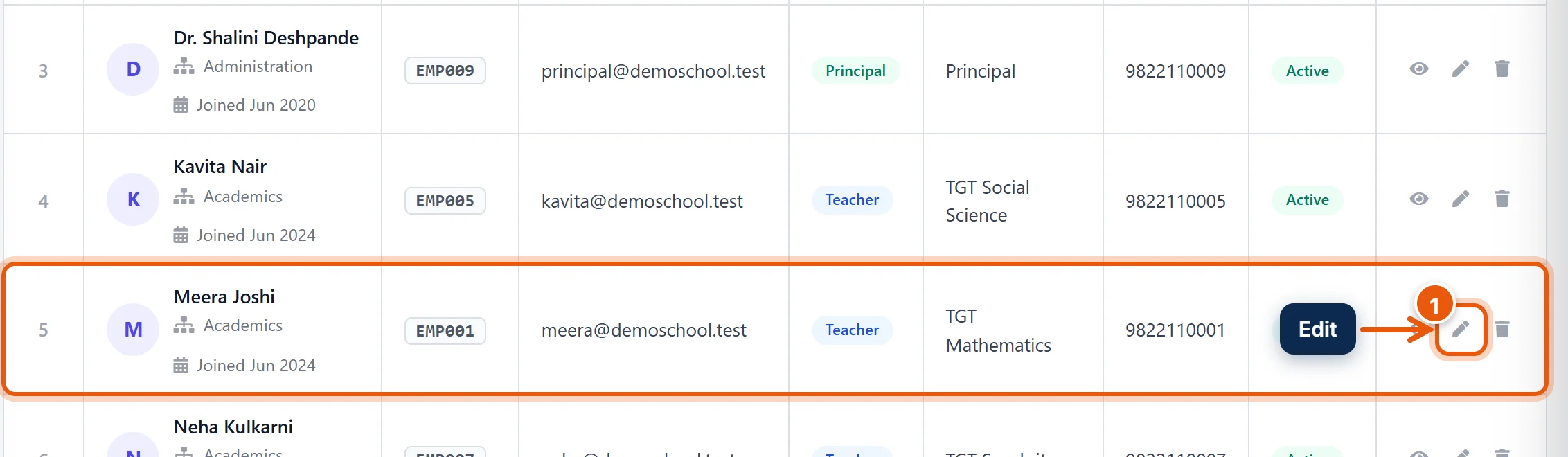
- Click the pencil (Edit) next to the staff member.
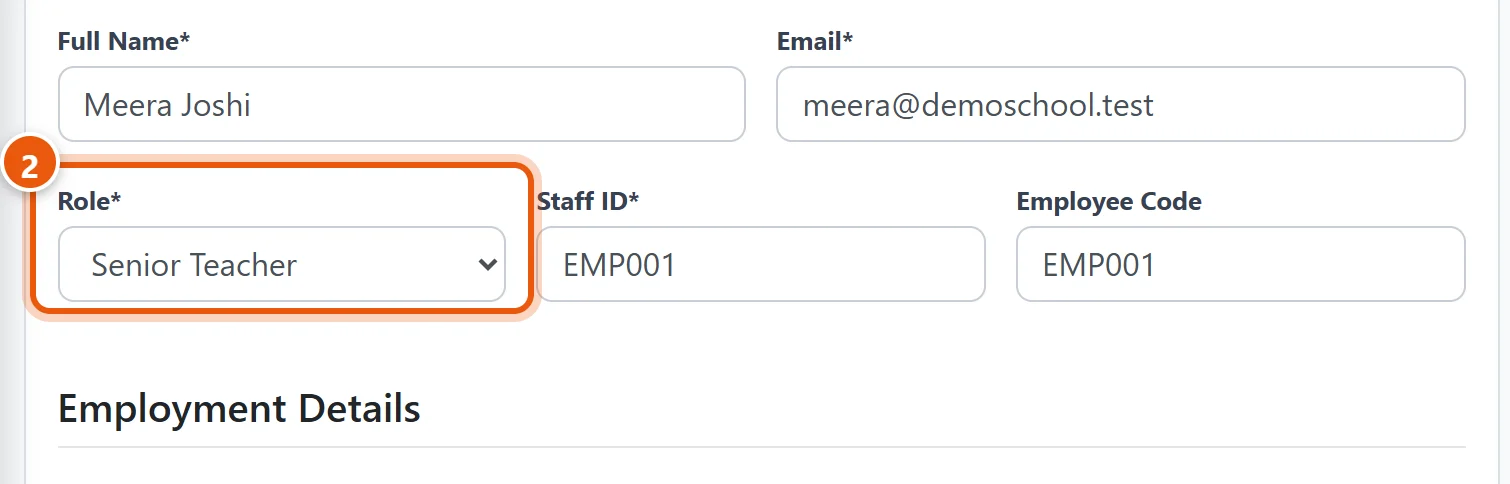
- In Role, choose the role, for example Senior Teacher. The list shows the built-in roles and your own roles.
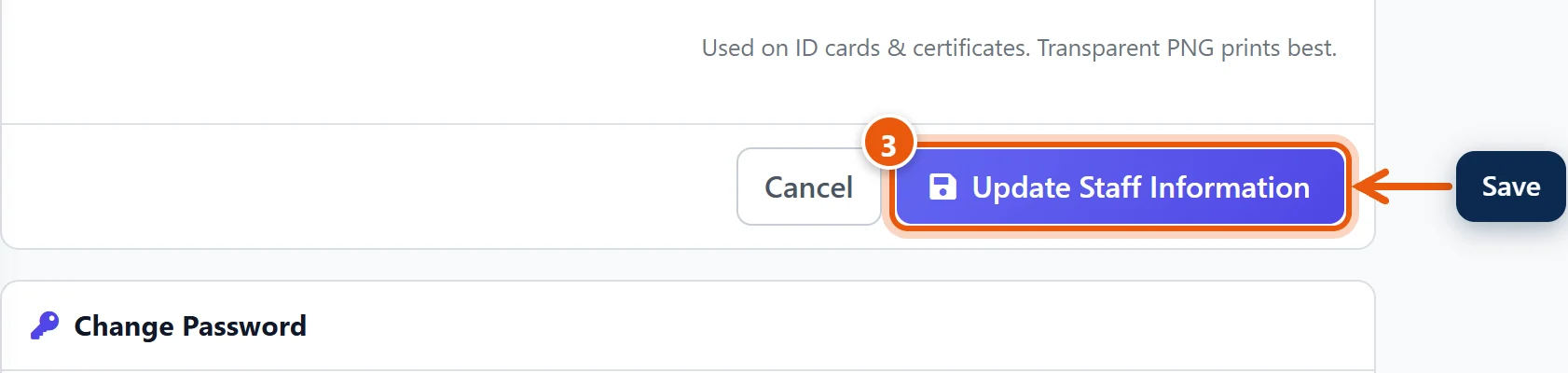
- Scroll down and click Update Staff Information.
The staff member gets the new menus the next time they open a page. Their login and password do not change.
Make a role from scratch
To make a role that is not like any built-in role (for example Transport Manager), click Add New Role at the top right of the Roles & Permissions page. Nothing is ticked: type a name, tick only what the person needs, and click Save Role. Staff with such a role get the general staff dashboard, and a menu with only the pages their permissions allow.
Common questions
Why can't I edit the Teacher role? Built-in roles are shared by every school on SchoolAlgo. Copy the role and change the copy instead. Your copy is seen only by your school.
A staff member can't see a page they need. Open their role (View for a built-in role, Edit for your own) and check that the permission for that page is ticked. If it is a built-in role, copy it, tick the permission, and give the copy to the staff member.
Does changing a role log people out? No. They keep working and see the change on the next page they open.
Can two schools have a role with the same name? Yes. Your roles belong to your school only, so the name only has to be unique within your school.
Related guides
- Add a teacher and give them a login
- Assign subject teachers so they can enter marks
- Give teachers access to classes and sections
Still stuck? Send us a screenshot on WhatsApp and we will guide you.
Chat on WhatsAppLast updated 14 October 2026