
Who does this: the school admin or principal.
How long it takes: a few minutes for the whole school.
Each class needs its list of subjects before you can assign subject teachers, set up exams or enter marks. Do this once at the start of the year, and again whenever a class's subjects change.
Step 1: Open the page
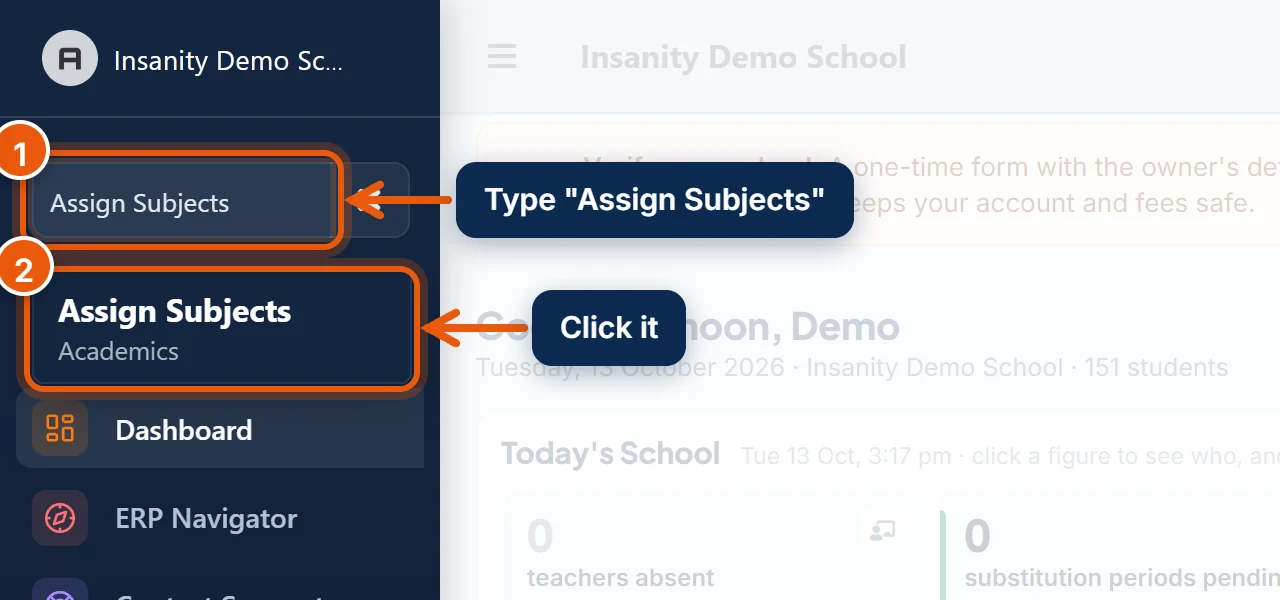
- In the search box at the top of the left menu, type Assign Subjects.
- Click Assign Subjects.
Step 2: Tick each class's subjects
The classes are listed on the left. Next to each class you can see how many subjects it has, or none.
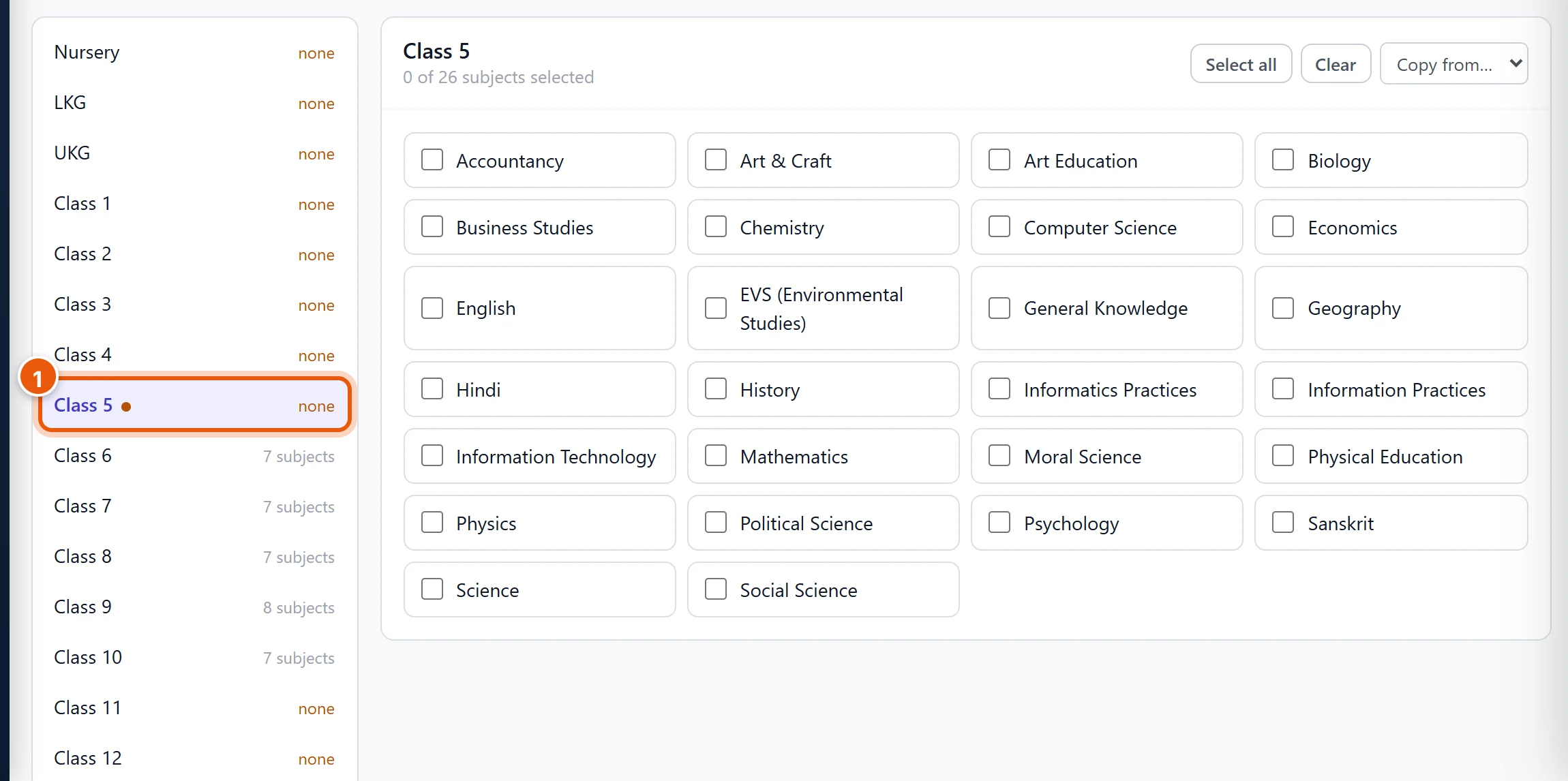
- Click a class in the list on the left. Its subjects appear on the right.
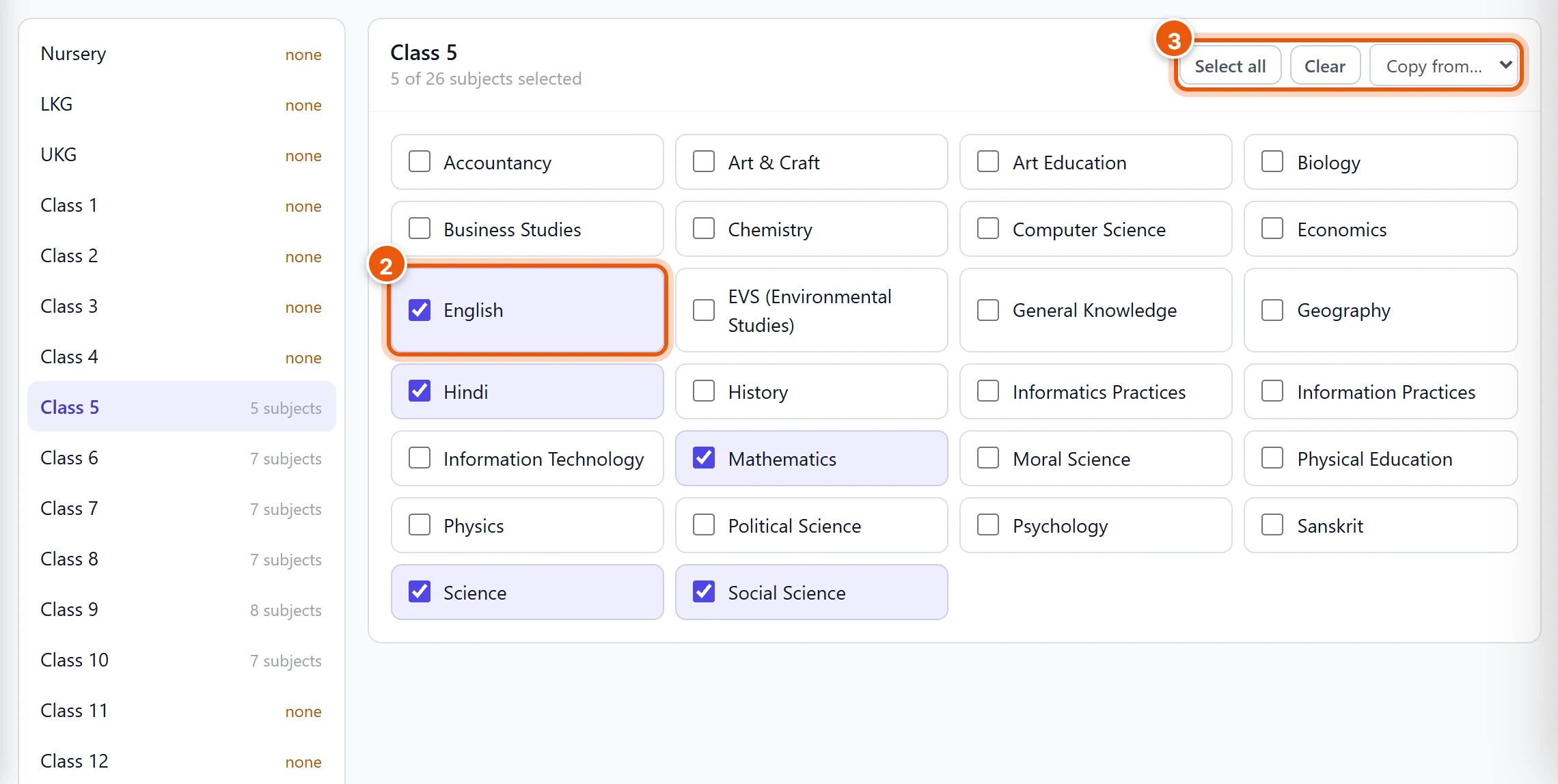
- Tick every subject the class studies. Untick any it doesn't.
- Shortcuts at the top right of the class:
- Select all ticks every subject.
- Clear unticks them all.
- Copy from… copies the ticks of another class. This is handy when Class 4 has the same subjects as Class 3: open Class 4, choose Class 3 in Copy from…, then change only what's different.
Repeat for the other classes. A small dot next to a class name means it has changes that are not saved yet.
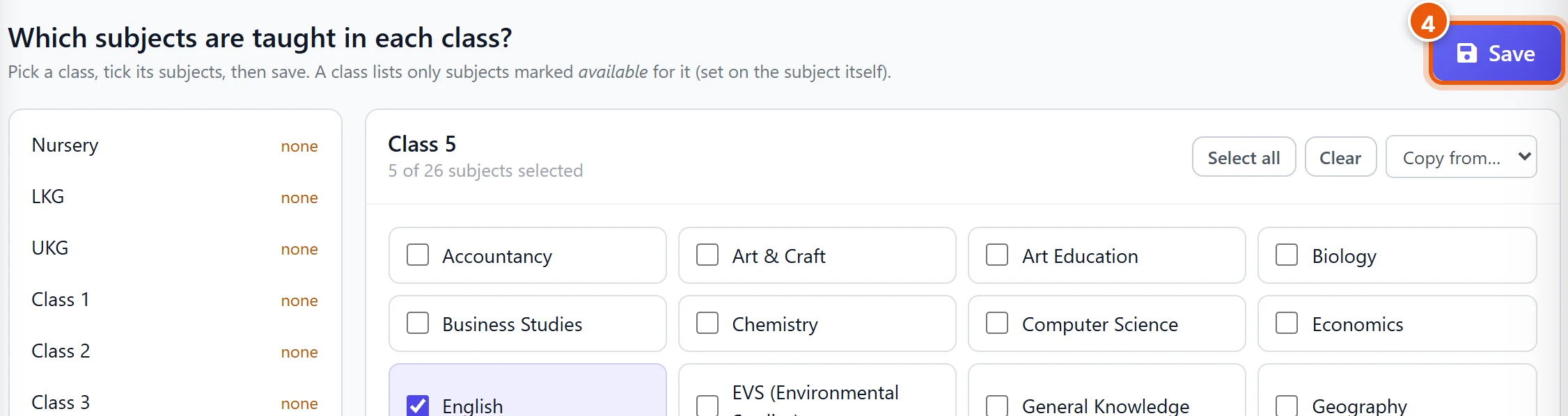
- Click Save at the top right of the page. One Save stores the changes for every class, so you can do all the classes first and save once at the end.
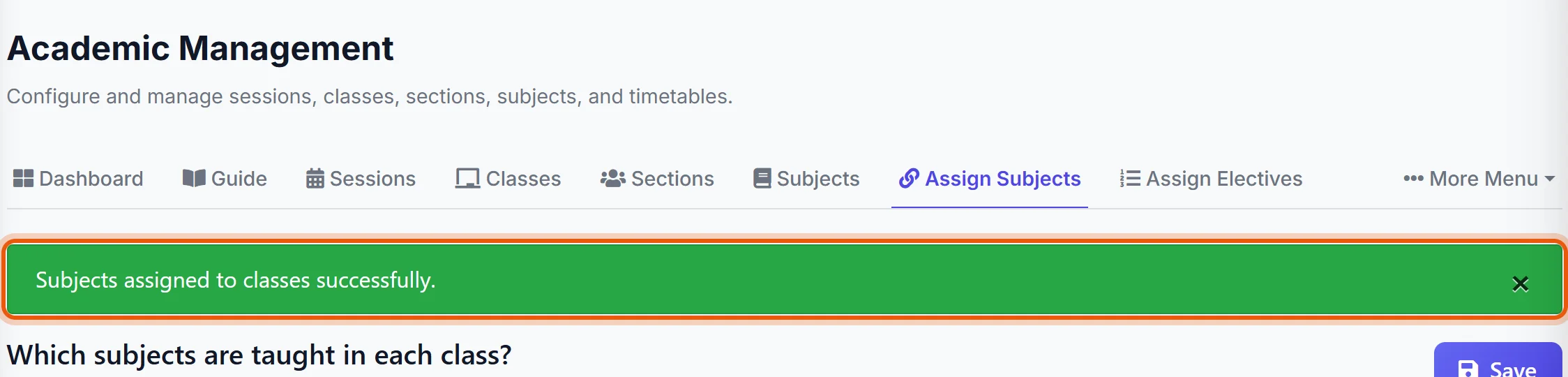
You will see the green message "Subjects assigned to classes successfully."
Important: Don't leave the page before clicking Save, or your ticks will be lost. The page warns you if you try.
What next
Once a class has its subjects, choose which teacher teaches each subject in each section. See Assign subject teachers so they can enter marks below.
Good to know
- A subject is missing from the list: each subject can be limited to certain classes. Open Subjects in the menu, edit the subject, and tick the class under Available for Classes (or leave all unticked so it shows for every class).
- A subject is not in the school at all: add it first on the Subjects page, then come back here.
- Removing a subject: untick it and click Save. Only remove a subject if the class really doesn't study it this year.
- Sections: subjects are chosen per class, not per section. Classes 6-A, 6-B and 6-C all get the same subjects.
Related guides
Still stuck? Send us a screenshot on WhatsApp and we will guide you.
Chat on WhatsAppLast updated 13 October 2026