
Who does this: the school admin or principal.
How long it takes: about two minutes per teacher.
Setting up a teacher has three parts:
- Add the teacher and give them their login (this guide).
- Make them a class teacher of a section, if they have one (this guide).
- Give them their subjects, so they can enter marks (see Assign subject teachers, linked below).
Step 1: Open Staff Directory
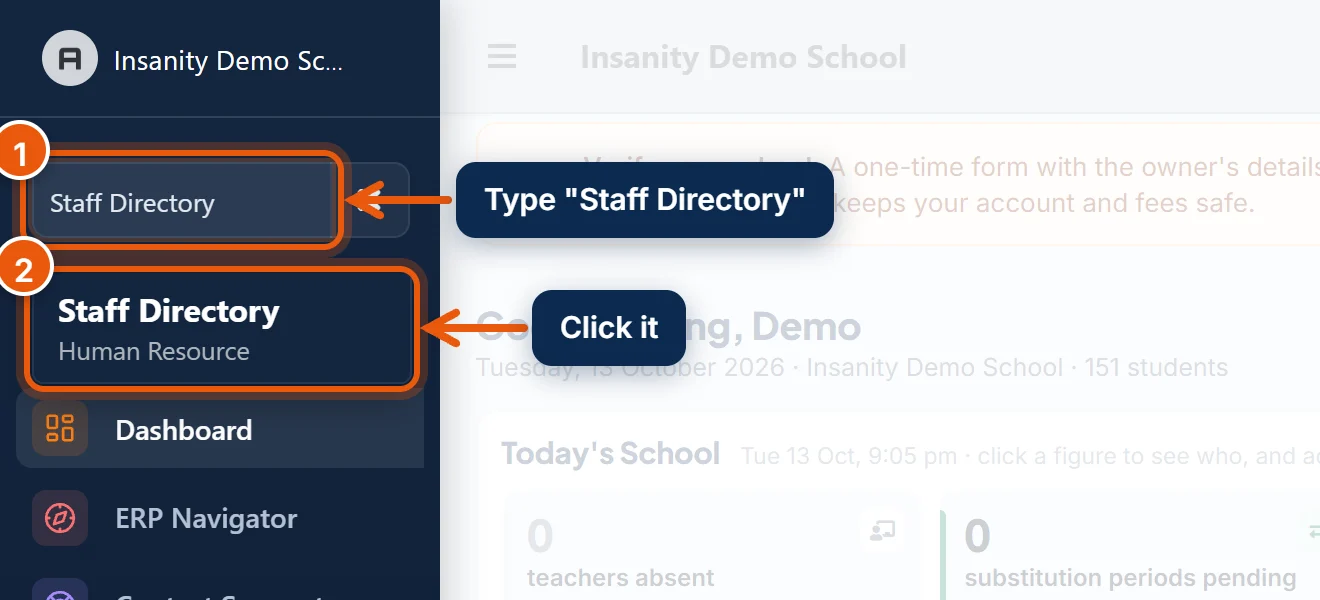
- In the search box at the top of the left menu, type Staff Directory.
- Click Staff Directory.
Step 2: Click Add Staff
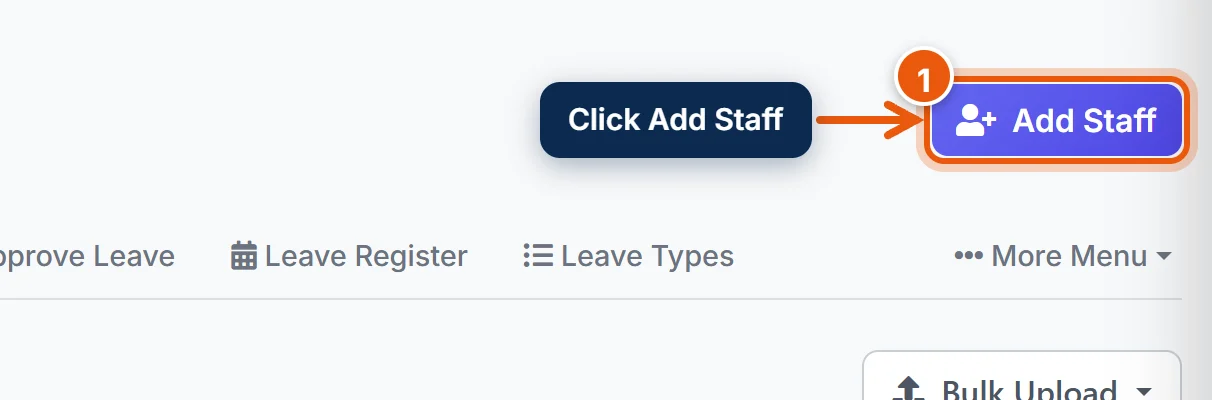
- Click Add Staff at the top right.
Step 3: Fill in the teacher's details
Only the fields marked with a red * are required. You can fill in the rest later.
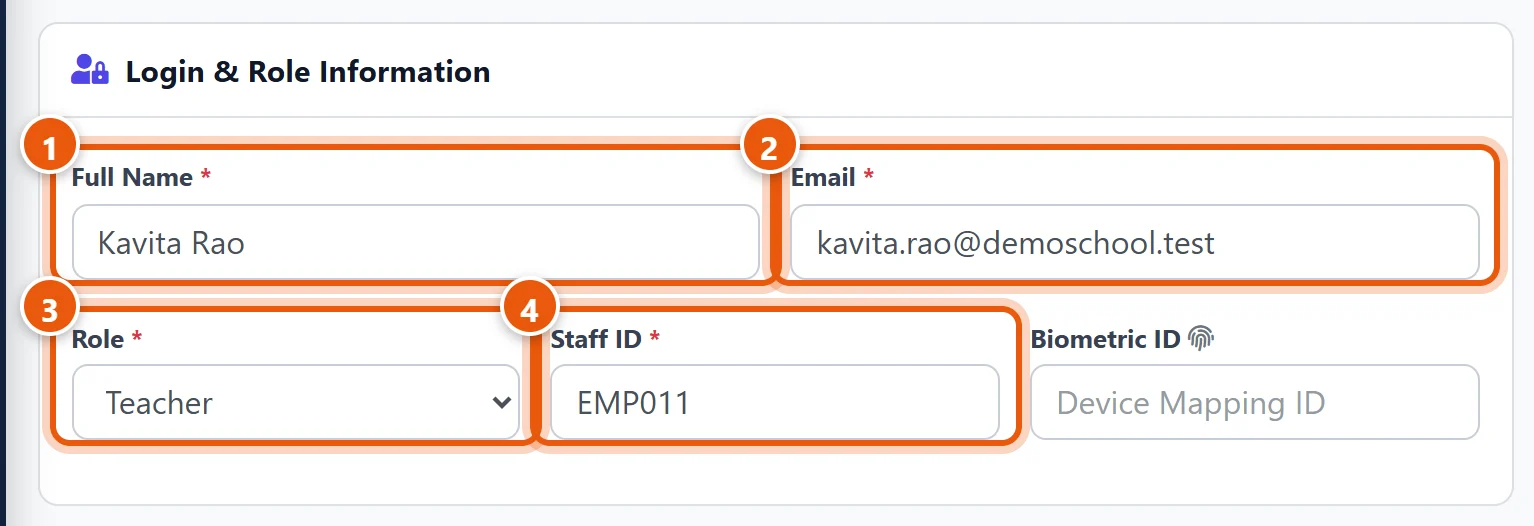
- Full Name: as it should appear on report cards and timetables.
- Email: the teacher's own email address. This is their login. Each person needs a different email, and it must not already be used in SchoolAlgo.
- Role: choose Teacher. The role decides which menus they see.
- Staff ID: your school's employee number, for example EMP011. It must be unique. The teacher can also sign in to the Staff app with it.
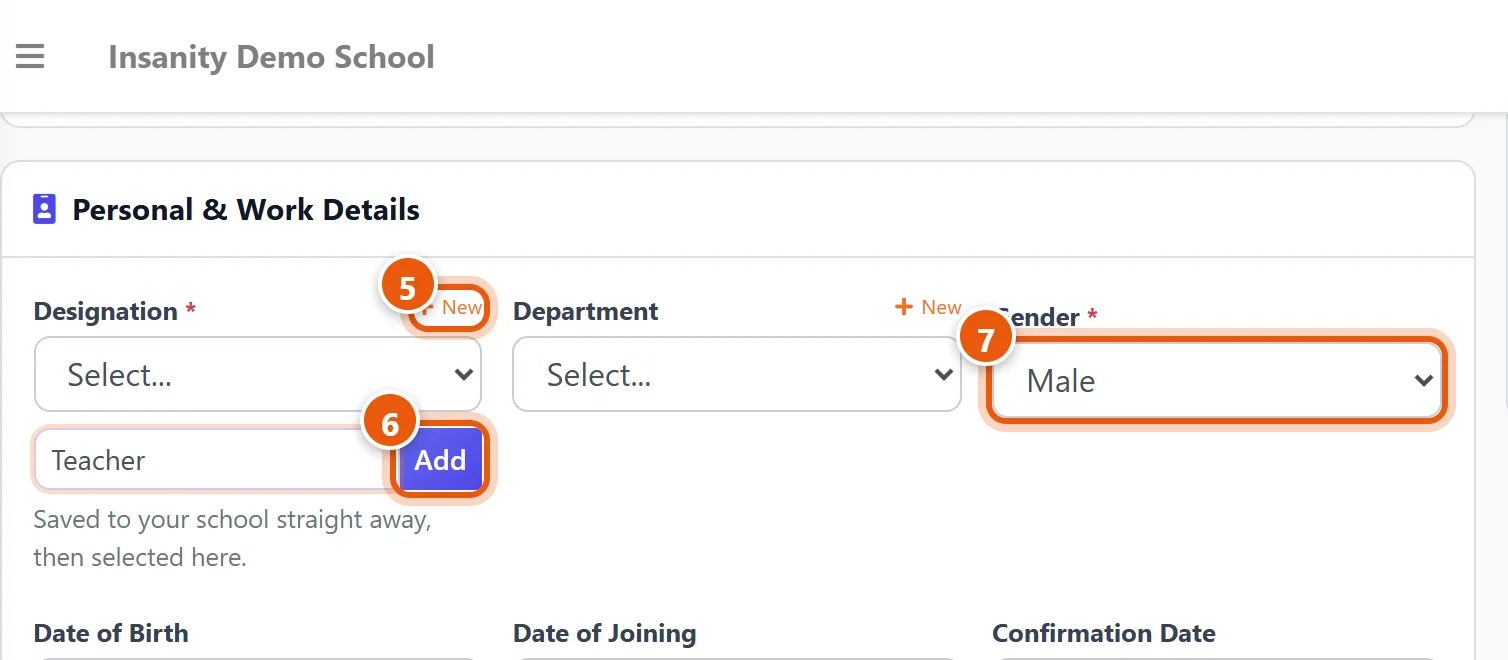
- Designation: choose one, for example Teacher or TGT English. If the list is empty (the first time), click + New next to Designation...
- ...type the designation and click Add. It is saved and selected straight away, and is in the list for every teacher after this.
- Gender.
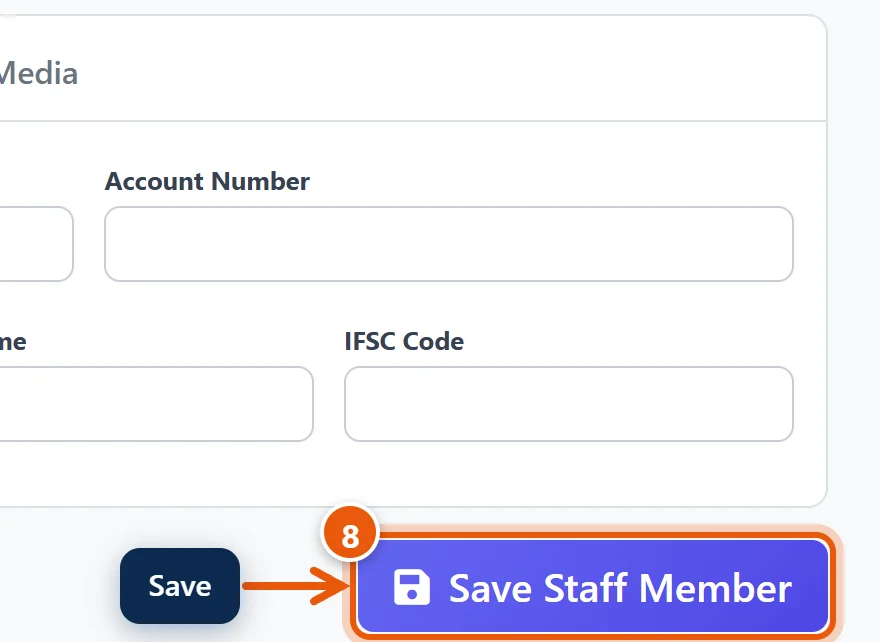
- Scroll down and click Save Staff Member.
Step 4: Copy the login and share it

After saving, the teacher's page opens with a yellow box at the top showing their login (email) and password.
Copy the password now. It is shown only once and is not stored anywhere you can see it later. Send both to the teacher, for example on WhatsApp, and tell them to:
- sign in at app.schoolalgo.com, or
- install the SchoolAlgo Staff app and sign in with the email (or Staff ID) and the same password.
Note: the Staff app ties itself to the first phone the teacher signs in on. If they change phones later, open their profile, click Edit Profile, and click Reset Device.
Lost the password?
Open the teacher in Staff Directory, click Edit Profile, and set a new password in the password box. Share the new one with the teacher. The old password stops working.
Step 5: Make them a class teacher (optional)
The class teacher (section in-charge) of a section can enter marks for every subject of that section. Skip this step if the teacher is not a class teacher.
- Open Academics → Sections, and click Edit next to the section, for example Class 7 – A.
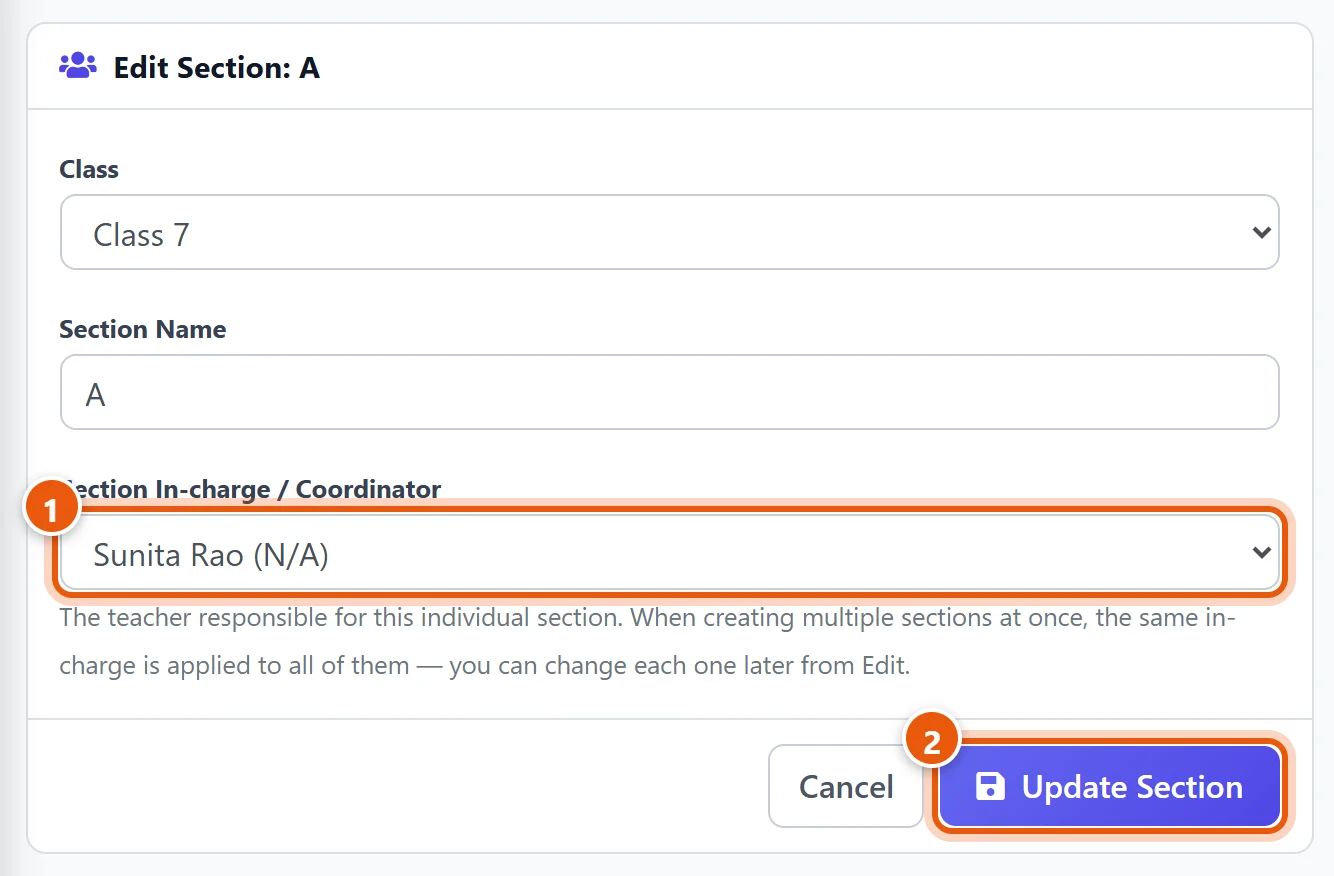
- In Section In-charge / Coordinator, choose the teacher.
- Click Update Section.
The Sections list shows each section's in-charge, so you can check them all at a glance.
Step 6: Give them their subjects
A teacher can enter marks only for the subjects given to them. Open Assign Class Teacher and tick the teacher for each subject and section they teach. The related guide Assign subject teachers so they can enter marks shows how, step by step.
Good to know
- Many teachers at once: see Add many teachers and staff at once from Excel, linked below.
- A teacher leaves: do not delete them, because their past marks and attendance stay linked to them. Click Edit Profile, set Employment Status to Resigned, and fill in the Exit Date.
- Office staff: add accountants, the principal and others the same way, just with a different Role.
Related guides
- Assign subject teachers so they can enter marks
- Add many teachers and staff at once from Excel
- Enter exam marks (for teachers)
- Give teachers access to classes and sections
Still stuck? Send us a screenshot on WhatsApp and we will guide you.
Chat on WhatsAppLast updated 13 October 2026