
Who does this: the subject teacher. The class teacher (section in-charge) can enter marks for every subject of their section.
How long it takes: about five minutes per class.
Before you start
- You need your own teacher login. If you do not have one, ask the school admin.
- The school admin must have given you the subject for that section, in Assign Class Teacher. Otherwise the class or subject does not appear in your lists. See the related guide below.
- The exam must already be set up, with the subject's maximum marks. See Set up an exam below.
Step 1: Open Enter Marks
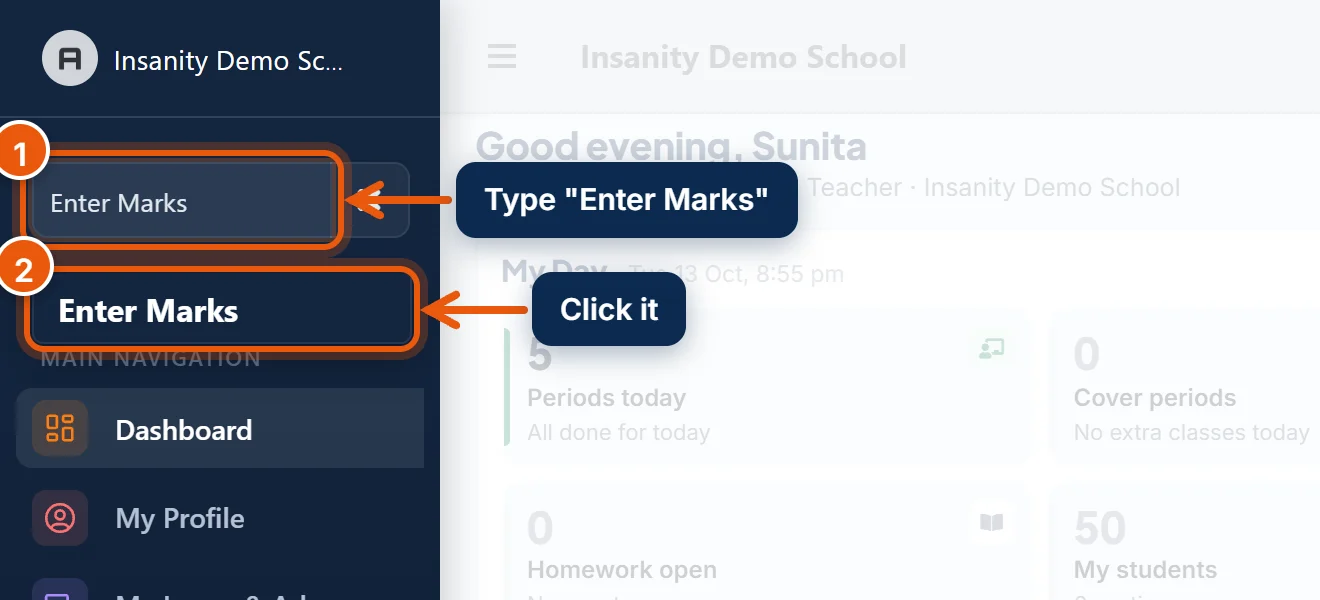
- In the search box at the top of the left menu, type Enter Marks.
- Click Enter Marks.
Step 2: Choose the exam, class and subject

- Exam: for example Unit Test 1.
- Class: only the classes you teach are listed.
- Section.
- Subject: only your subjects are listed.
- Click Load Students.
Subject is greyed out, or the page says it is not in this exam? The exam has no marks set up for that subject yet. Ask the exam in-charge or school admin to add it in the exam's marks setup.
Step 3: Type the marks
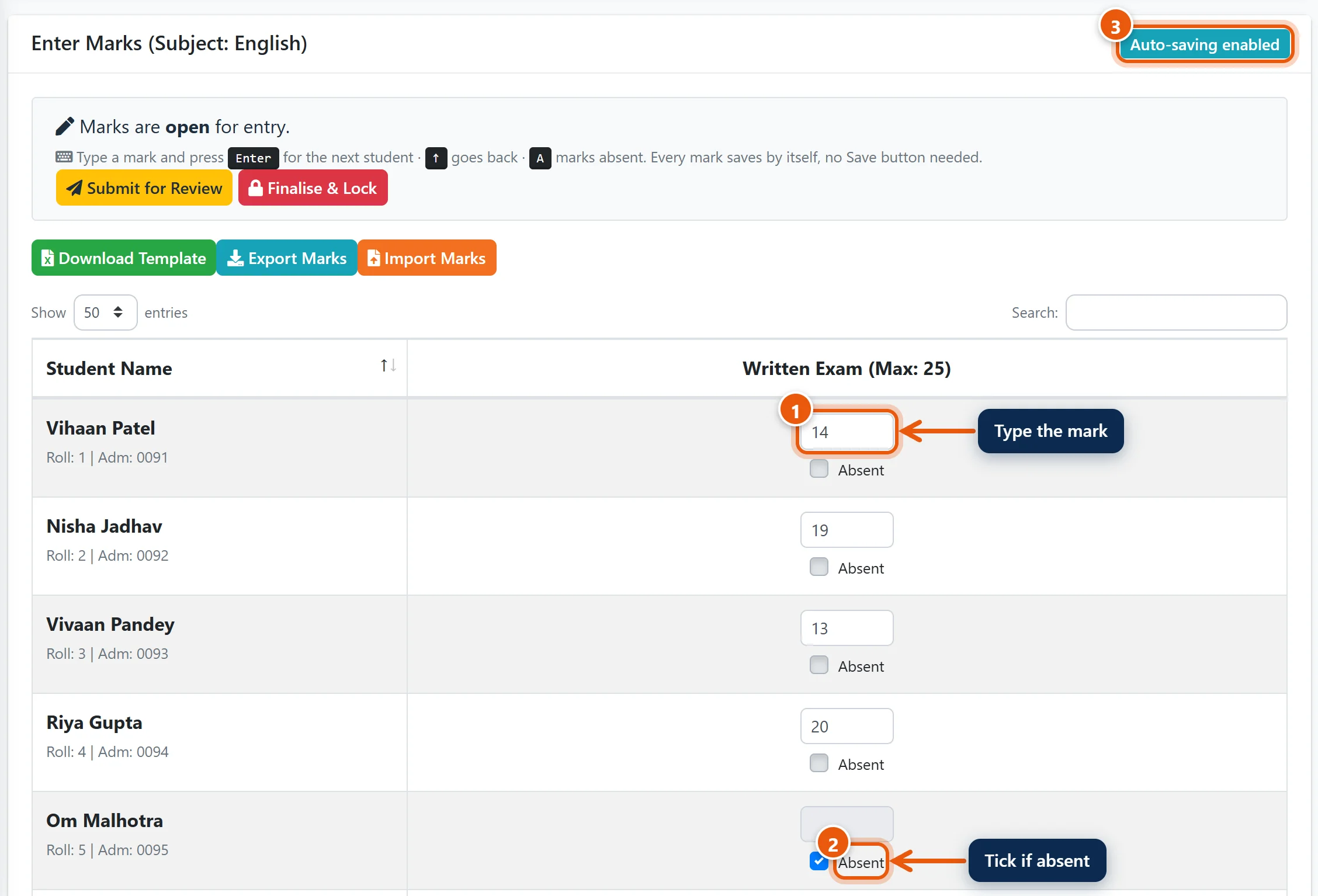
- Click the first student's box and type the mark. Press Enter to move to the next student, or the ↑ key to go back.
- If a student missed the exam, tick Absent (or press A in their box). Absent is not the same as 0: report cards show them as absent.
- Every mark saves by itself. There is no Save button. The badge at the top right shows All marks saved once everything has gone through.
The column heading shows the maximum marks, for example Written Exam (Max: 25). A mark above the maximum is not accepted, and its box turns red. Correct it and it saves.
If the exam has more than one part (for example Written and Oral), each part has its own column. Fill in all of them.
Tip: Do not close the page while a box is red. That mark is not saved. The page warns you if you try.
Step 4: Submit for review

- When every student has a mark or is marked absent, click Submit for Review, then OK.

The page then says Marks have been submitted for review. You can no longer change these marks. Do this for each of your subjects and sections.
Note: leave Finalise & Lock to the exam in-charge or school admin, unless your school asks you to do it. Locked marks are final, and they go on the report cards.
Found a mistake after submitting?
Ask the school admin or principal to reopen the marks. Once they unlock them, open Enter Marks again, correct the mark, and submit again.
Enter marks from Excel instead
Useful if you already have the marks in a spreadsheet.

- After Load Students, click Download Template. You get an Excel sheet with every student of the section and one column per part of the exam.
- Type the marks in Excel. In the Attendance (P/A) column, put A for an absent student and P for everyone else. Do not change the student or ID columns, or the first rows of the sheet.
- Save the file, click Import Marks, choose the file, and click Import. The page tells you how many marks were saved and lists any rows with a problem.
Check the marks on screen afterwards, then Submit for Review as in Step 4.
Good to know
- Staff app: you can also enter and submit marks from the SchoolAlgo Staff app on your phone.
- Export Marks downloads the marks already entered, for example to check them or keep a copy.
- Wrong class or subject in your list? The lists come from your subject assignments. Ask the school admin to correct them in Assign Class Teacher.
Related guides
- Set up an exam
- Assign subject teachers so they can enter marks
- Give teachers access to classes and sections
Still stuck? Send us a screenshot on WhatsApp and we will guide you.
Chat on WhatsAppLast updated 13 October 2026