
Who does this: the school admin, principal or exam in-charge.
How long it takes: about ten minutes for a whole exam, plus a few minutes per class for the dates.
This guide uses one example from start to finish: the Half-Yearly Examination 2026-27 for Classes 6, 7 and 8, from 16 to 21 November. Most subjects are marked out of 100 (a Written Exam of 80 plus an Internal Assessment of 20). Computer Science is marked differently: Theory 50 plus Practical 50.
How an exam is put together
In SchoolAlgo an exam has four parts. Quick Setup does the first three for you in one go:
| Part | What it means | Example |
|---|---|---|
| The exam | Its name, dates and the classes that sit it. | Half-Yearly Examination, 16–21 Nov, Classes 6–8 |
| Components | The parts a subject is marked in. Each becomes a marks column for the teacher. | Written Exam 80 + Internal Assessment 20 |
| Pass marks | The marks needed to pass each component, and whether the components are passed separately or added together. | 27 in Written + 7 in Internal Assessment, added together |
| Exam dates | The date, time and room of each subject's paper, per class. These make the datesheet and the admit cards. | English: 16 Nov, 9:00 to 12:00, Room 6 |
After that, teachers enter the marks, you lock them, and the report card is made from them.
Before you start
- A current session (for example 2026-27) must be set. Every new school has one.
- Each class needs its subjects. Quick Setup sets up only the subjects linked to a class. A class with no subjects is greyed out. See Assign subjects to classes below.
- Subject teachers must be assigned, so that each teacher sees their own classes and subjects when entering marks. See Assign subject teachers below. You can do this after setting up the exam too.
Step 1: Check your grade scale
Report cards show a grade (A1, A2, B1 and so on) for each percentage. If your school has no grades yet, Quick Setup creates the standard 8-grade scale for you (A1 = 91–100% down to E = 0–32%). If you already have grades, it leaves them alone.
To check or change them, open Manage Grades (type it in the menu search).
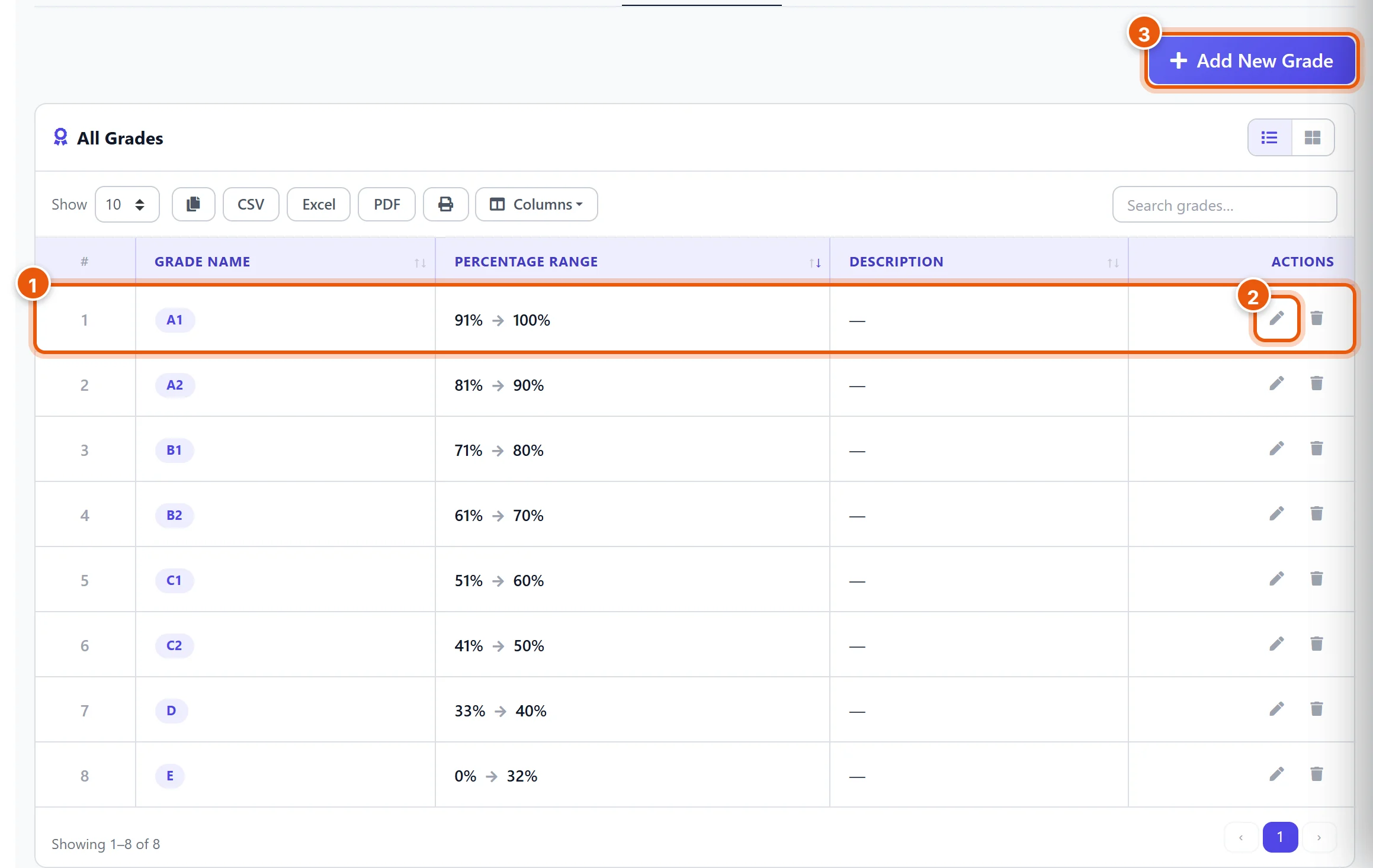
- Each row is one grade and the percentage range it covers.
- Click the pencil to change a grade's name or range.
- Click Add New Grade to add one.
Tip: make sure the ranges cover every percentage from 0 to 100 with no gaps or overlaps, so every student gets a grade.
Step 2: Open Quick Setup
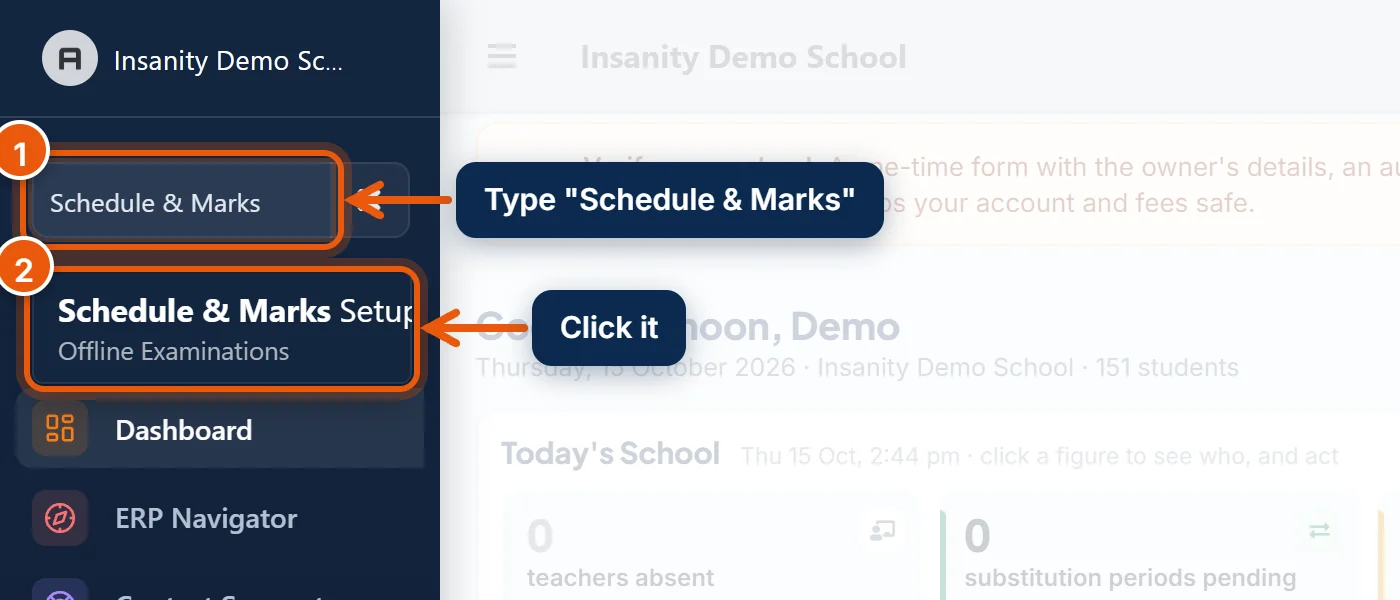
- In the menu search, type Schedule & Marks.
- Click Schedule & Marks Setup.
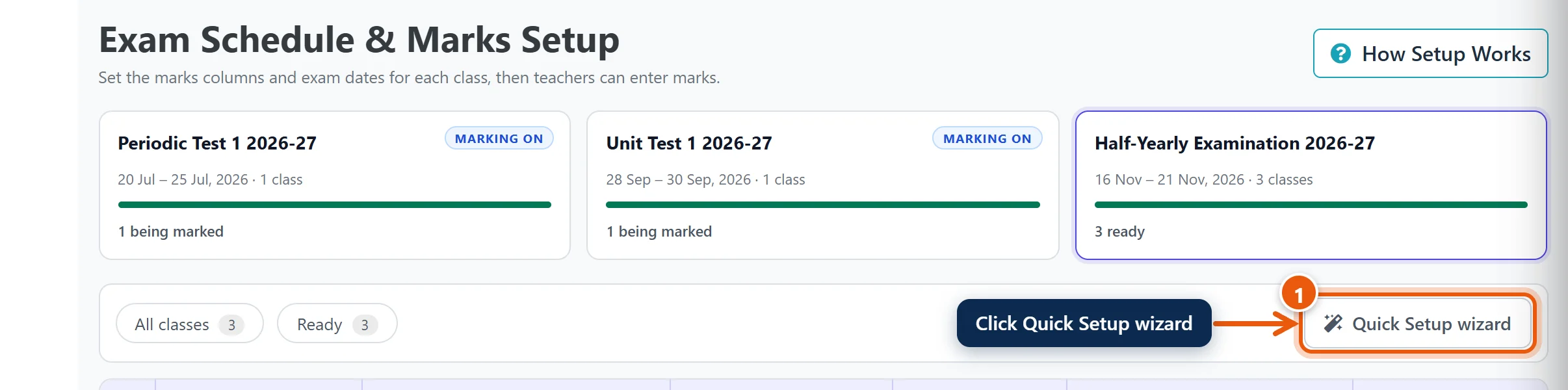
- Click Quick Setup wizard. A panel slides in from the right.
You can also open it from the Quick Setup button at the top of the Exam Dashboard and Manage Grades pages.
Step 3: Name the exam and set its dates
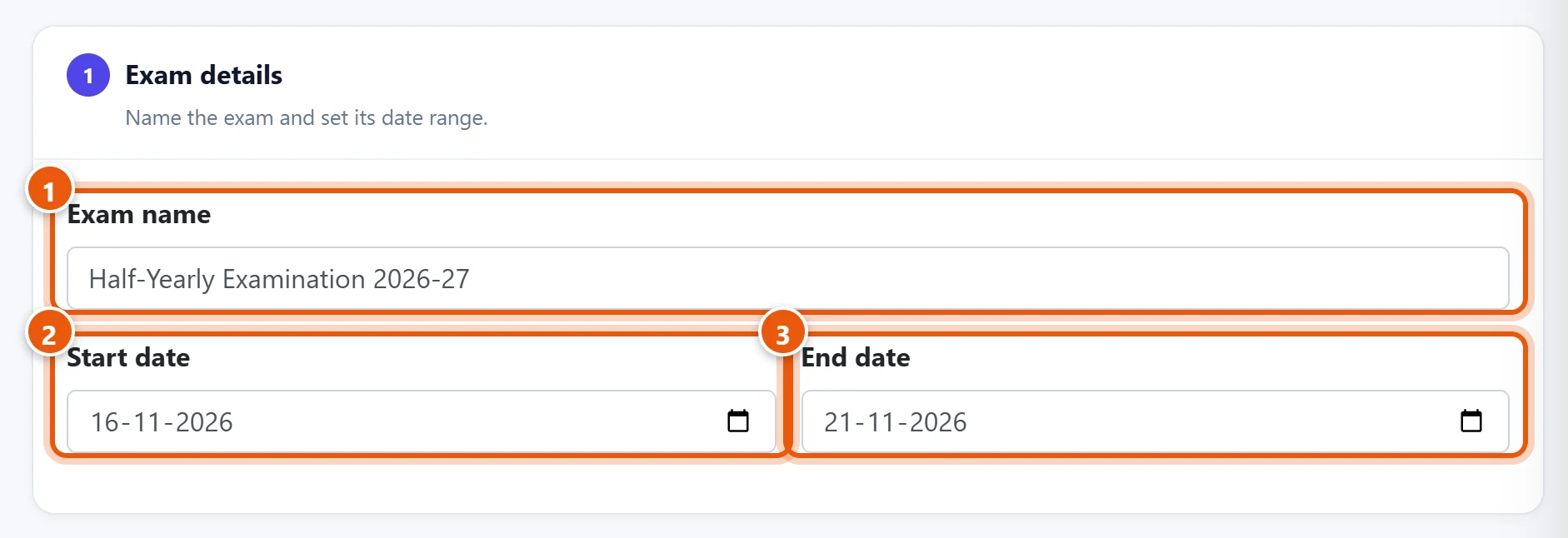
- Exam name: for example Half-Yearly Examination 2026-27. This is printed on report cards, datesheets and admit cards, so write it in full.
- Start date: the first day of the exam.
- End date: the last day.
Below this, leave Set it up below selected. (Using Same as an earlier exam is explained further down.)
Step 4: Pick the classes
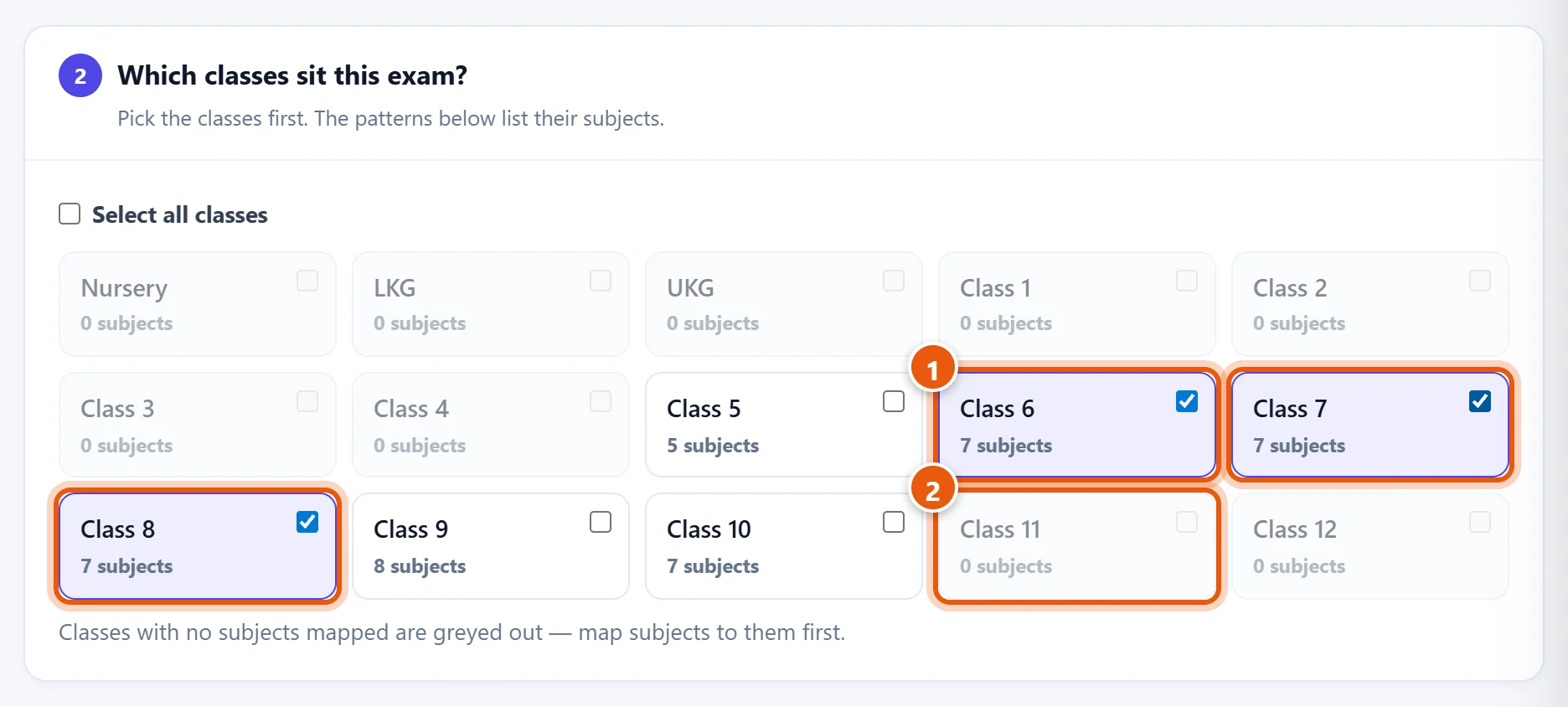
- Tick every class that sits this exam. Here: Class 6, Class 7 and Class 8. Select all classes ticks every class that has subjects.
- A greyed-out class has no subjects linked yet, so it cannot be ticked. Link its subjects first, then come back.
Each box shows how many subjects the class has. Every one of those subjects will get marks columns, unless you untick it in the next step.
Step 5: Decide how subjects are marked (Pattern A)
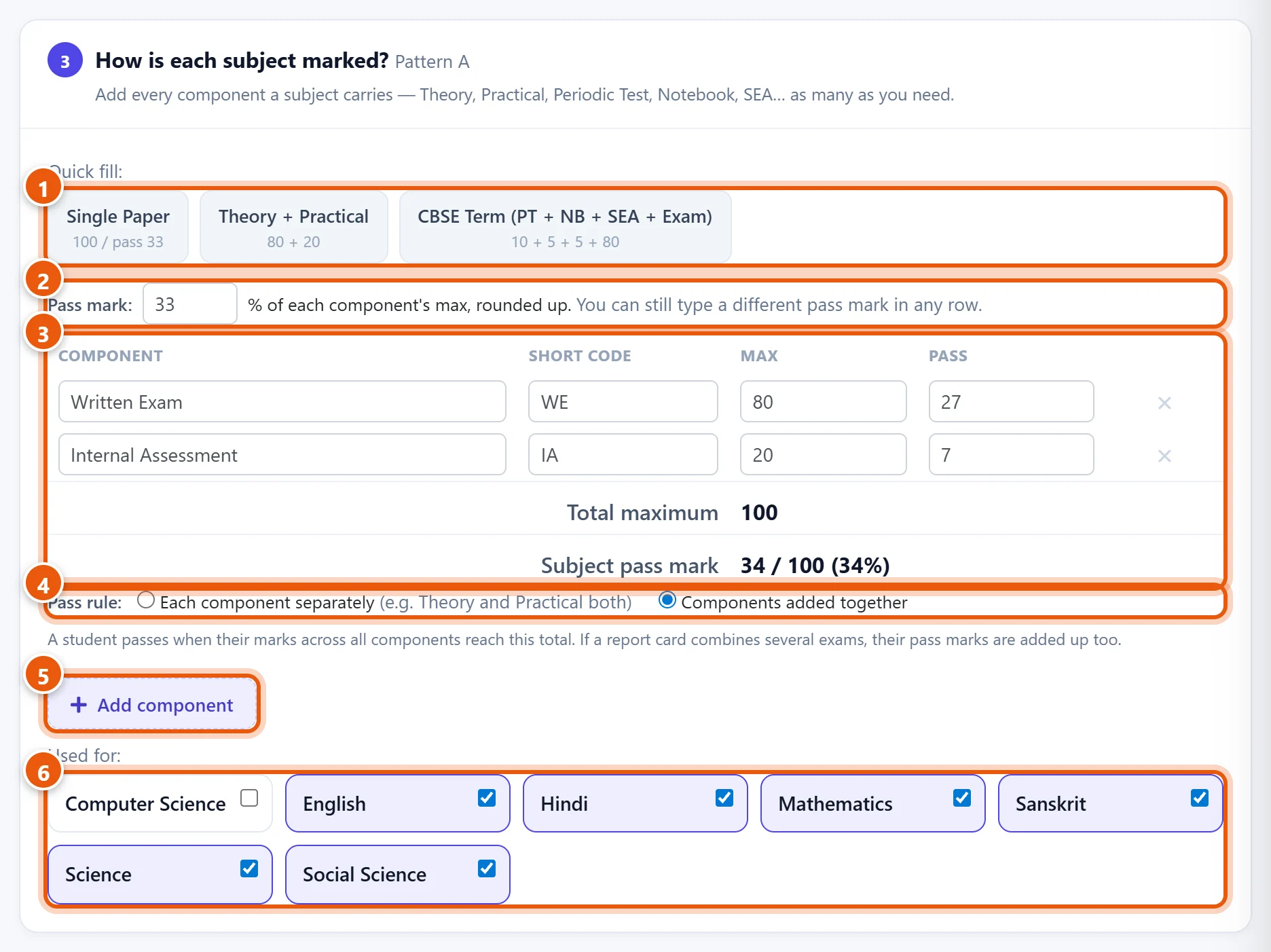
This is the main pattern. It applies to every subject unless you move a subject to a different pattern in Step 6.
-
Quick fill fills the table with a common layout. Click the one closest to yours, then adjust it:
- Single Paper: one Written Exam out of 100, pass 33.
- Theory + Practical: Theory 80 + Practical 20.
- CBSE Term: Periodic Test 10 + Notebook 5 + Subject Enrichment 5 + Term Exam 80.
-
Pass mark % works out each component's pass mark for you. At 33%, a component out of 80 gets a pass mark of 27 (33% of 80 is 26.4, rounded up). You can still type a different pass mark in any row.
-
The components table. One row per component:
- Component: its name, as the teacher will see it. For example Written Exam and Internal Assessment.
- Short code: a short name for tight spaces, for example WE and IA.
- Max: the marks it is out of.
- Pass: the marks needed to pass it. Use 0 for a component that is not checked for passing.
- The × at the end of a row removes it.
Below the table you see the Total maximum (here 100) and the subject's pass mark (here 34 out of 100: 27 + 7).
-
Pass rule:
- Each component separately: the student must pass every component on its own. Use this for Theory and Practical, where a student who fails the practical fails the subject.
- Components added together: only the total counts. Here, a student with 25 in Written and 15 in Internal Assessment has 40, which is above 34, so they pass.
-
Add component adds another row, for example a Notebook or Oral component.
-
Used for: the subjects that follow this pattern. They are all ticked at first. Untick a subject that is not part of this exam (for example Drawing or Games). An unticked subject gets no marks columns and does not appear on this exam's report card.
Note: Computer Science is unticked in the picture because it was moved to its own pattern in the next step. Ticking a subject in another pattern moves it out of Pattern A by itself.
Step 6 (optional): Subjects marked differently
Skip this step if every subject is marked the same way.
If some subjects are marked differently, give them their own pattern. Common examples: Theory 70 + Practical 30 for science subjects in Classes 11 and 12, or 50 + 50 for Physical Education.
- Click Add a pattern for some subjects. A new card, Pattern B, appears. It starts as Theory + Practical.
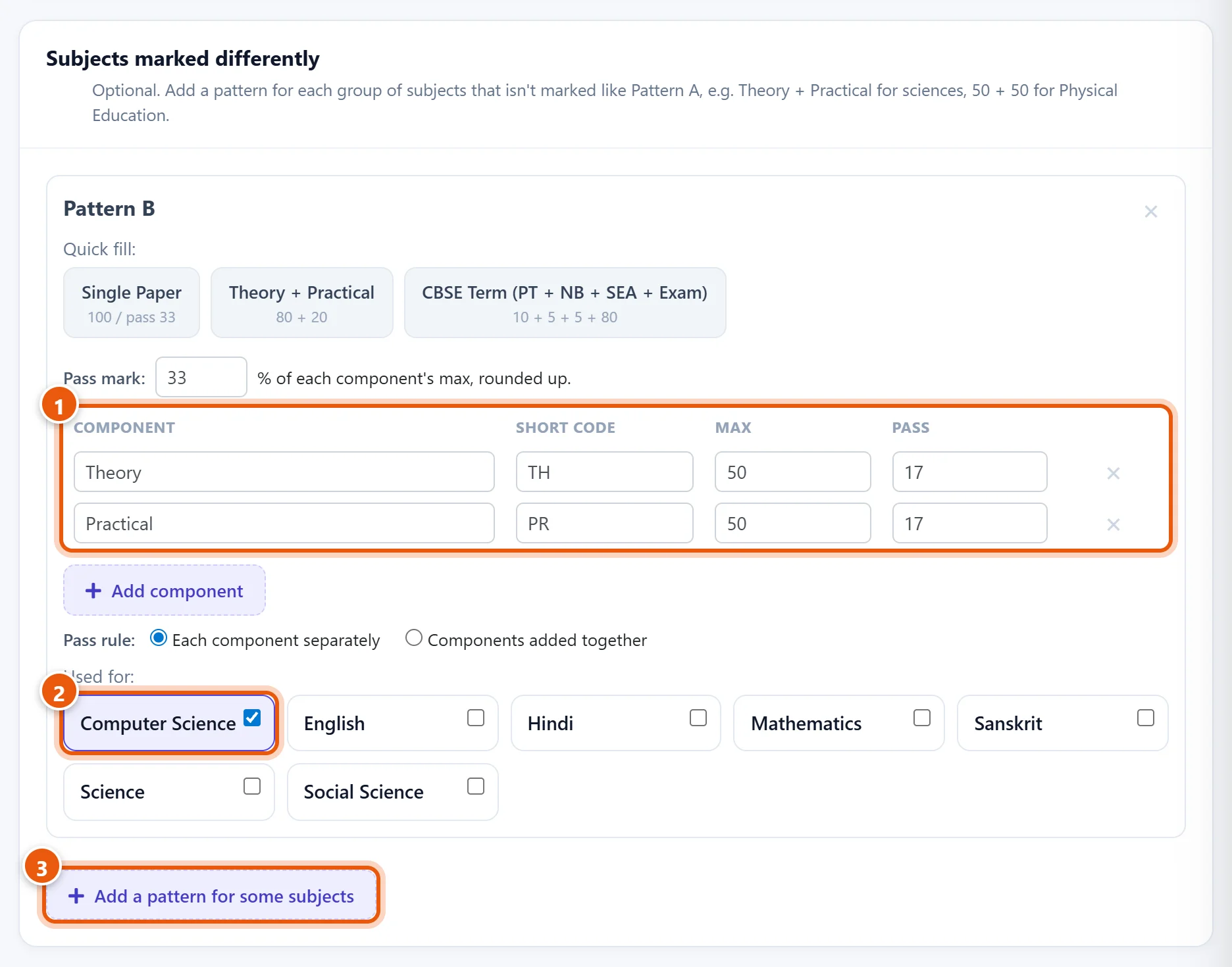
- Set its components the same way as in Step 5 (1 in the picture). Here: Theory 50 and Practical 50, each passed separately.
- Under Used for, tick the subjects that follow this pattern (2). Here: Computer Science.
- Need a third layout? Click Add a pattern for some subjects again (3). Each subject can follow only one pattern.
Step 7: Check the preview and create the exam
-
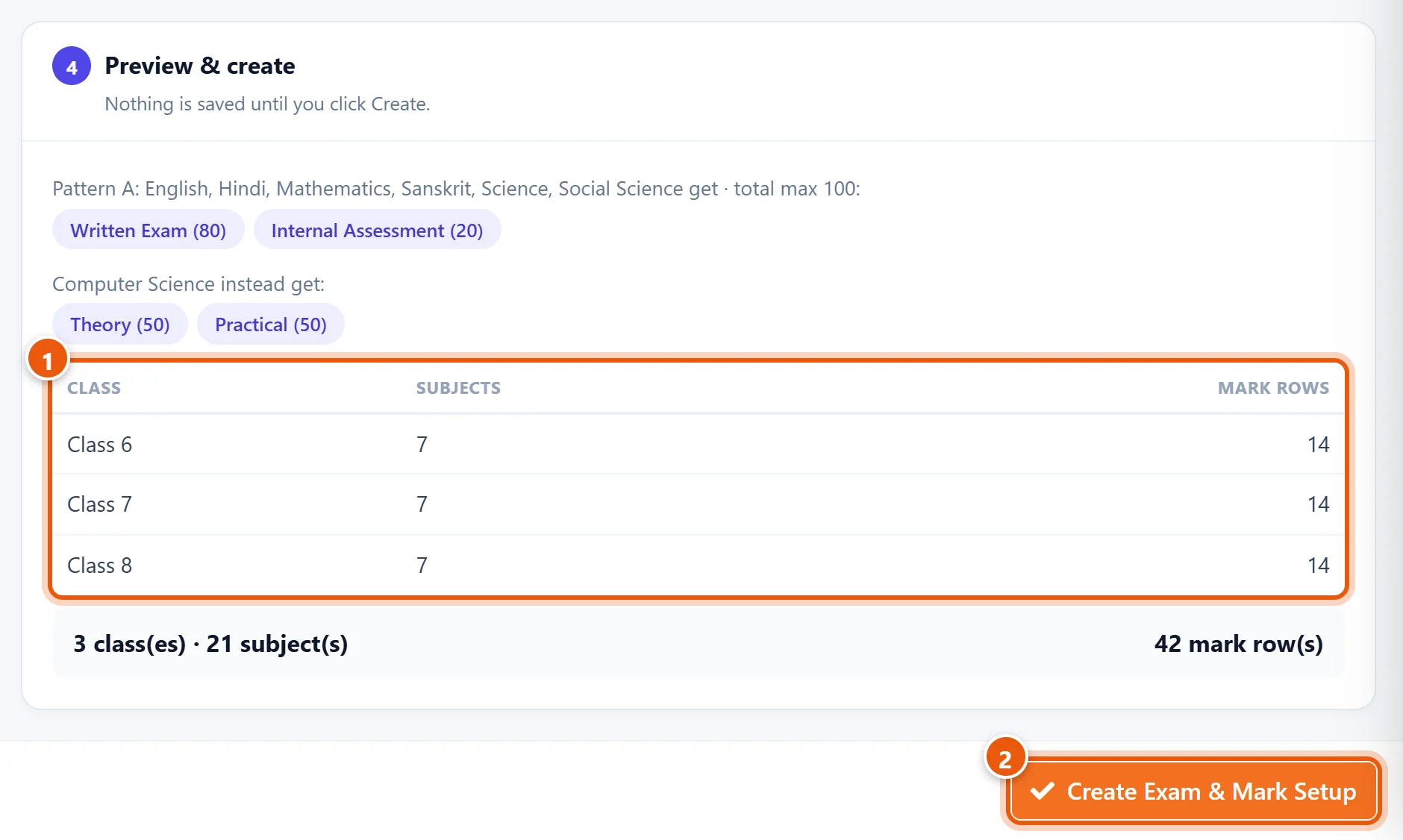
The preview at the bottom shows what will be created. For each class: how many subjects, and how many marks columns in total (mark rows). Here each class has 7 subjects with 2 components each, which makes 14.
Read it carefully. Is every class there? Does each class have the right number of subjects? Do the components look right?
-
Click Create Exam & Mark Setup.
SchoolAlgo creates the exam, the components and the pass marks for every class and subject. It then opens Enter Marks. Teachers can start entering marks straight away. The exam dates are added in Step 8.
Important: click Create once per exam. Each click of Create makes a new exam. To change an exam after creating it, use Review & Edit (Step 9), not Quick Setup again.
Same marks setup as an earlier exam
Schools usually mark every exam of the year the same way. Once one exam is set up, you can copy it:
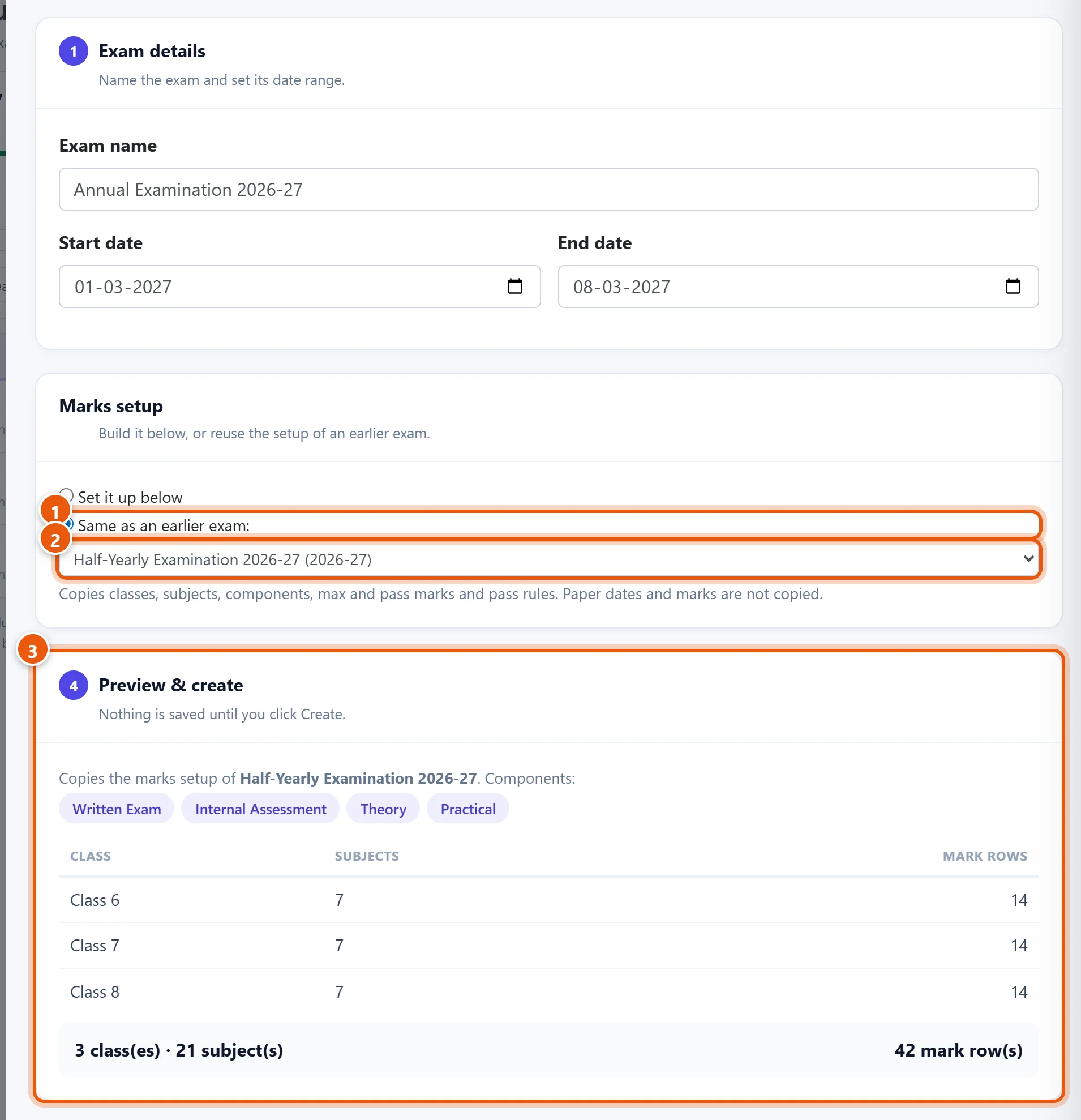
- In Quick Setup, fill in the new exam's name and dates as in Step 3. Then choose Same as an earlier exam.
- Pick the exam to copy, for example Half-Yearly Examination 2026-27. Exams from last year are listed too.
- The preview shows the classes and marks columns that will be copied. Click Create Exam & Mark Setup.
It copies the classes, subjects, components, max marks, pass marks and pass rules. Exam dates and marks are not copied.
Step 8: Add the exam dates for each class
Go back to Schedule & Marks Setup. It shows your exam and a row for each of its classes.
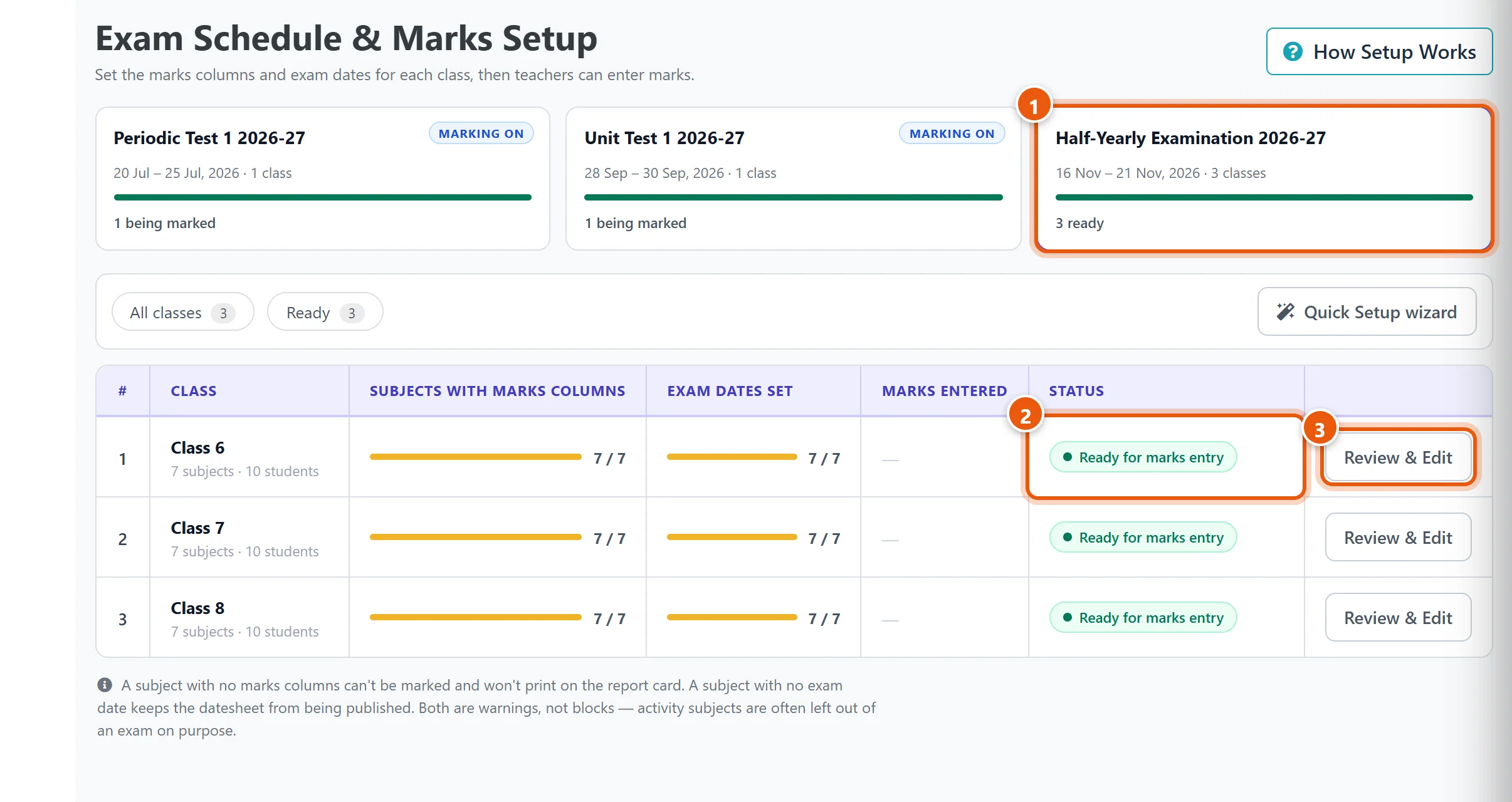
- Click the exam's card at the top to choose it.
- The Status column tells you what each class still needs:
- Needs attention: some subjects have no exam date yet, so the datesheet cannot be published. Marks can already be entered.
- Ready for marks entry: every subject has its marks columns and its date.
- Marking started: teachers have begun entering marks.
- Click the class's button (Add dates before dates are set, Review & Edit after) to open that class.
On the right of each subject is Exam Date & Time Setup:
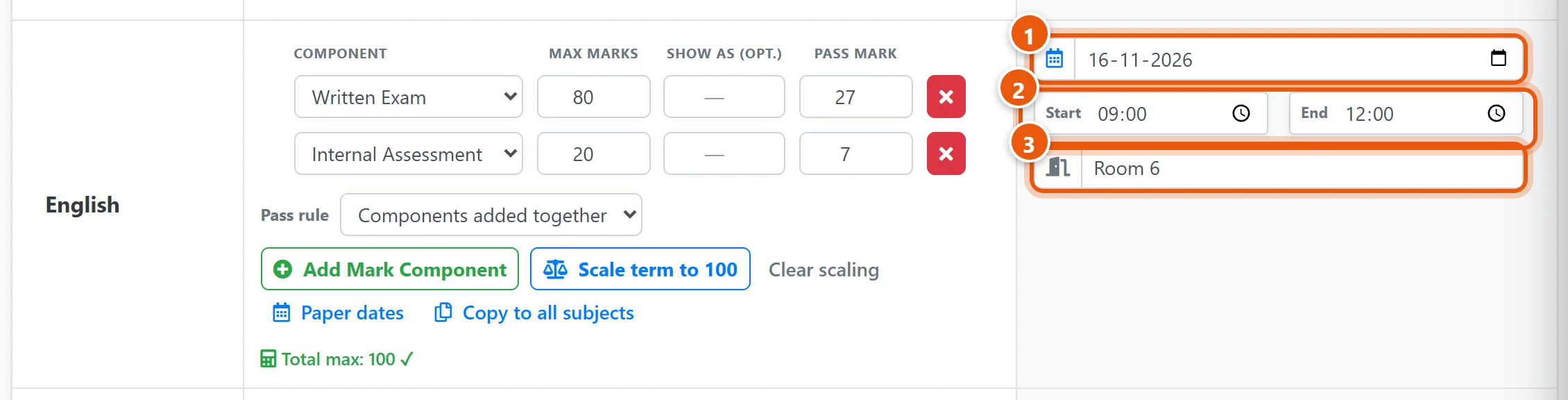
- Date of the paper.
- Start and End time. The date, start and end time are all needed. A subject with only some of them is not saved, and the page tells you which one.
- Room (optional). It is printed on the datesheet and admit cards.
Fill in every subject, then scroll down and click Save All Setup Configurations:

Then pick the next class from the Class box at the top of the page (or go back to all classes), and do the same.
Tip: when every class has its dates, see Exam datesheet and admit cards to print the datesheet, send it to parents and print the admit cards.
Step 9 (optional): Fine-tune one subject
The same Review & Edit page lets you change any subject of a class. Use it when one subject is different from what Quick Setup made, for example English with an extra Oral component.
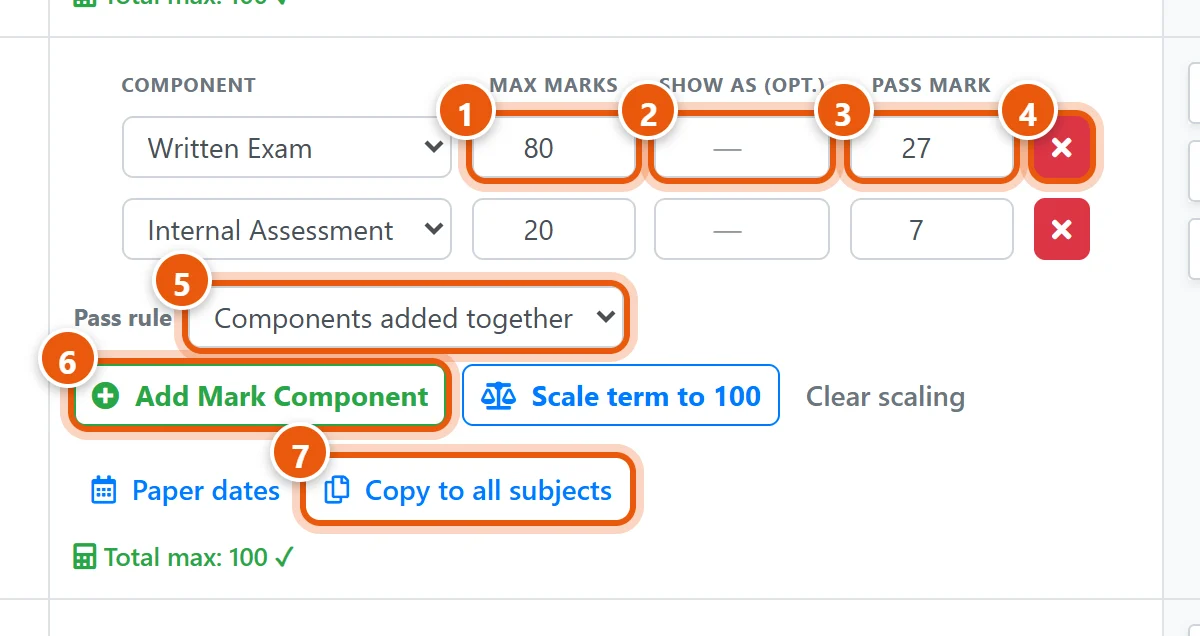
- Max Marks: what the teacher enters the marks out of.
- Show as (optional): print the component out of a different number. For example, a Periodic Test marked out of 20 can be shown out of 10 on the report card. Teachers still enter marks out of the Max. Leave it empty to print the real max. Scale term to 100 fills in Show as for every component so the subject adds up to 100, and Clear scaling removes it.
- Pass Mark of this component.
- × removes the component.
- Pass rule: each component separately, or components added together (see Step 5).
- Add Mark Component adds a component, for example Oral. Pick the component from the list.
- Copy to all subjects gives every other subject of this class the same components, max marks, Show as, pass marks and pass rule. Dates are not copied.
Click Save All Setup Configurations when you are done.
Important: once marks are entered for a component, changing its Max Marks or removing it deletes those marks. Teachers would have to enter them again. The page shows how many marks each component holds, and keeps these fields locked until you unlock them one row at a time. Show as, pass marks, dates, times and rooms are always safe to change.
Paper dates (under each subject) are separate dates for each component, for example a practical on a different day from the theory. Most schools leave them empty. They appear only on admit card designs that print a separate timetable for each component. The datesheet always uses the subject's date on the right.
Step 10: Follow the marking and lock the marks
Teachers enter marks in Enter Marks and click Submit for Review when a subject is done (see Enter exam marks below). The Marks Entered column in Schedule & Marks Setup shows how far each class has got.
When a teacher has submitted, check the marks. Then make them final:
- Open Enter Marks. Choose the exam, class, section and subject, and click Load Students.
- Check the marks, then click Finalise & Lock, then OK.

Locked marks are final. No one can change them, and they are used for the report cards. Lock every subject of every section.
Found a mistake after locking? The school admin or principal clicks Unlock on the same page, corrects the mark, and locks it again.
Changing an exam later
- Name, dates or classes: open Manage Offline Exams and click Edit on the exam.
- Forgot a class? Tick it in Edit under Which classes sit this exam? and save. Then open that class in Schedule & Marks Setup (Review & Edit). Set up one subject with Add Mark Component, and use Copy to all subjects for the rest. Add the dates and save.
- Forgot a subject? Open the class in Review & Edit. The subject is marked Not in this exam. Add its components and save.
- Deleting an exam: an exam can be deleted only while it has no marks setup, no dates and no report cards. If you created an exam by mistake, ask SchoolAlgo support to remove it.
Common questions
| What you see | Why | What to do |
|---|---|---|
| A class is greyed out in Quick Setup | The class has no subjects linked. | Link its subjects in Assign Subjects, then open Quick Setup again. |
| A teacher cannot find a subject in Enter Marks, or it is greyed out | The subject has no components in this exam, or the teacher is not assigned to it. | Check the subject in Review & Edit for that class, and the teacher in Assign Class Teacher. |
| A subject shows Not in this exam | It was unticked in Quick Setup, or never given components. | Leave it if it is not examined. Otherwise click Add Mark Component. |
| Needs attention even though marks are being entered | Some subjects have no exam date. | Add the dates in Review & Edit if you need a datesheet. Marks entry is not affected. |
| The pass mark is 34, not 33 | Each component's pass mark is rounded up: 27 + 7 = 34. | Type the pass marks you want in the rows, for example 26 and 7. |
Related guides
- Exam datesheet and admit cards
- Enter exam marks (for teachers)
- Choose the subjects taught in each class
- Assign subject teachers so they can enter marks
Still stuck? Send us a screenshot on WhatsApp and we will guide you.
Chat on WhatsAppLast updated 15 October 2026