
Who does this: the school admin, principal or exam in-charge.
How long it takes: about five minutes per exam.
Before you start
The exam must be set up, and every subject needs its exam date, start and end time in Schedule & Marks Setup. The datesheet and admit cards are made from those dates. See Set up an exam, Step 8.
Step 1: Open the exam
Open Manage Offline Exams (type it in the menu search). Each exam has its own buttons:

- Datesheet: the exam timetable, to print and to send to parents.
- Admit Cards: print the admit cards.
- Card Settings: when parents can download admit cards, the fee lock, and what is printed on the card.
Step 2: Check and print the datesheet
Click Datesheet on the exam's row.
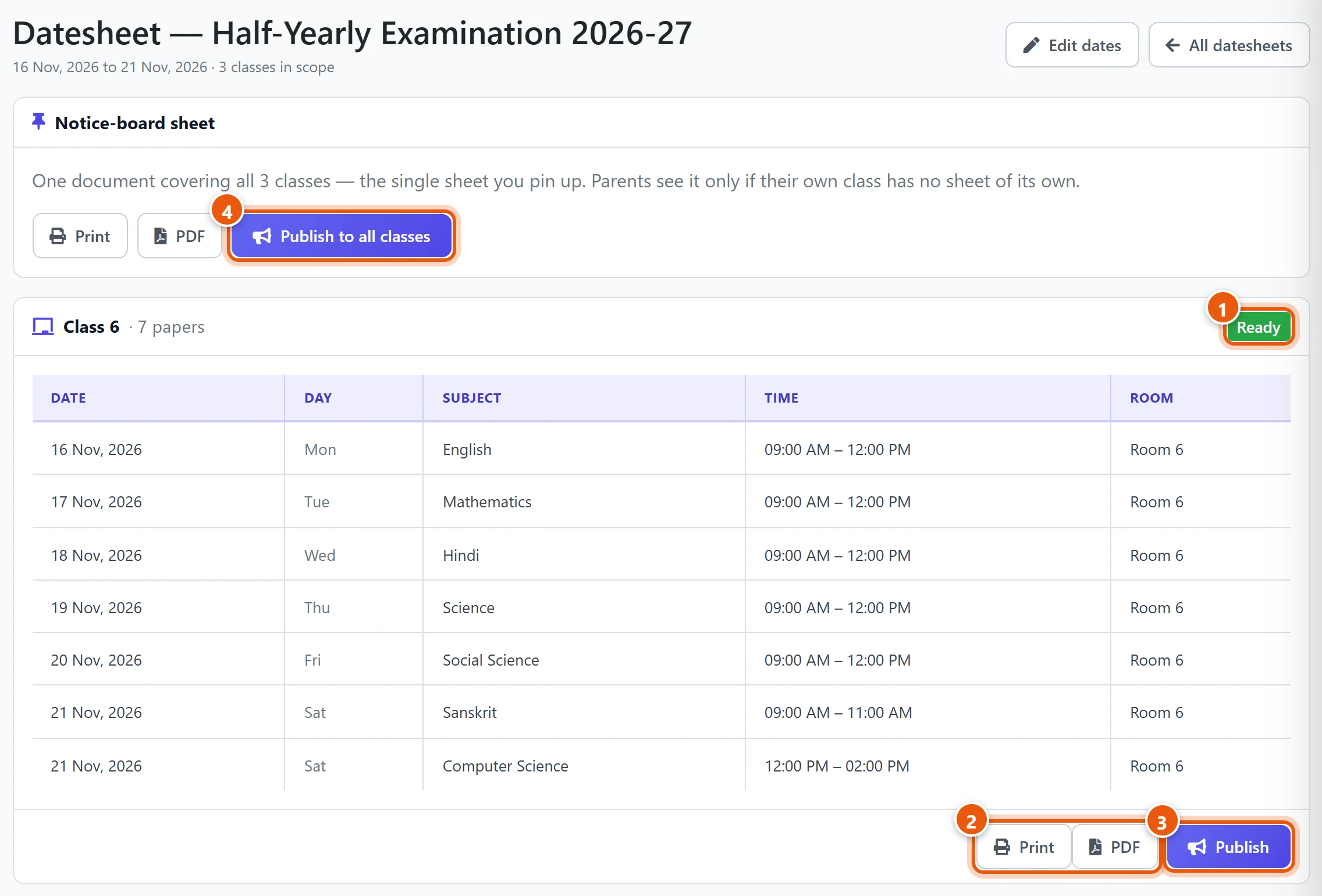
- Each class has its own card listing its papers in date order. Ready means every subject has a date and time. A yellow Worth checking box lists small issues, such as a paper with no room. These do not stop you from publishing.
- Print or PDF gives you that class's datesheet.
- Publish sends that class's datesheet to its parents (Step 3).
- The Notice-board sheet at the top is one sheet for all classes of the exam, to pin up in school. It has its own Print, PDF and Publish to all classes buttons.
A date or time wrong? Click Edit dates at the top right. It opens Schedule & Marks Setup for this exam.
Step 3: Send the datesheet to parents
Click Publish on a class, or Publish to all classes.
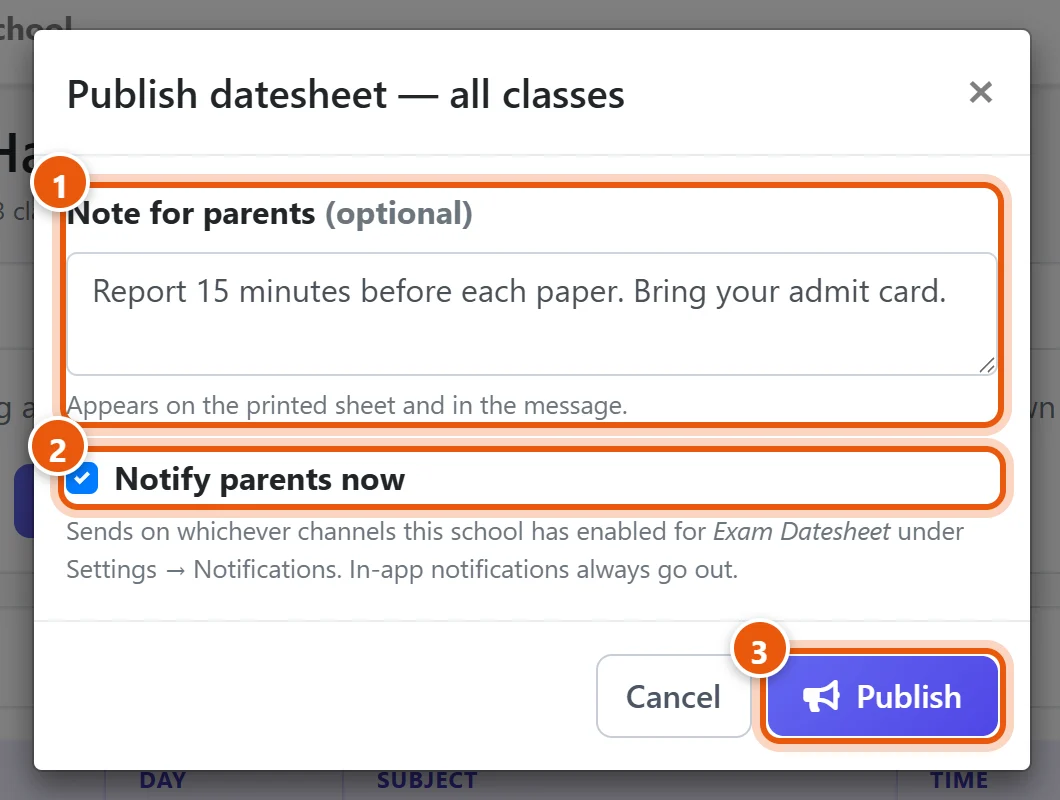
- Note for parents (optional): for example Report 15 minutes before each paper. Bring your admit card. It is printed on the sheet and included in the message.
- Notify parents now: sends parents a message. It uses the channels your school has turned on for Exam Datesheet in Settings → Notifications. Parents always get an in-app notification.
- Click Publish.
Parents can now see and download the datesheet in the Parent app.
If some subjects of a class have no paper on the sheet, the box lists them. You must tick Publish anyway — these aren't being examined to go ahead. Do this only for subjects that really have no paper in this exam.
Changed a date after publishing? Fix it in Schedule & Marks Setup, then click Publish again. The sheet is marked as a revision. Notify parents now is unticked for a re-publish, so parents are not messaged again unless you tick it. Withdraw takes a published datesheet back.
Note: a class's own datesheet comes first. Parents see the notice-board sheet only if their child's class has no datesheet of its own.
Step 4: Choose the admit card settings
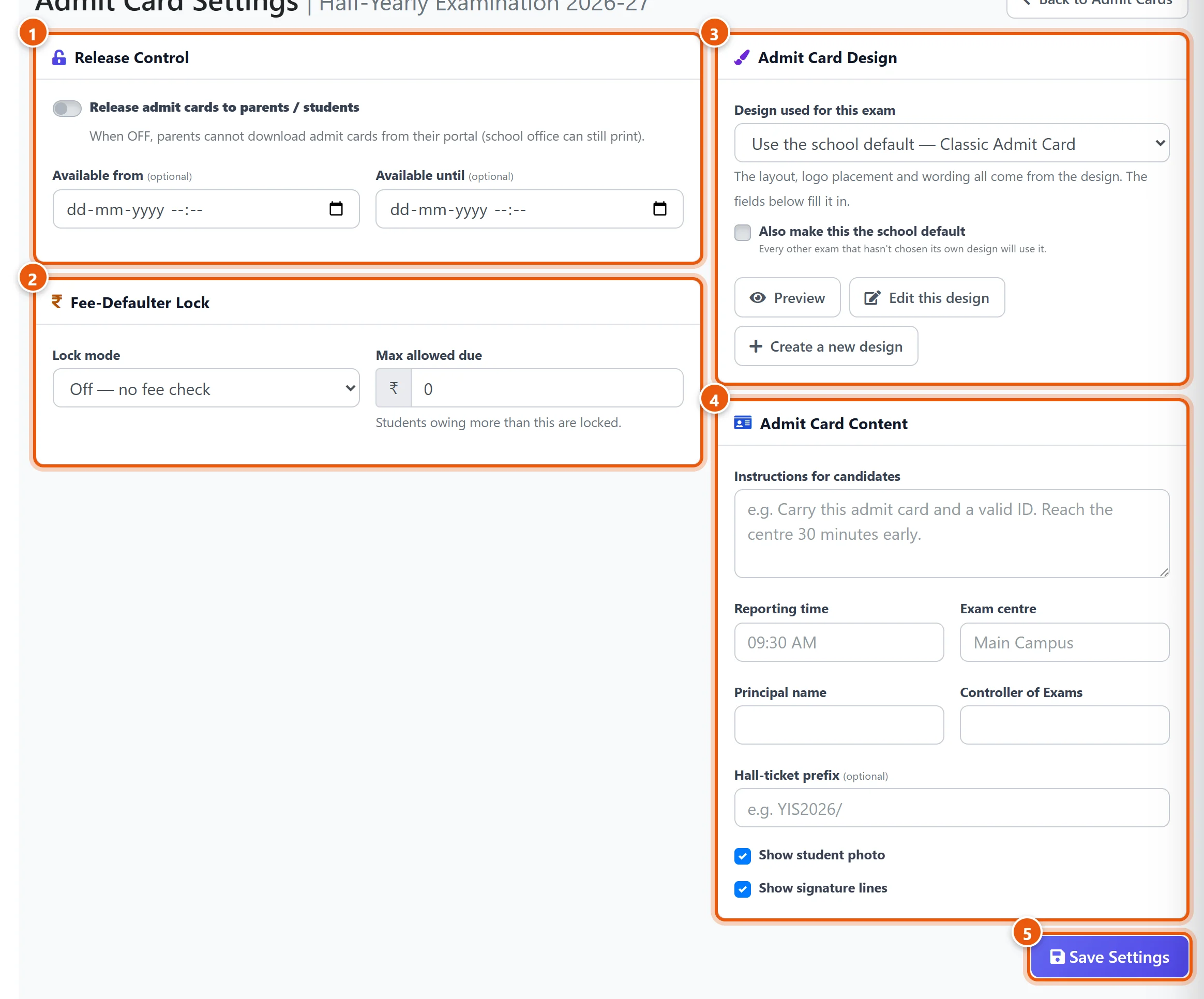
Do this before you print, or before parents start downloading. Click Card Settings on the exam's row.
-
Release Control:
- Release admit cards to parents / students: switch it on when parents may download the cards from the Parent app.
- Available from and Available until (optional): parents can download only between these times.
These only affect parents. The office can always print the cards.
-
Fee-Defaulter Lock: hold back cards from students who owe fees.
- Off: no fee check.
- Soft: students who owe more than the Max allowed due cannot download their card. Office staff with permission can still print it for them.
- Hard: their card cannot be downloaded or printed until the fees are paid.
With a Max allowed due of 0, any amount owed locks the card.
-
Admit Card Design: the layout of the card. Preview shows a real card for one of your students. Edit this design or Create a new design opens the designer. Tick Also make this the school default to use this design for every other exam.
-
Admit Card Content: the details filled into the design. These are the instructions for candidates, reporting time, exam centre, the principal's and Controller of Exams' names, and a hall-ticket number prefix. You can also choose whether to show the student's photo and signature lines.
-
Click Save Settings.
Important: until you save these settings for an exam, admit cards are released to parents by default, with no fee lock. To keep them back, open Card Settings, leave Release off, and save.
This is a preview of the card with the standard design:
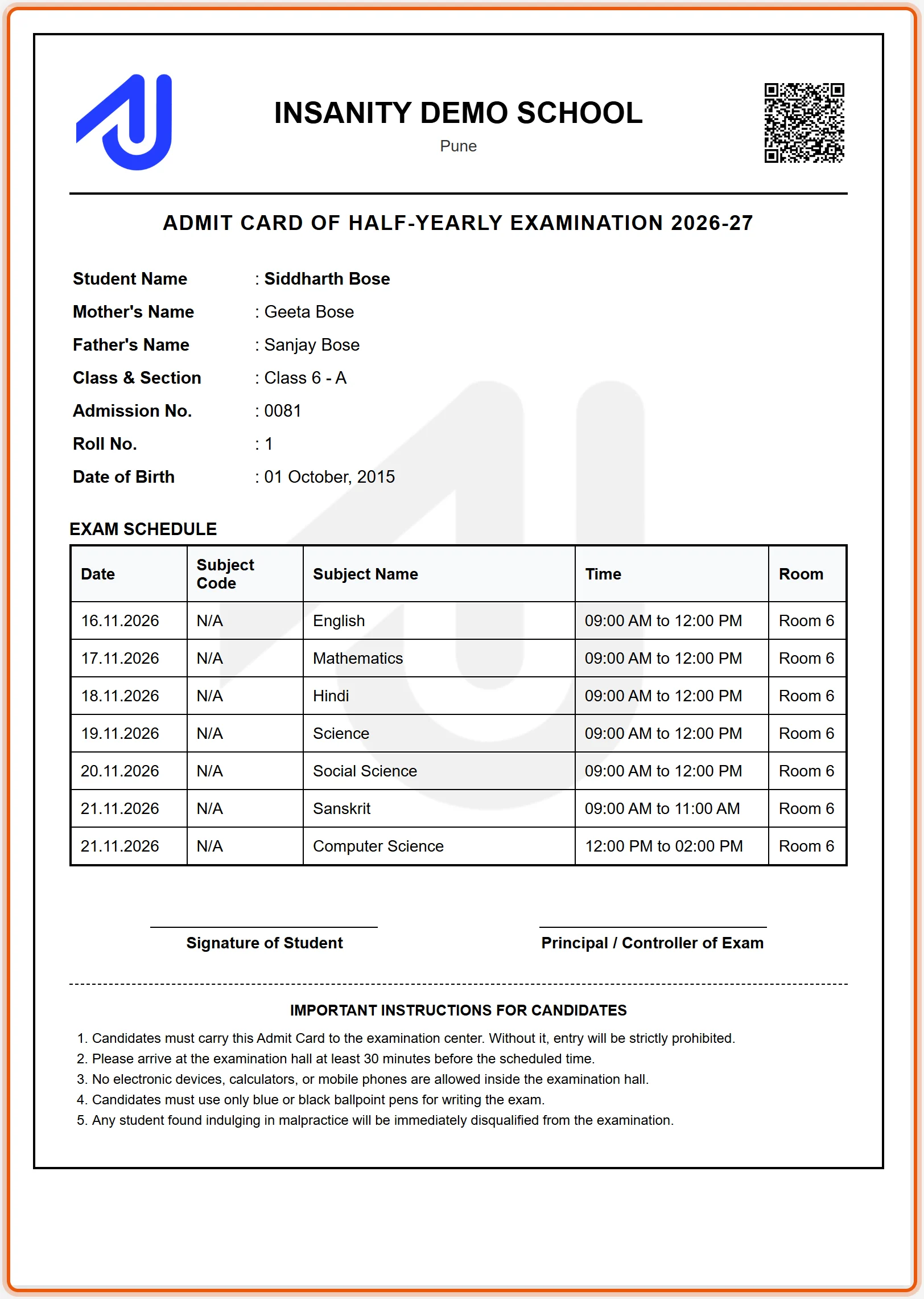
The Subject Code column shows N/A when a subject has no code. Add codes to your subjects in Subjects if you want them printed.
Step 5: Print the admit cards
Click Admit Cards on the exam's row, or open Print Admit Cards from Manage Offline Exams.
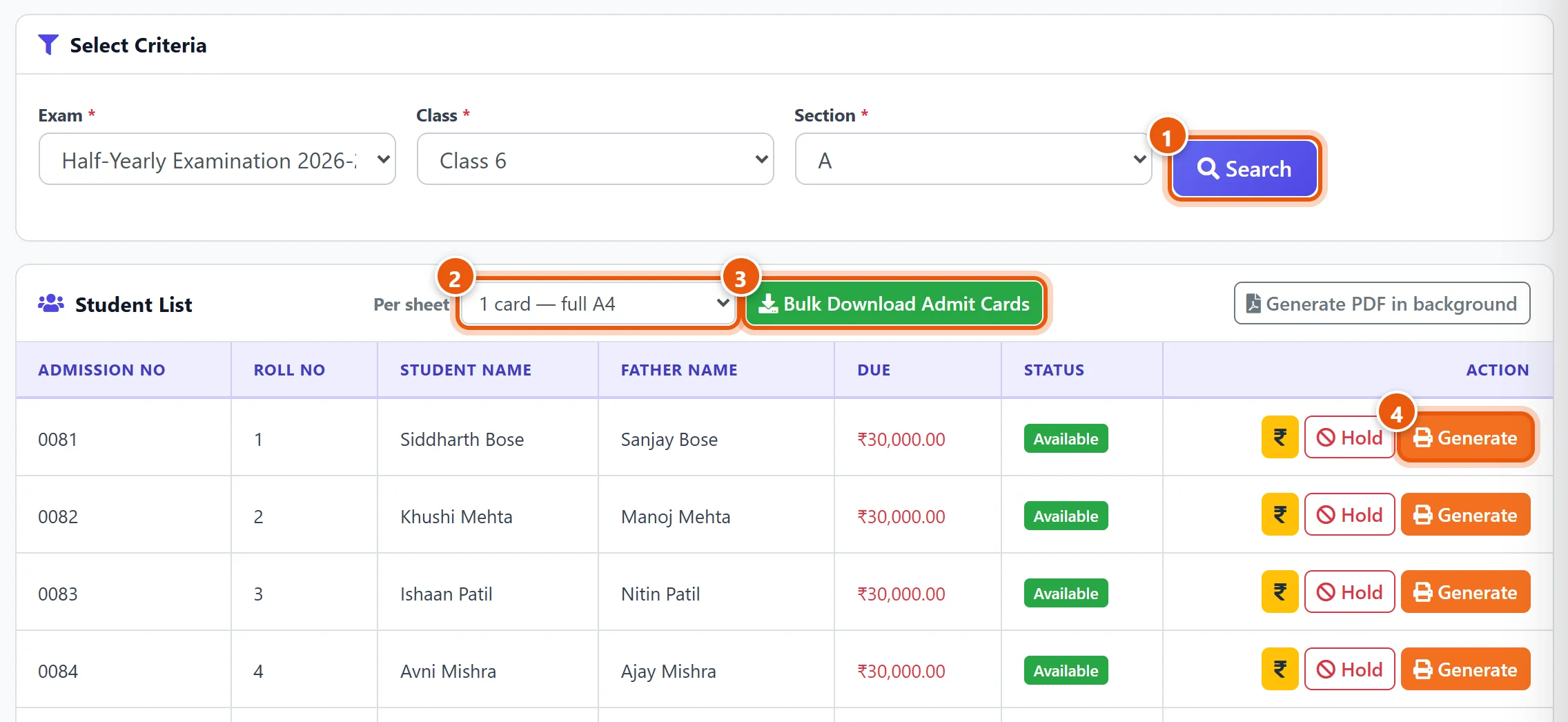
- Choose the Exam, Class and Section, and click Search. The page lists the students, with how much each one owes and whether their card is available.
- Per sheet: how many cards to print on one A4 sheet.
- Bulk Download Admit Cards makes one PDF with the cards of the whole section. Students whose card is held or fee-locked are left out.
- Generate makes one student's card.
For a large class, Generate PDF in background makes the PDF without waiting on the page. You are told when it is ready.
Hold back one student's card
Click Hold on the student's row. While the card is held, the parent cannot download it and it is left out of the bulk download. Click Release on the same row to give it back. The ₹ button opens Collect Fees for that student.
What parents see
- The Parent app shows the published datesheet with a PDF to download, and the admit card once it is released.
- If the card is held back, the parent sees why: not released yet, outside the download dates, fees due, or on hold. They are asked to contact the school office.
Related guides
Still stuck? Send us a screenshot on WhatsApp and we will guide you.
Chat on WhatsAppLast updated 15 October 2026