
Who does this: the school admin or principal.
How long it takes: a minute per teacher.
A teacher does not see the whole school. In Enter Marks, attendance, the student list, homework and the Staff app, a teacher sees only the classes and sections they are linked to. You link them in one of four ways, depending on how much the teacher needs:
| The teacher needs | Do this | Step |
|---|---|---|
| One subject in a section (for example English in 7-A) | Make them the subject teacher | Step 1 |
| Every subject of one section (the class teacher) | Make them the Section In-charge | Step 2 |
| Every section of one class (for example all of Class 7) | Make them the Class Coordinator | Step 3 |
| Every class in the school (exam in-charge, vice principal) | Give them an Exam In-charge role | Step 4 |
You can mix these. A teacher can be the class teacher of 7-A and also teach English in 8-B.
Before you start
The teacher must already be added in Staff Directory with the role Teacher (see Add a teacher, linked below).
Step 1: One subject in a section
Use this for most teachers: they teach a subject in a few sections.
- In the menu search, type Assign Class and click Assign Class Teacher.
- Find the class. Each row is a subject and each column is a section. Click the box where the subject meets the section, and pick the teacher.
- Click Save Class 7 (the button shows your class's name) at the top right of that class.
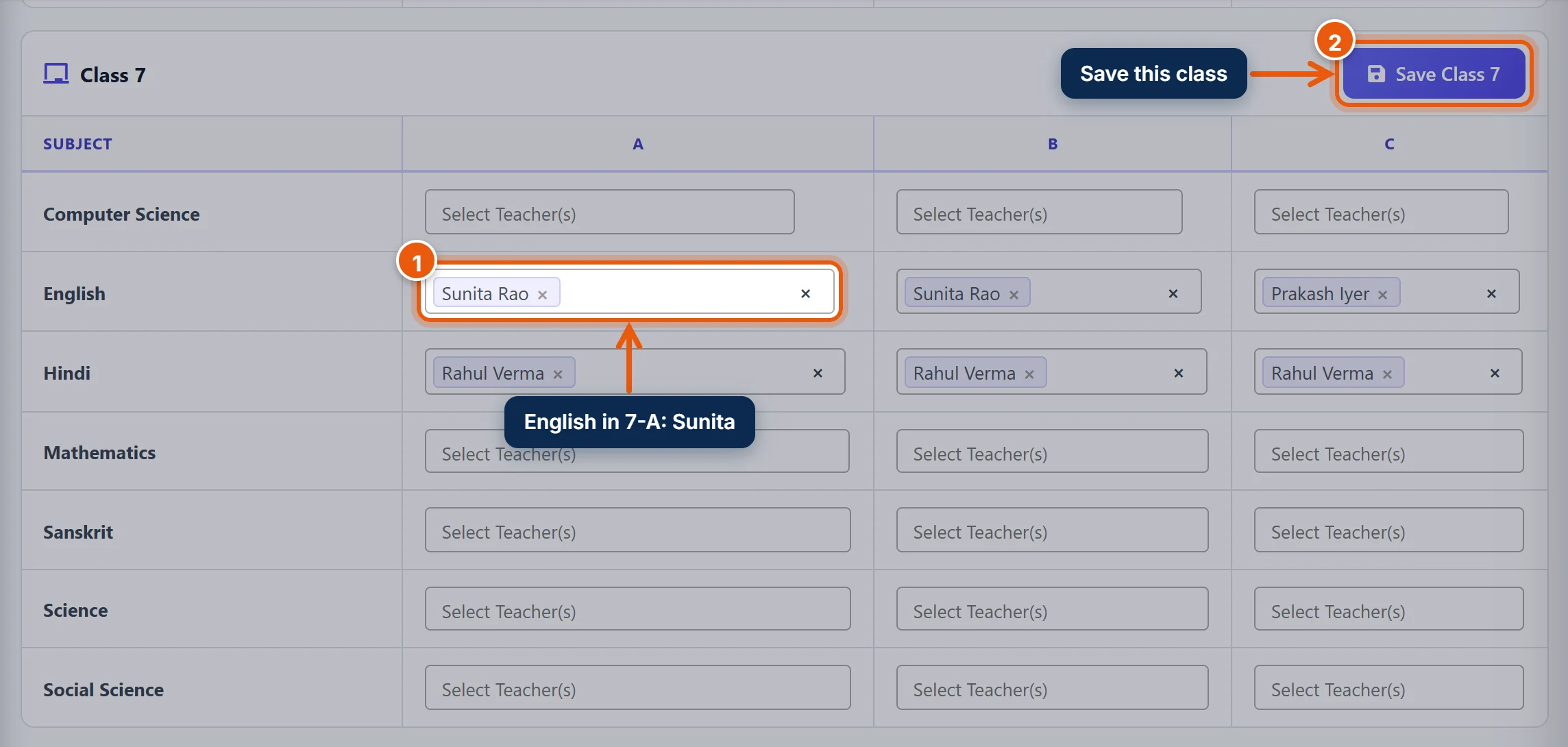
The teacher can now enter marks for that subject in that section, and sees that section for attendance.
Tip: Assign subject teachers so they can enter marks (linked below) explains this page in more detail.
Step 2: Every subject of one section (class teacher)
The class teacher usually enters marks for all subjects of their section, or at least checks them.
- In the menu search, type Sections and click Sections.
- In the search box on the right, type the class (for example Class 7). Click Edit on the section.
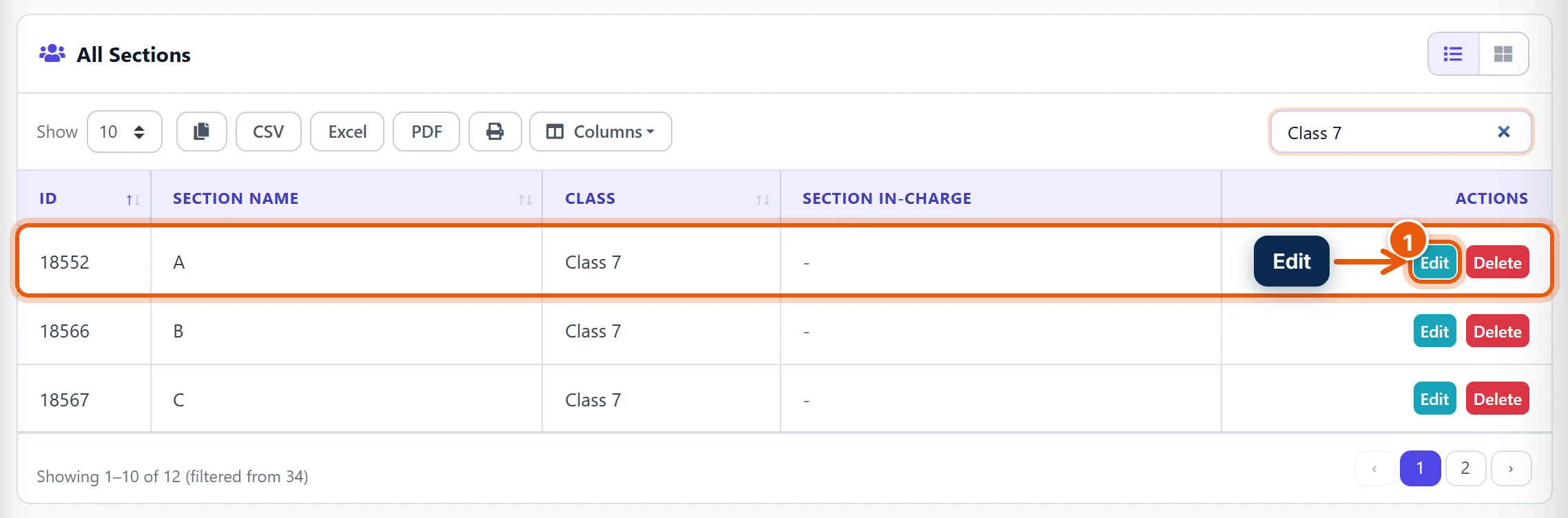
- In Section In-charge / Coordinator, choose the teacher.
- Click Update Section.
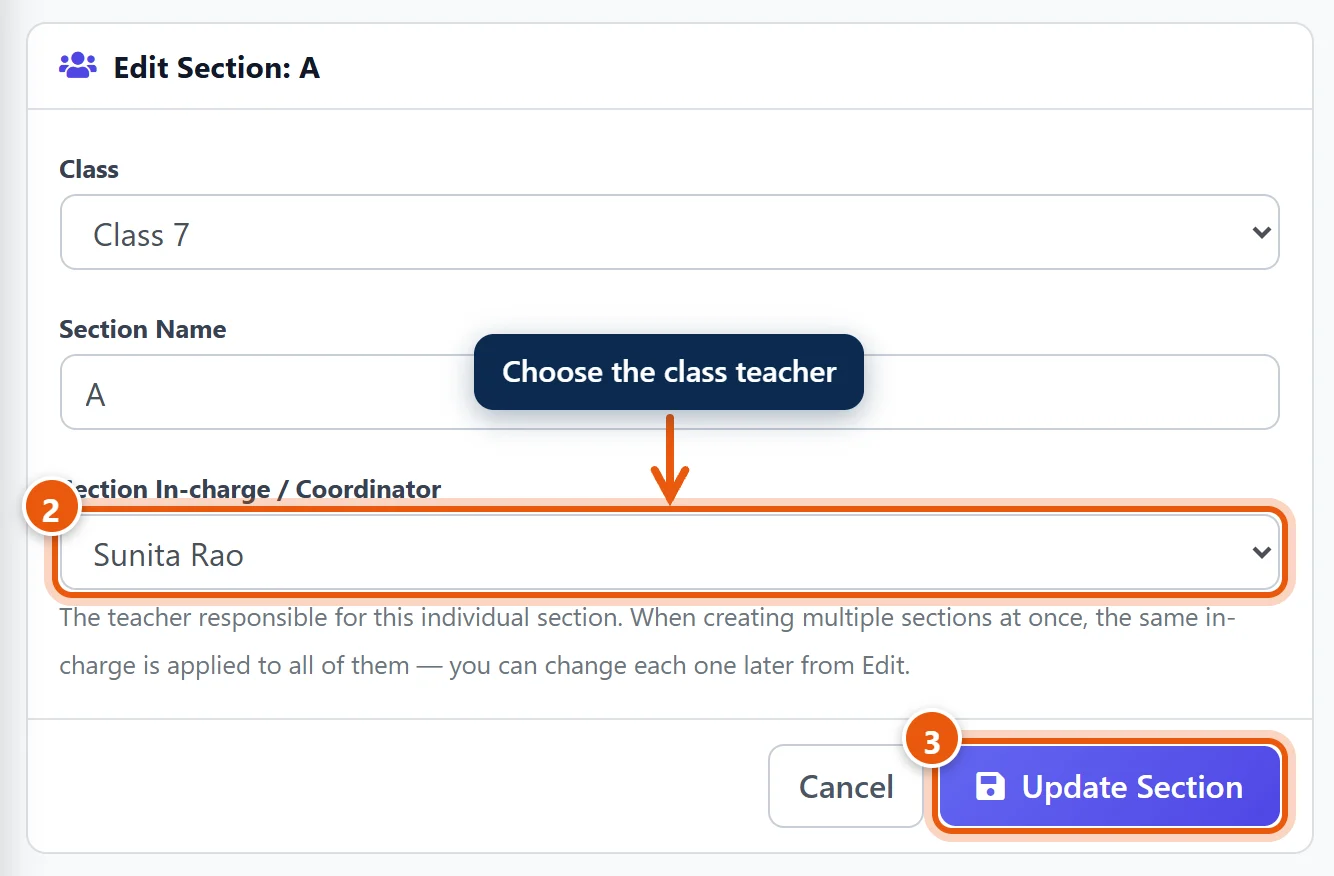
The teacher now has every subject of that section, even subjects nobody has given them in Step 1. The Sections list shows each section's in-charge, so you can check them all at a glance.
Step 3: Every section of one class (class coordinator)
Use this for a senior teacher who looks after a whole class, for example all of Class 7 (7-A, 7-B and 7-C).
- In the menu search, type Classes and click Classes.
- In the search box on the right, type the class. Click Edit on it.
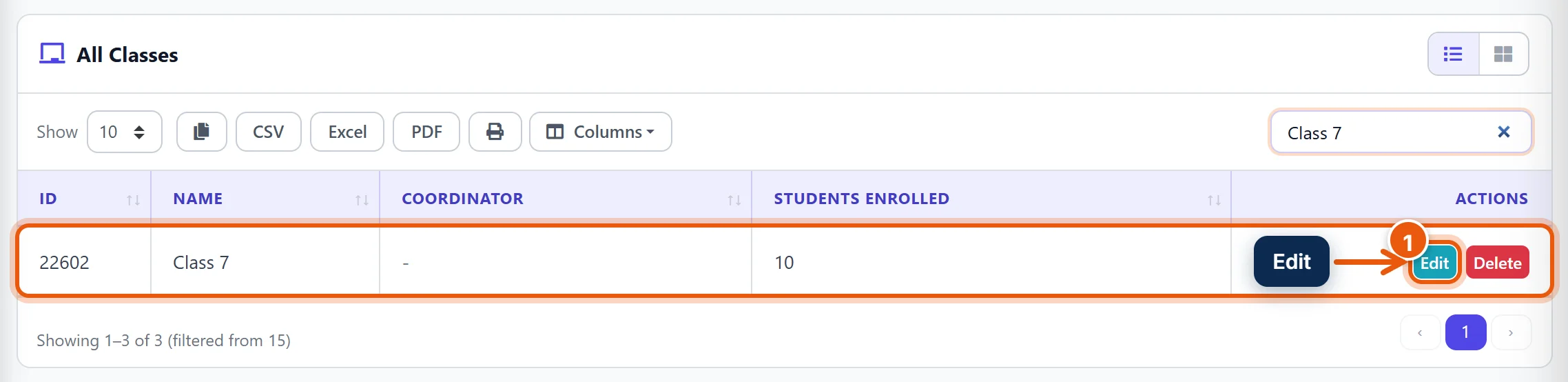
- In Class Coordinator / Head Teacher, choose the teacher.
- Click Update Class.
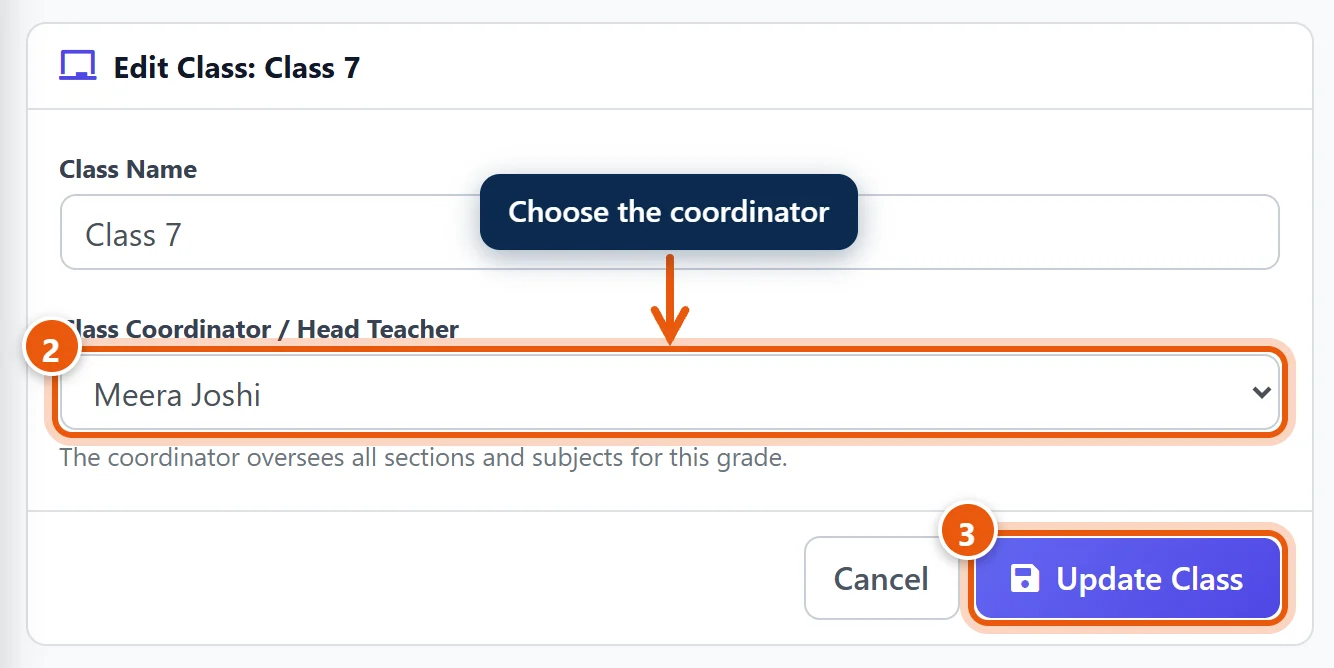
The teacher now has every subject of every section of that class. A class has one coordinator; choosing a new one replaces the old one.
Step 4: Every class in the school
A person with the Teacher role is always limited to the classes linked in Steps 1–3. This is true even for your own copy of the Teacher role (for example Senior Teacher). To let someone work with every class, such as an exam in-charge, make an Exam In-charge role once and give it to them.
4a: Make the Exam In-charge role (once)
- In the menu search, type Roles and click Roles & Permissions. Click Add New Role at the top right.
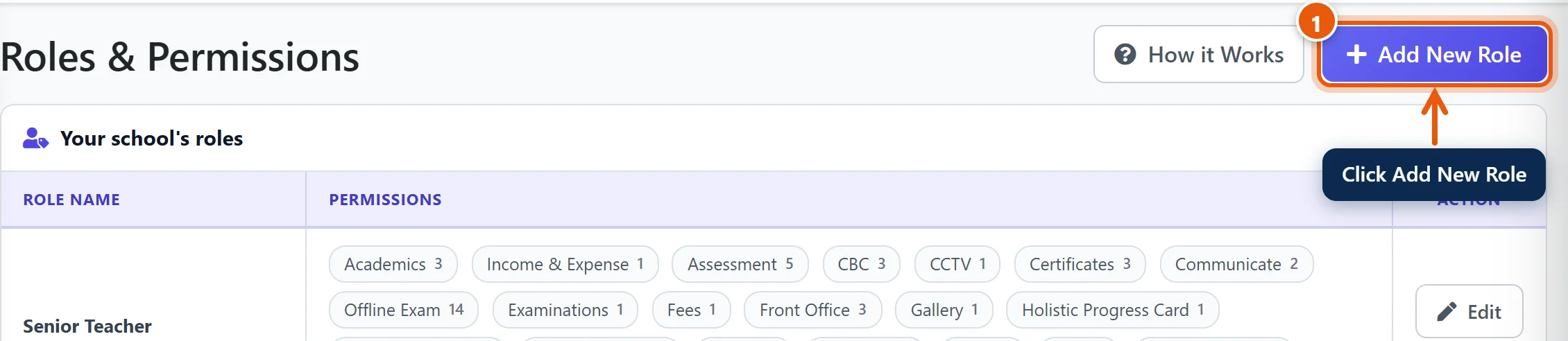
Important: use Add New Role, not Copy on the Teacher role. A copy of Teacher stays limited to the teacher's own classes.
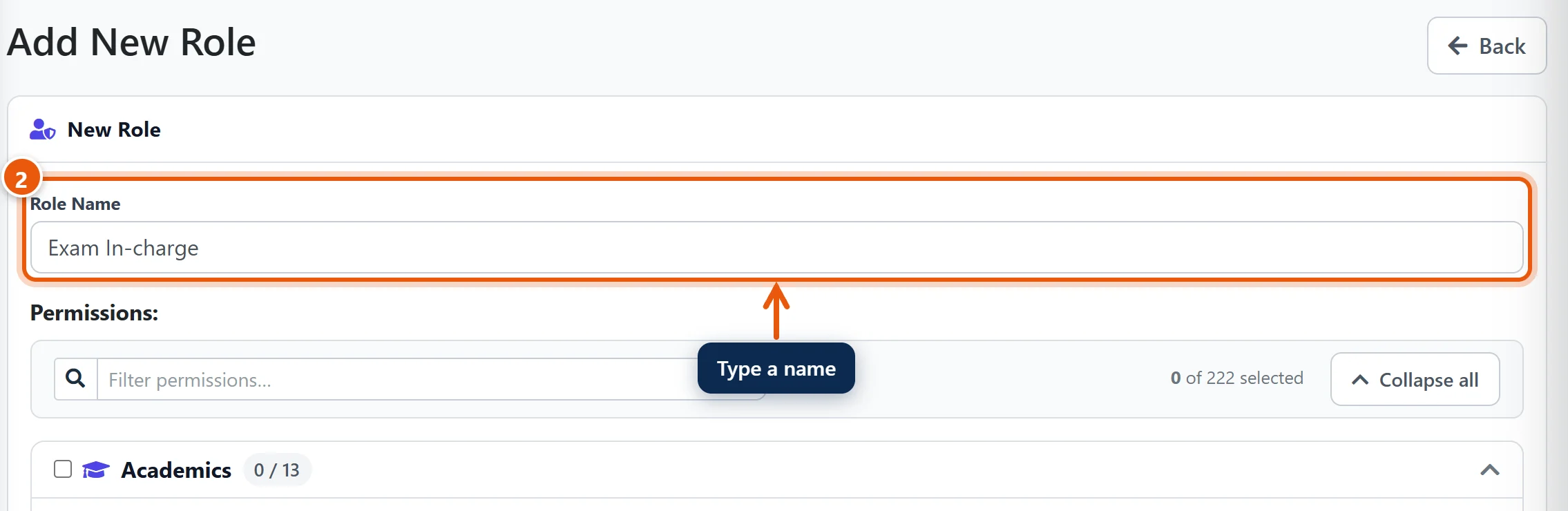
- In Role Name, type Exam In-charge.
- Find the Offline Exam group and tick the box next to its name. This ticks all its permissions: exam setup, datesheet, admit cards, marks entry, Finalise & Lock, and results.
- The count next to the group shows 14 / 14.
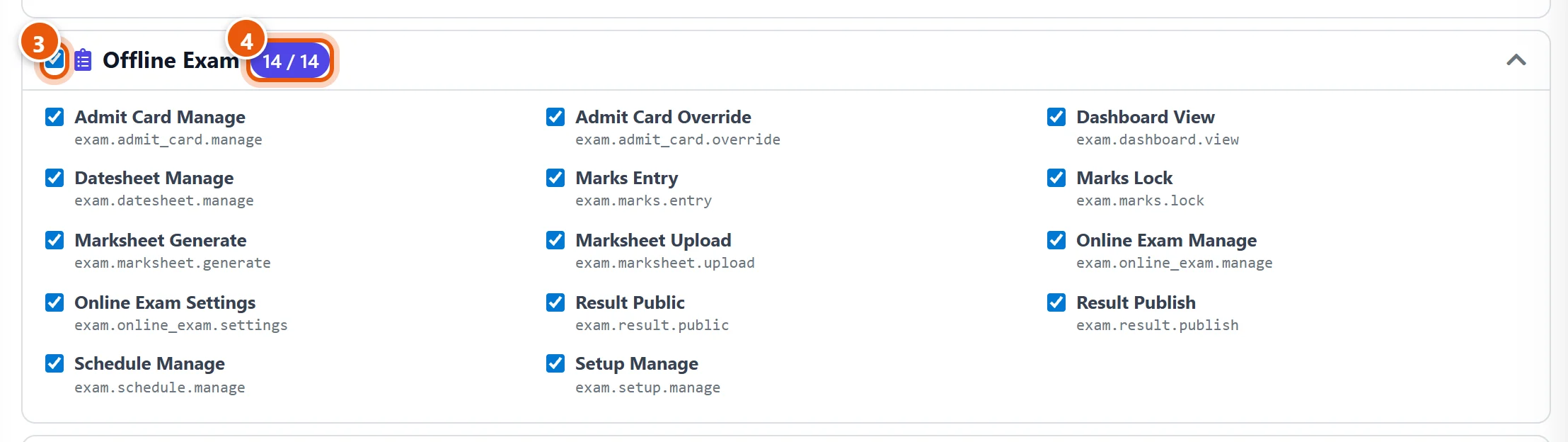
Tip: if the person should only enter marks (not set up exams or publish results), tick just Dashboard View, Marks Entry and Marks Lock instead of the whole group.
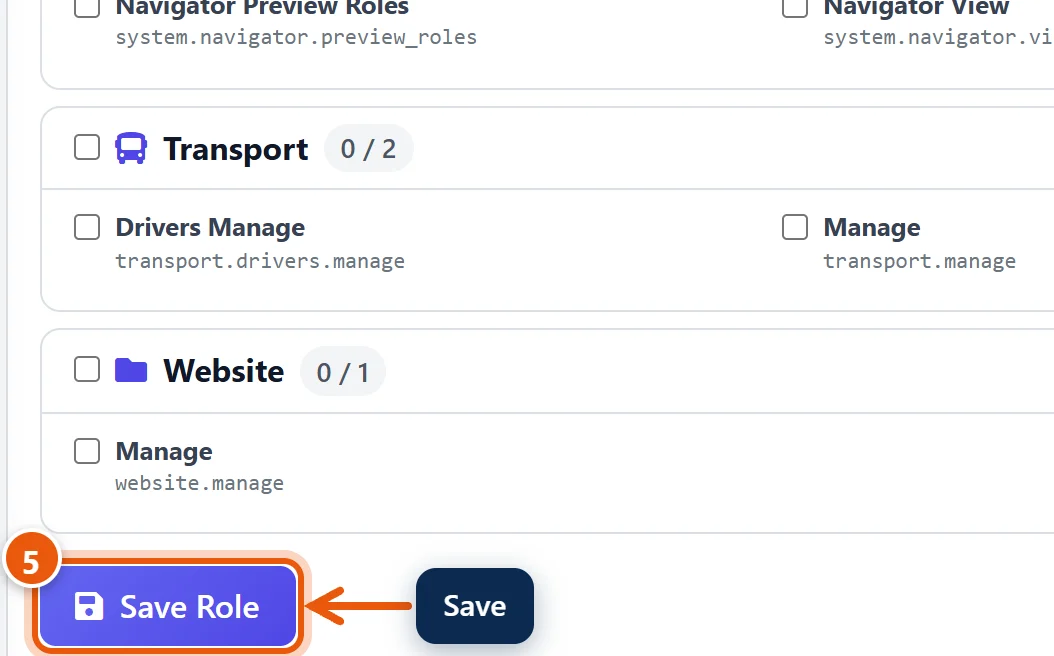
- Scroll to the bottom and click Save Role.
4b: Give the role to the staff member
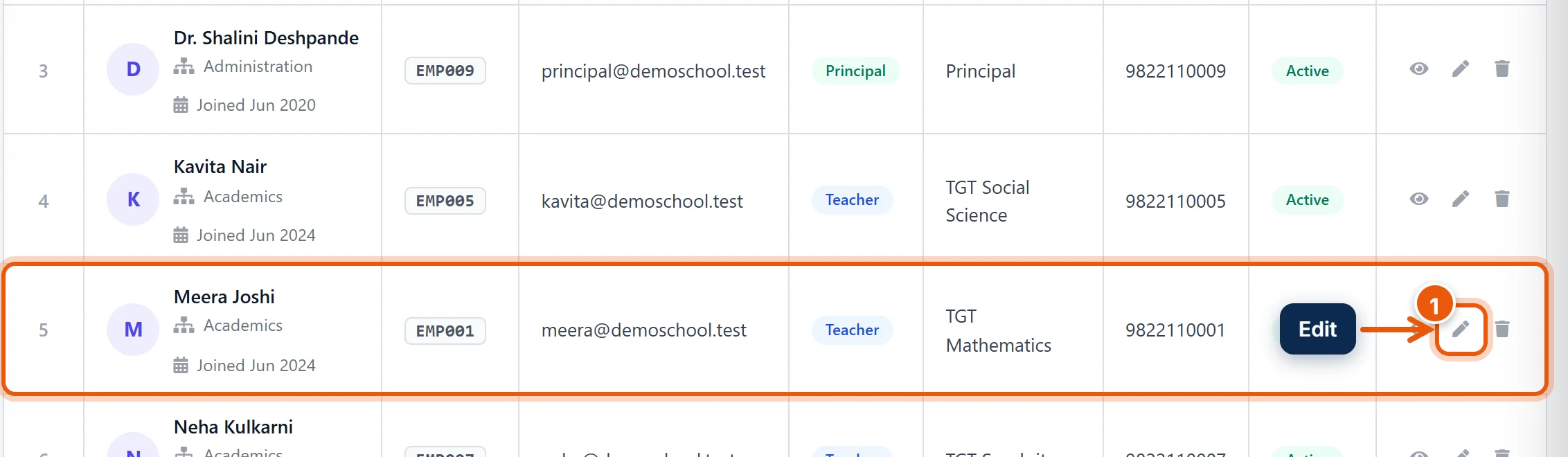
- In the menu search, type Staff Directory and open it. Click the pencil (Edit) next to the staff member.
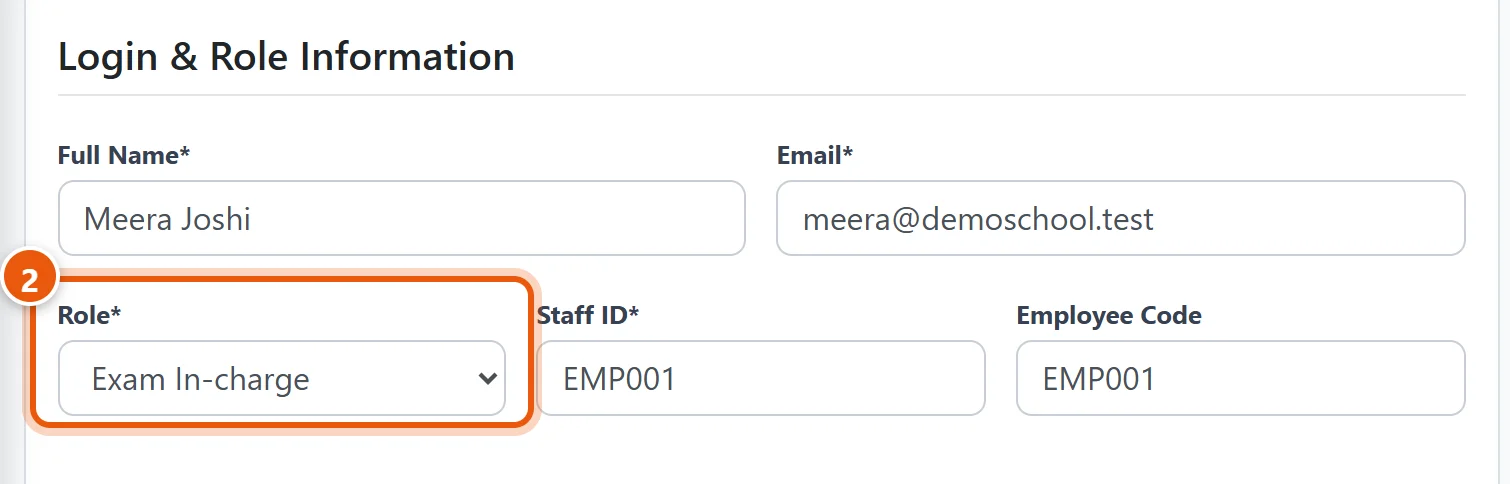
- In Role, choose Exam In-charge.
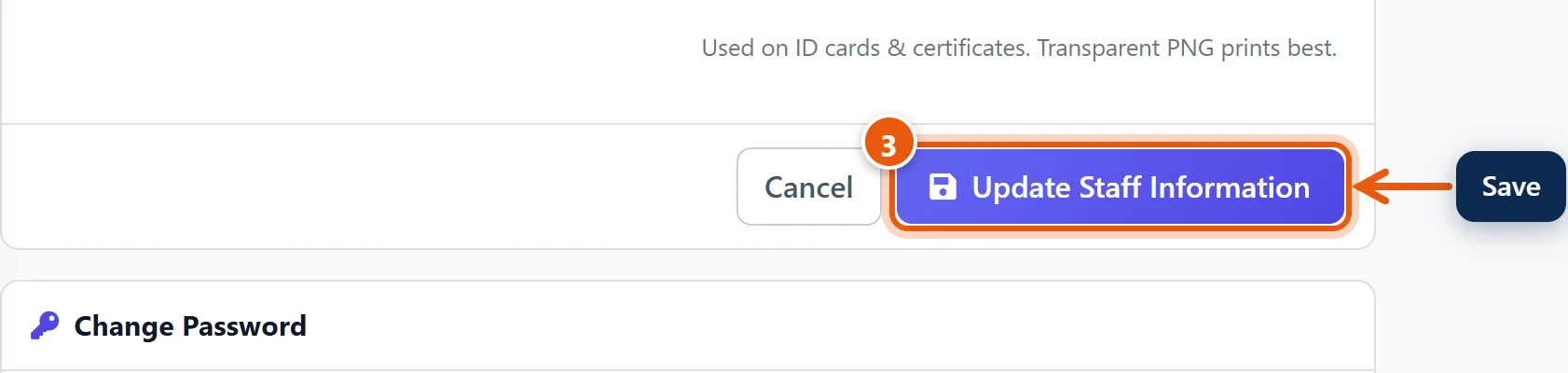
- Scroll down and click Update Staff Information.
They see every class the next time they open a page. Their login and password do not change. Their menu shows Offline Examinations plus their own pages (profile, messages), and nothing else from the school.
Does the exam in-charge also teach? The Exam In-charge role has only what you ticked, so they lose the teacher's screens such as student attendance and homework. Open the role (Edit under Your school's roles) and tick those too, for example in the Students and Study Center groups.
Quicker, for a vice principal: choose Principal in 4b step 2 instead. Principal also works with every class, but it sees the whole school (fees, staff, students, reports), everything except settings and the subscription. Give it only to someone you trust with all of that.
Note: the built-in Academic Master role cannot enter marks, so it does not help here.
Step 5: Check what the teacher sees
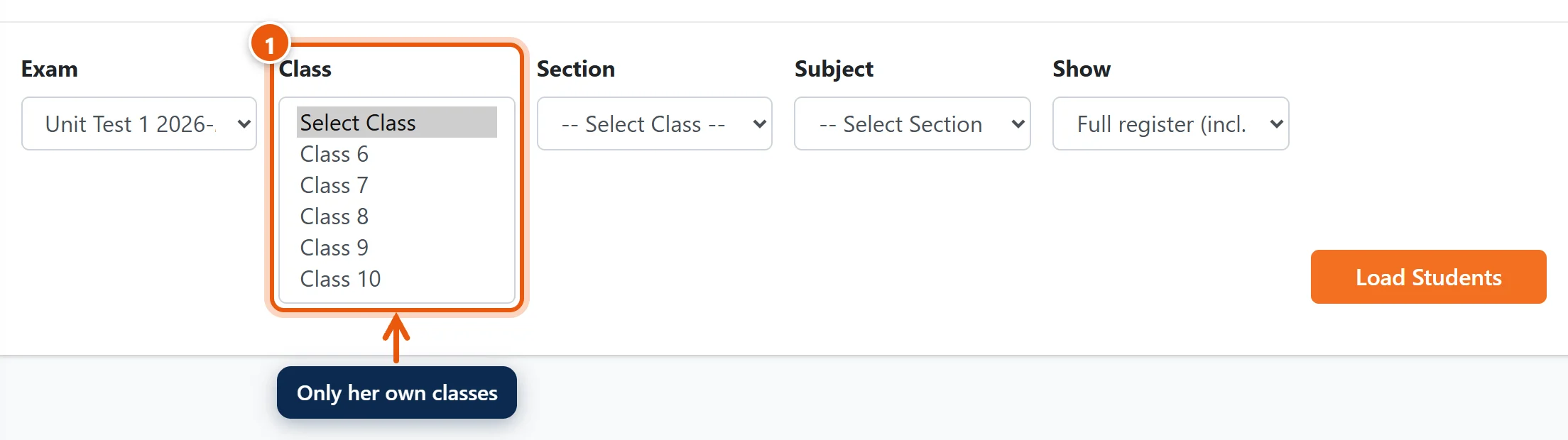
Ask the teacher to log in and open Offline Examinations → Enter Marks, then choose the exam. The Class list shows only the classes they are linked to:
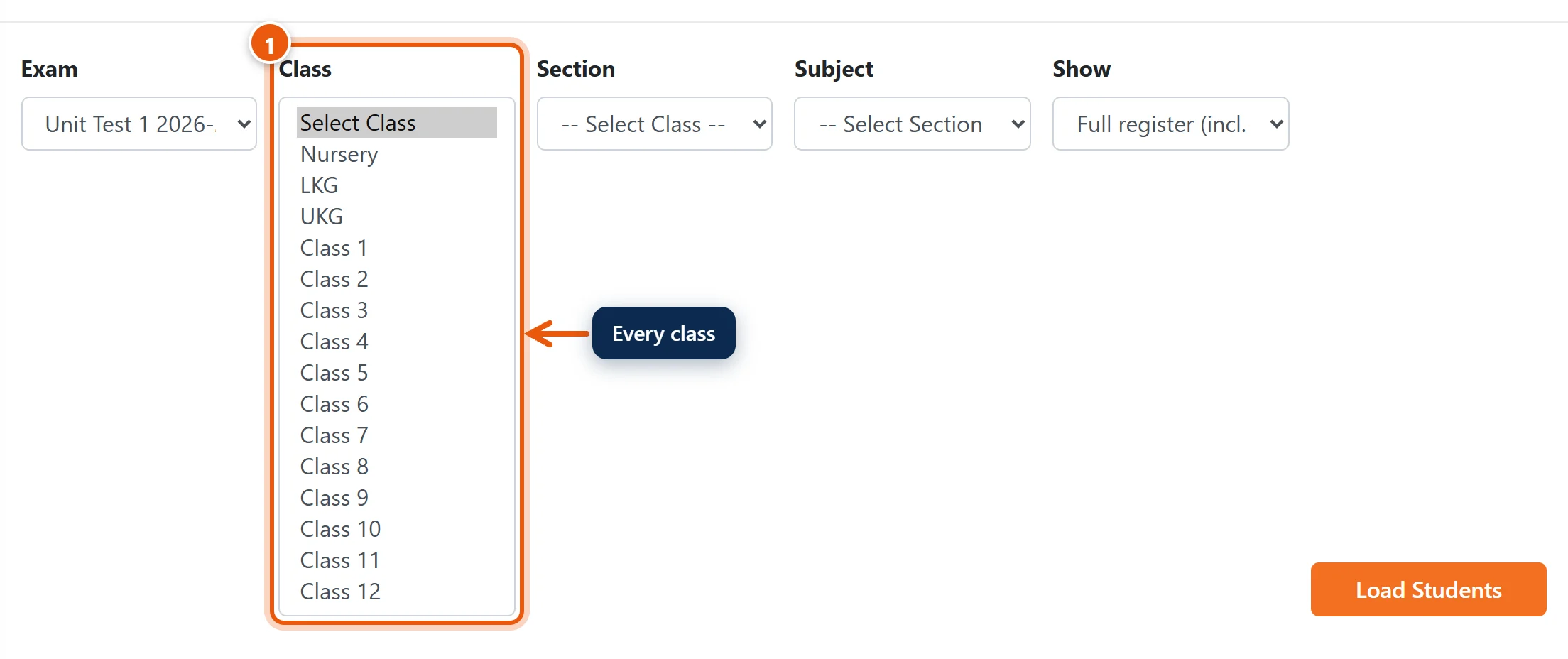
Someone with the Exam In-charge or Principal role sees every class:
The same access applies in the SchoolAlgo Staff app.
Good to know
- A teacher's timetable counts too. If the teacher has a period for a subject in a section in the Class Timetable, they can enter marks for that subject there, without Step 1.
- Taking access away: remove the teacher from the box in Step 1, choose another in-charge or coordinator in Steps 2–3, or change the role back to Teacher in Step 4b. It takes effect the next time they open a page. Marks they already entered stay.
- Someone moved to the Exam In-charge or Principal role no longer appears in the teacher list on Assign Class Teacher (it lists only teachers). They don't need to: they can already enter marks for every class.
- Two people for one section: a section has one in-charge, but any number of subject teachers. Give the second person the subjects in Step 1.
Common problems
| What you see | Why | What to do |
|---|---|---|
| The teacher sees no classes in Enter Marks | They are not linked to any class yet, or the change was not saved. | Link them with Step 1, 2 or 3 and click its Save or Update button. |
| The teacher sees the class but not a subject | They are a subject teacher of other subjects only. | Give them the subject in Step 1, or make them the Section In-charge (Step 2). |
| The page says the subject is not in this exam | The exam has no marks set up for that subject. | Add it in the exam's marks setup (see Set up an exam). |
| A teacher is not in the list on Assign Class Teacher | Their role is not Teacher (or a copy of it). | Check their role in Staff Directory. |
| Someone with their own role still sees only some classes | The role was copied from Teacher. | Make the role with Add New Role instead (Step 4a) and give them that role. |
Related guides
- Assign subject teachers so they can enter marks
- Add a teacher and give them a login
- Staff roles: give each person the right access
- Enter exam marks (for teachers)
Still stuck? Send us a screenshot on WhatsApp and we will guide you.
Chat on WhatsAppLast updated 15 October 2026