
Who does this: the school admin or principal.
How long it takes: about 15 minutes to fill the sheet for a class, and a minute to upload it.
Use this when you start with SchoolAlgo and have many students to add. Every student gets a login of their own, and so does their parent.
Before you start
- Classes and sections must already exist in SchoolAlgo, for example Class 3 with section A. The upload does not create them.
- Fees are given after the upload, class by class (Step 7). Set up your fee groups first if you haven't (see Set up your fee structure, linked below).
Step 1: Open Bulk Upload
- In the search box at the top of the left menu, type Student List and open it.
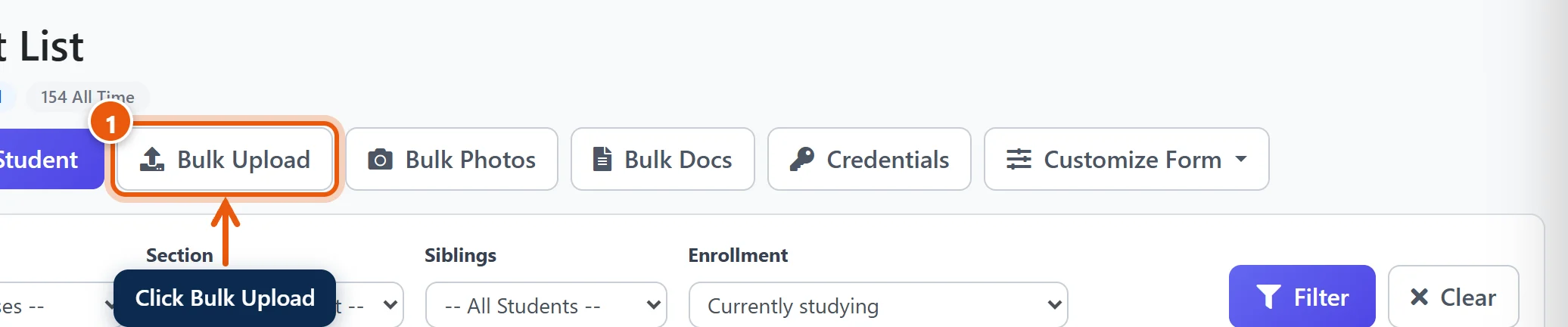
- Click Bulk Upload at the top.
Step 2: Download the template
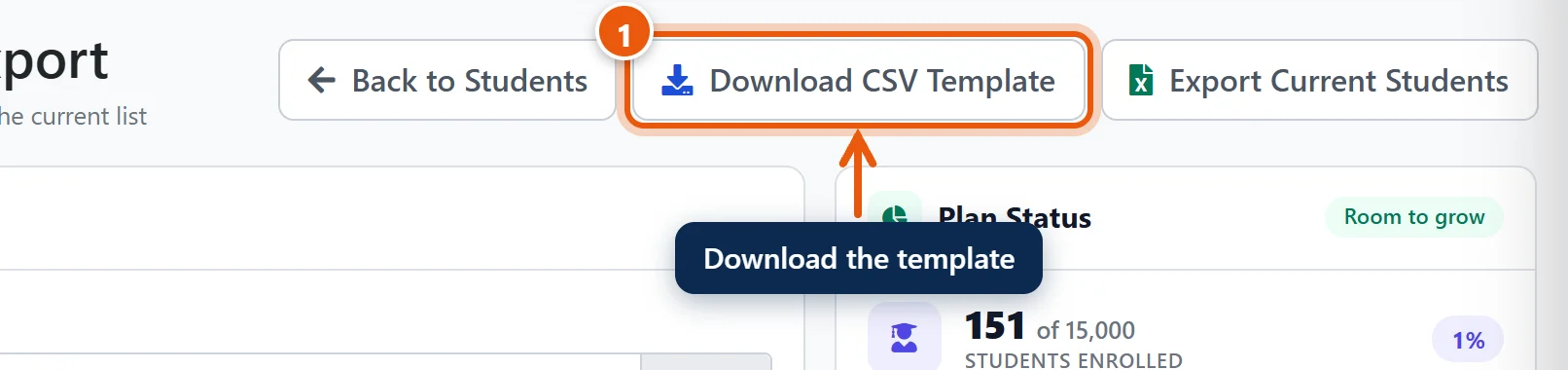
- Click Download CSV Template. A file called student_import_template.csv is saved to your computer.
- Open it in Excel (or Google Sheets).
Step 3: Fill in one row per student
The first row holds the column names. Do not change, move or delete them. Type one student per row under them.
The second row is an example (Aarav Sharma, admission no. 1001). Type your first student over it, or delete that row, so the example student is not uploaded.
Only 10 columns are required. The page lists every column with an example: click Required to see just those 10.
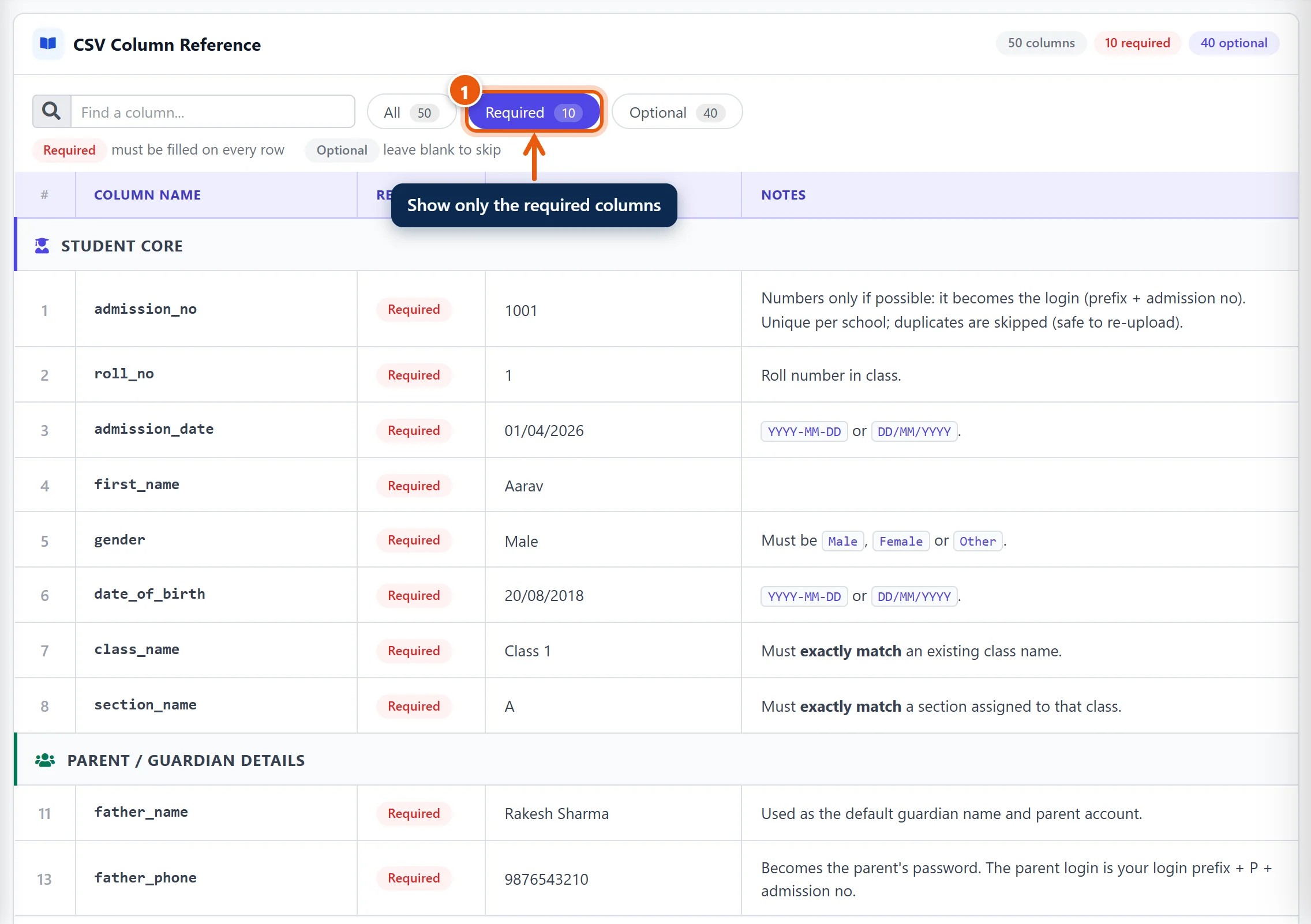
| Column | What to type |
|---|---|
| admission_no | The number from your admission register, for example 1023. Each student needs a different one. It becomes the student's login (see below). |
| roll_no | Roll number in the class. |
| admission_date | Date of admission, for example 01/04/2026. |
| first_name | Student's first name. |
| gender | Male, Female or Other. |
| date_of_birth | For example 14/03/2017. It becomes part of the student's password. |
| class_name | Exactly as in SchoolAlgo, for example Class 3 (not 3rd or III). |
| section_name | Exactly as in SchoolAlgo, for example A. |
| father_name | Father's (or guardian's) name. |
| father_phone | 10-digit mobile number. It becomes the parent's password. |
Leave every other column empty if you don't have the information, but don't delete the column. You can add the details later on each student's profile.
Leave student_email empty. If it is filled, that email becomes the student's login instead of your prefix + admission number.
Choosing admission numbers
The admission number becomes part of the logins, after your school's login prefix (see Step 6), exactly as you type it. For example, with the prefix SPS and admission no. 1023, the logins are SPS1023 (student) and SPSP1023 (parent). So:
- Use numbers only where you can, for example 1023, not ADM/2026/1023. Slashes and spaces make logins hard to type on a phone.
- Check them before uploading. If an admission number is corrected later, the login stays the one made from the old number.
Excel tips that save trouble
- Dates: type them the normal way, 14/03/2017 (day first). 2017-03-14 also works.
- Admission numbers that start with 0 (like 0152): Excel drops the leading zero. Before typing, select the admission_no column, right-click, choose Format Cells → Text.
- Long numbers (Aadhaar, bank account): format those columns as Text too, or Excel turns them into numbers like 1.23E+11.
Save the file as CSV
In Excel: File → Save As, and choose CSV UTF-8 (Comma delimited) (*.csv). Keep the file name short, for example class3.csv.
Step 4: Upload the file
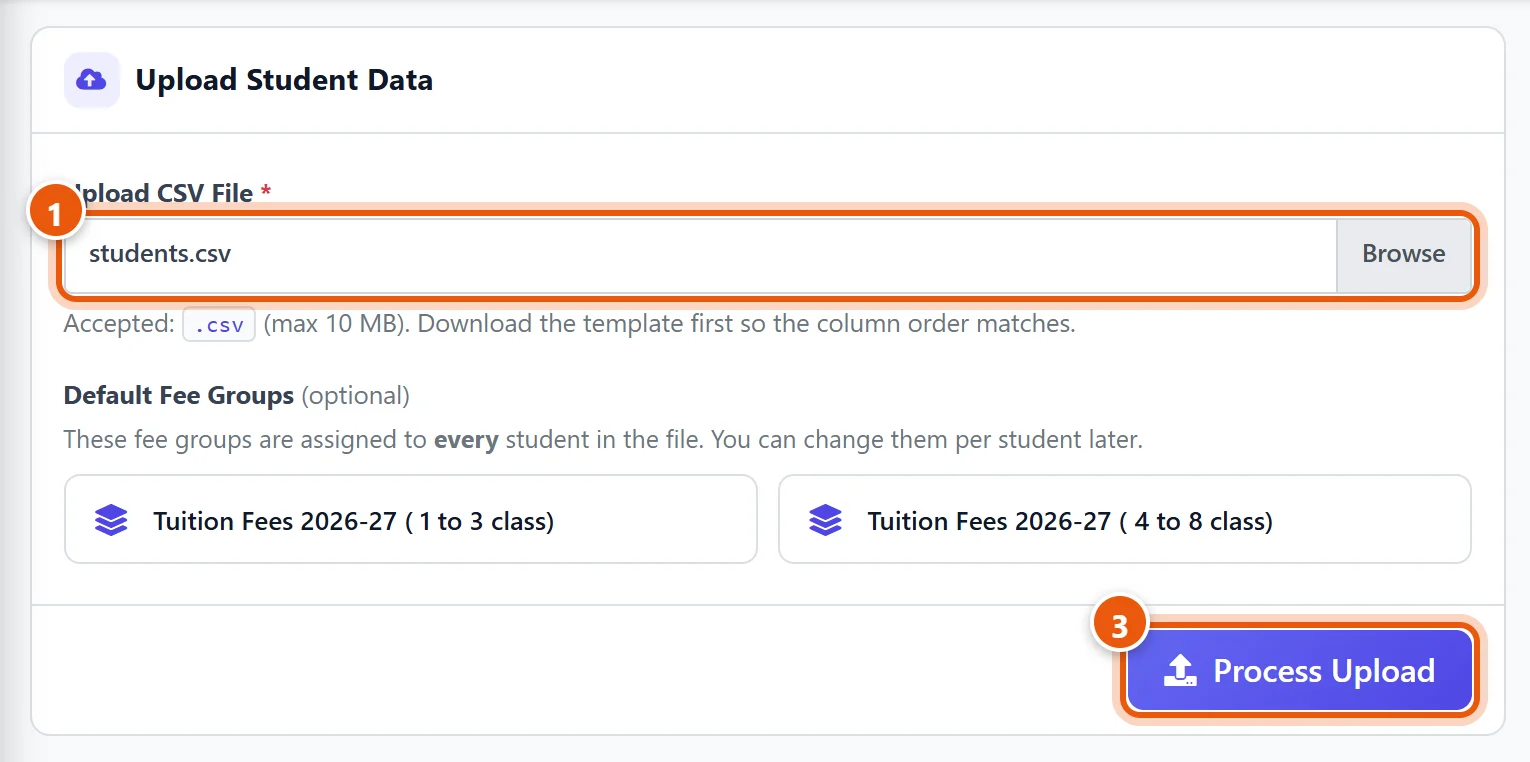
- Under Upload CSV File, click Browse and choose your CSV file.
- Leave Default Fee Groups empty. You give fees in Step 7, which is clearer.
- Click Process Upload.
Why not tick fee groups here? A ticked group goes to every student in the file, whatever their class. It only suits a file that holds one class (or classes with the same fees). Giving fees by class in Step 7 avoids mistakes.
Step 5: Check the result
Stay on the page. The progress fills in, and then shows how many students were added.
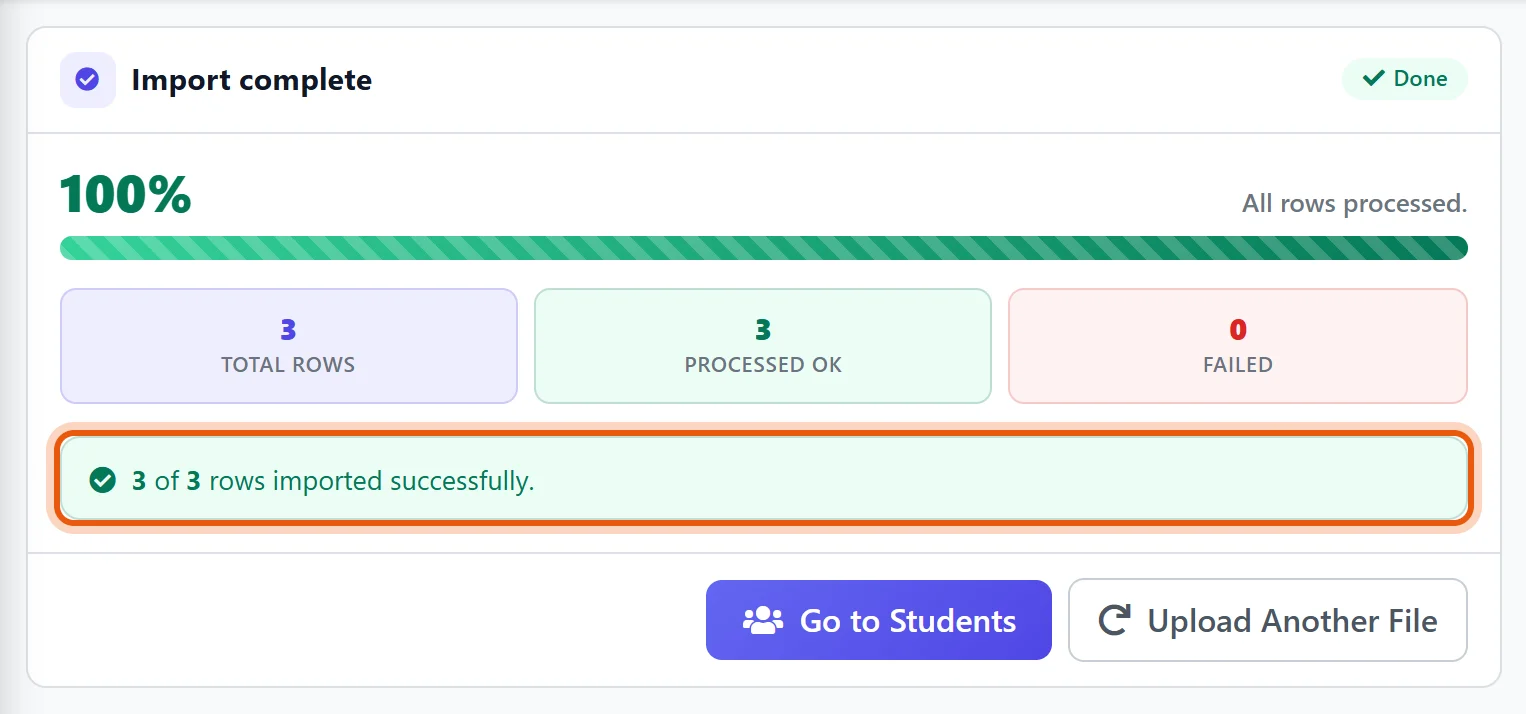
- All rows imported: you are done. Click Go to Students to see them.
- Some rows failed: the list under the result says which line and why, for example Class 'Class 3' does not exist in the database. (the class name is spelled differently) or The selected gender is invalid. Fix those rows in your file and upload the same file again. Students already added are skipped, so nobody is added twice.
Step 6: Share the logins
Every student and parent now has a login. Each one starts with your school's login prefix: 2 to 6 letters made from your school's name, for example SPS for Sunrise Public School. To see yours, open Settings → System & Formats and look at Login Prefix.
With the prefix SPS, the logins look like this:
| Who | Login | Password |
|---|---|---|
| Student | prefix + admission no, e.g. SPS1023 | admission no + date of birth (ddmmyyyy), e.g. 102314032017 |
| Parent | prefix + P + admission no, e.g. SPSP1023 | father's mobile number |
To print or download them all:
- In the Student List, click Credentials.
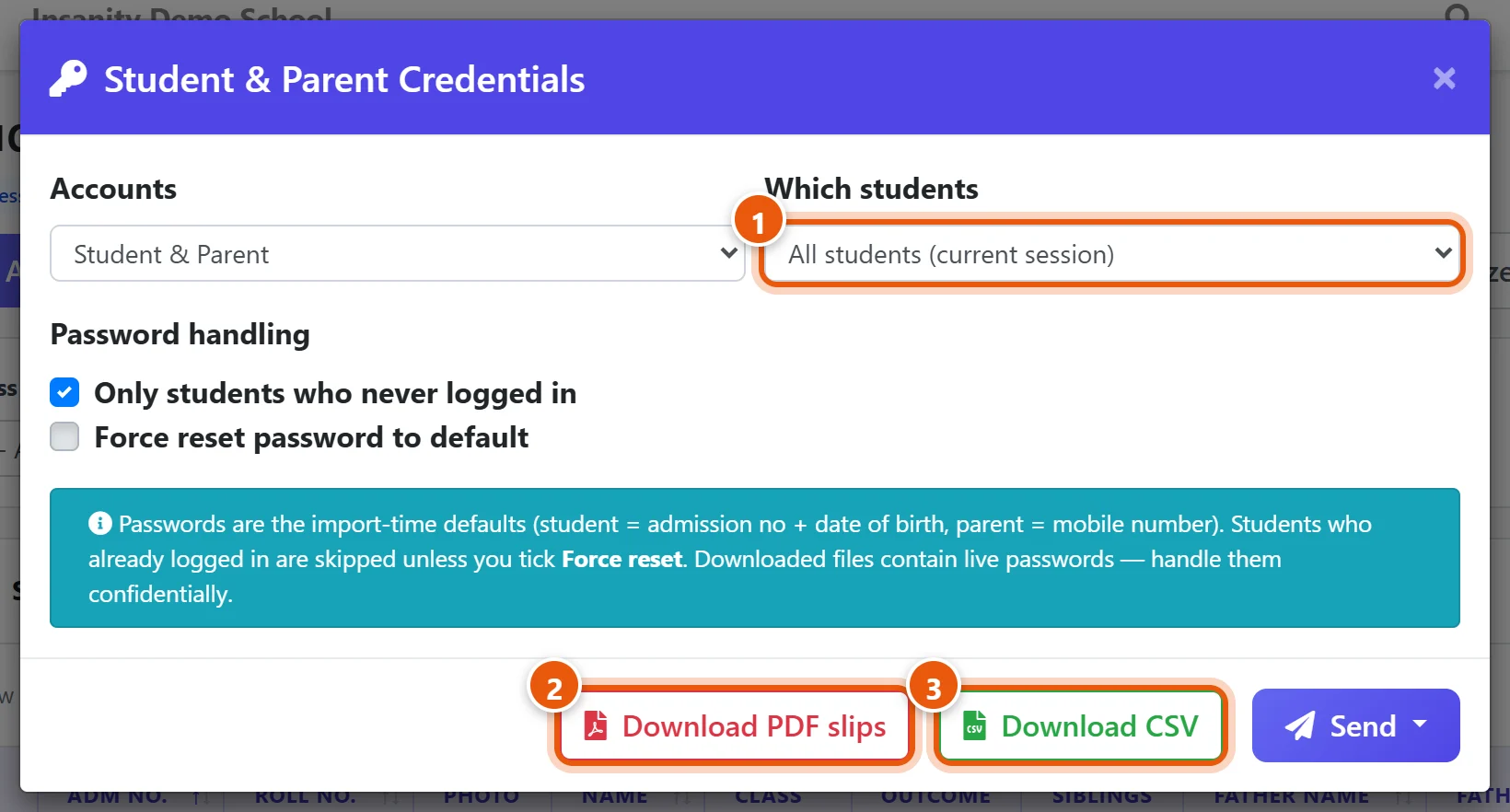
- In Which students, choose All students (current session), or a single class.
- Click Download PDF slips to print one slip per student to send home...
- ...or Download CSV for a spreadsheet of all logins.
Parents and students sign in at app.schoolalgo.com or in the SchoolAlgo apps.
Keep the file private. It contains working passwords.
Step 7: Give fees to each class
Each fee group is meant for certain classes, for example Tuition Class 1-3 for Classes 1, 2 and 3. Assign each group to its classes once all students are uploaded:
- Open Finance & Fees → Assign Fees and click Assign to Classes.
- Choose the Fee Group, leave Demand Date blank, tick the classes that pay it, and click Assign Fees.
- Repeat for each tuition fee group.
Don't assign the one-time admission fee group to whole classes: it is for new admissions only. Bus fees are given on the Transport pages (see Set up transport (bus) fees).
The guide Set up your fee structure (linked below, Part 3) shows this screen step by step.
Every student is charged for the whole session, from April, including students who joined after April. If your students already paid some months before you started using SchoolAlgo, enter those payments so they don't show as due (see Enter old fee payments in bulk with the Collection Sheet, linked below).
Good to know
- Photos: add them all at once with Bulk Photos on the Student List (a ZIP of the photos, plus a small CSV that matches each photo to an admission number).
- Brothers and sisters: each child gets their own parent login. To give a family one login, open the younger child, click Edit, and link them to the elder child's parent account.
- A wrong detail after upload: correct it on the student's profile with Edit. Uploading the file again does not change students who already exist.
Related guides
- Set up your fee structure
- Enter old fee payments in bulk with the Collection Sheet
- Add admission and registration fees for a new student
Still stuck? Send us a screenshot on WhatsApp and we will guide you.
Chat on WhatsAppLast updated 14 October 2026