
Who does this: the school admin or accountant, once at the start of the year.
How long it takes: about 15 minutes for the whole school.
How fees are organised
Fees are kept in fee groups. A fee group is one fee structure, for example Tuition Class 1-3 2026-27, with all its installments (April, May, June...) and their due dates.
Plan your groups before you start:
- One tuition group for each fee level. If Nursery to UKG pay ₹950 a month and Classes 1 to 3 pay ₹1,150, that is two groups. Classes that pay the same can share one group.
- One-time fees in a group of their own, for example New Admission 2026-27 with the Admission and Registration fees. That way only new students get them.
- Put the year in every group's name, for example 2026-27. Next year's groups then never get mixed up with this year's dues.
Transport fees are set up separately, under Transport.
Part 1: Create the tuition fees with Quick Setup

Open any Finance & Fees page, for example Fees Dashboard, and click Quick Setup at the top right.
Step 1: Choose how often you collect
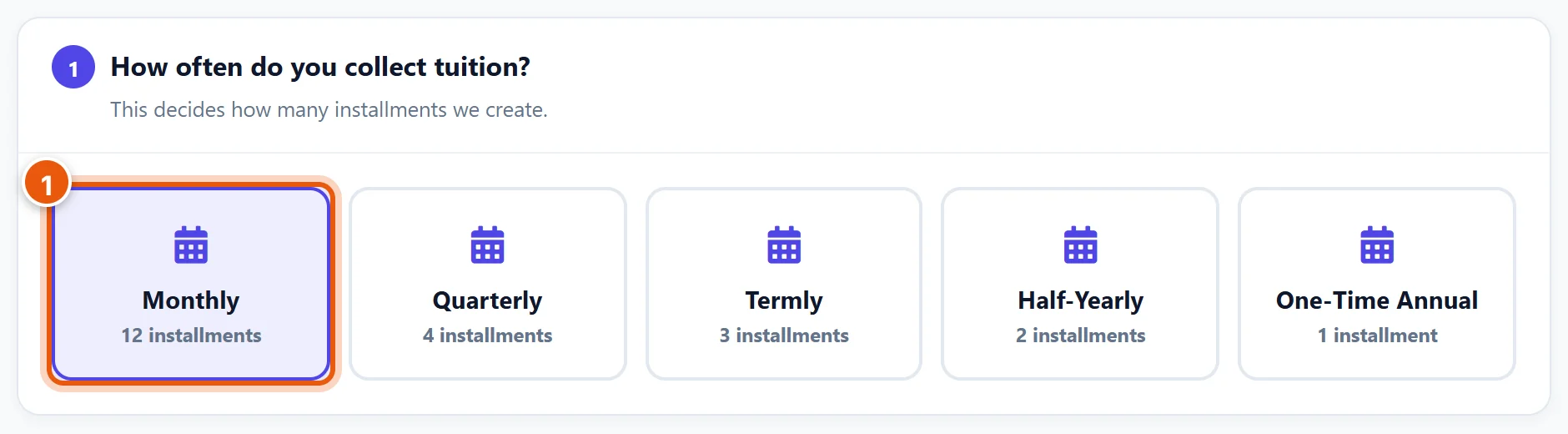
- Choose Monthly (12 installments), Quarterly, Termly, Half-Yearly or One-Time Annual.
Step 2: Enter the amount and dates
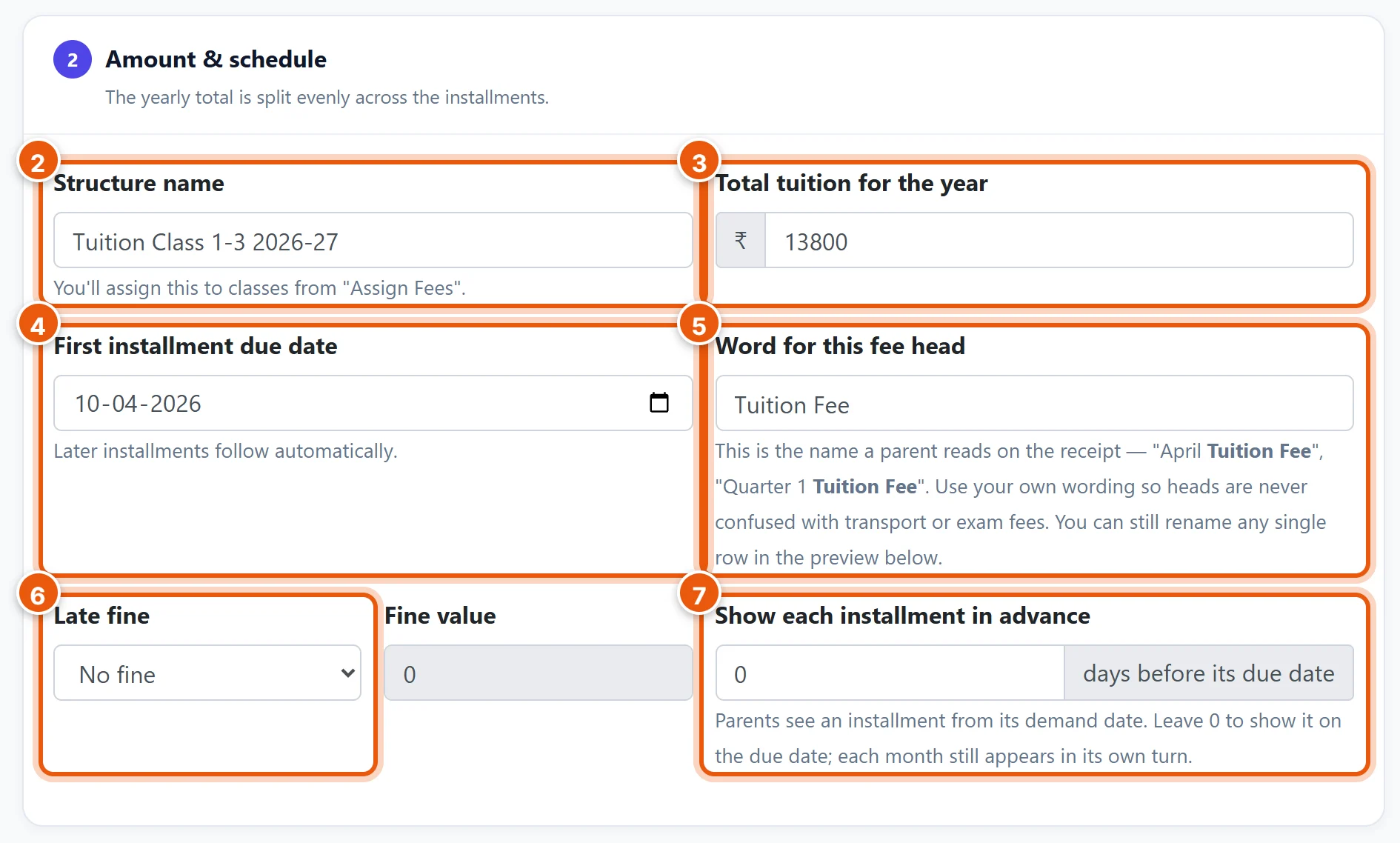
- Structure name: for example Tuition Class 1-3 2026-27.
- Total tuition for the year: the yearly total, not the monthly amount. For ₹1,150 a month, type 13800 (1,150 × 12). It is split evenly across the installments.
- First installment due date: the due date of the first installment, for example 10-04-2026. The next ones follow a month (or a quarter, or a term) apart. Check this date: it may show today's date.
- Word for this fee head: for example Tuition Fee. The installments are then named April Tuition Fee, May Tuition Fee, and so on. Parents see these names on receipts and in the app.
- Late fine (optional): Fixed amount (for example ₹50) or a Percentage of the installment. It is added once, the day after the due date, not per day. Leave No fine if you don't charge one.
- Show each installment in advance: how many days before its due date parents start seeing an installment. 0 shows each month on its due date.
Step 3: Check the preview and create
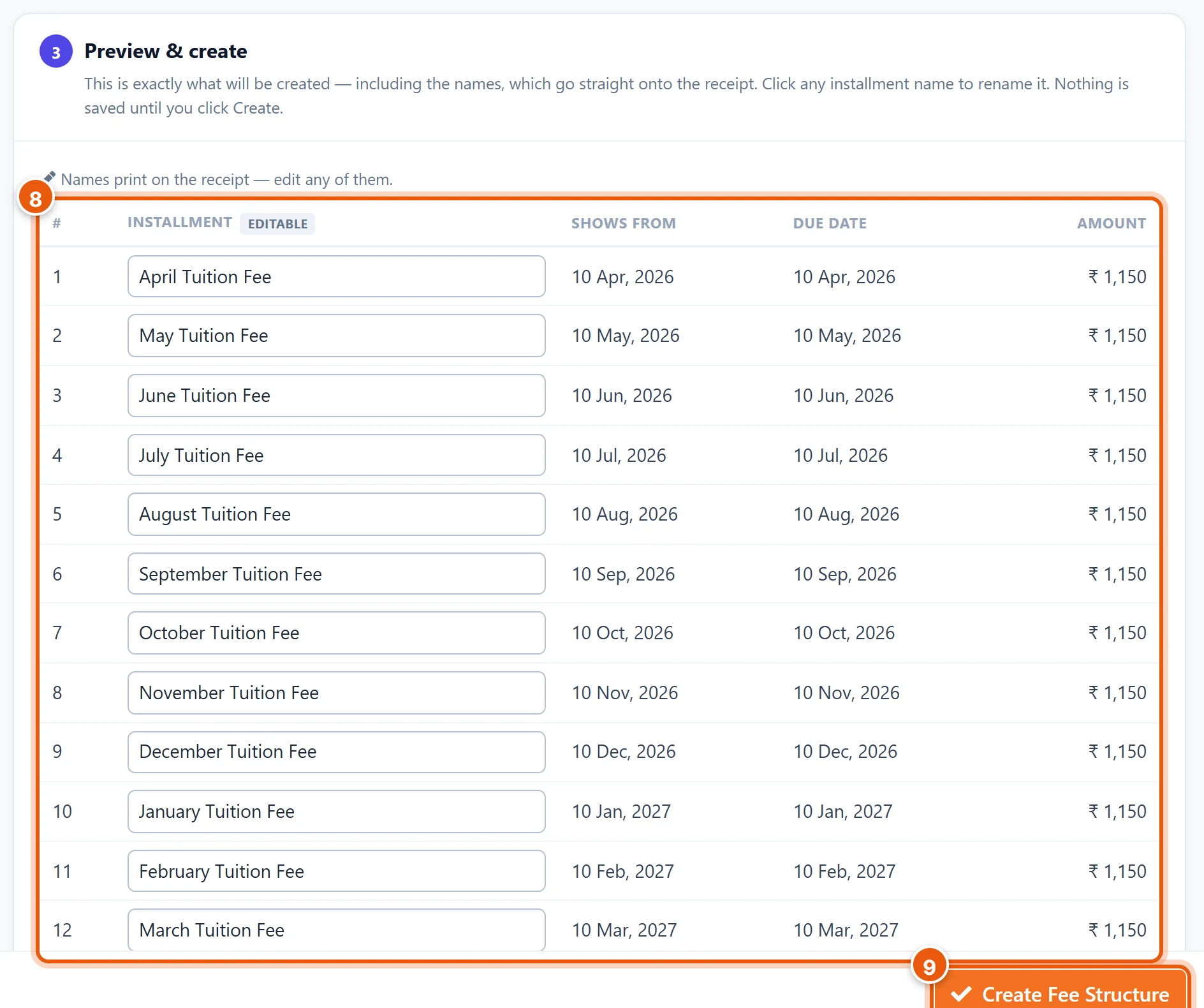
- Check the list: one row per installment, with its due date and amount. You can click a name to change it.
- Click Create Fee Structure.
Repeat Part 1 for each fee level, for example once for Nursery to UKG, once for Classes 1 to 3, and so on.
Part 2: Add one-time fees (admission, registration, exam)
Quick Setup is for fees paid in installments. For a group of one-time fees, use Fee Groups:
- Open Finance & Fees → Fee Groups and click Add New Fee Group.
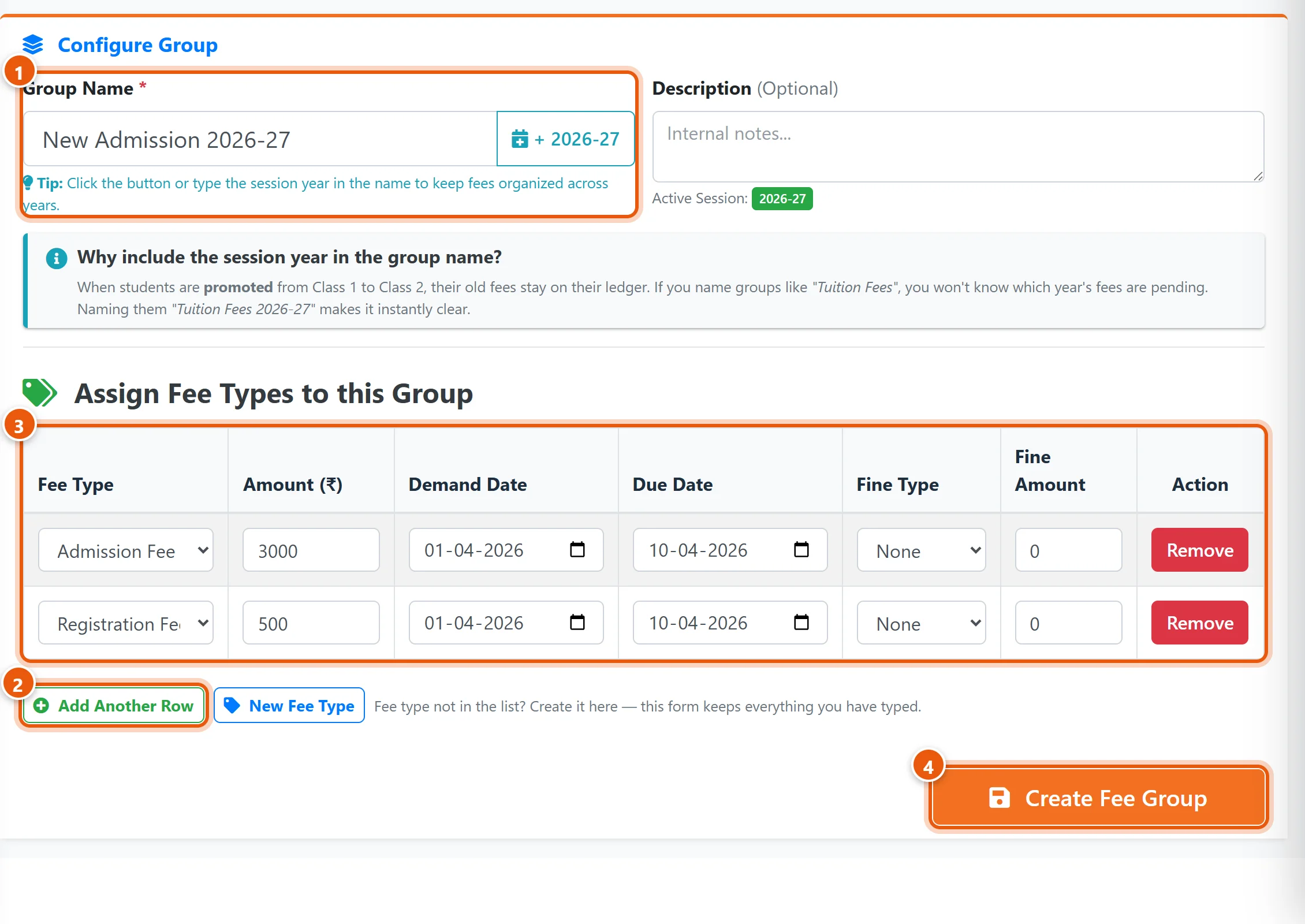
- Group Name: for example New Admission 2026-27.
- Click Add Another Row for each fee in the group. If a fee is not in the list, click New Fee Type to create it.
- For each row, choose the Fee Type (for example Admission Fee), and type the Amount, the Demand Date (when parents start seeing it) and the Due Date.
- Click Create Fee Group.
Part 3: Assign the fees to classes
A fee group does nothing until it is assigned to students. Assign each tuition group to its classes in one go:
- Open Finance & Fees → Assign Fees.

- Click Assign to Classes.
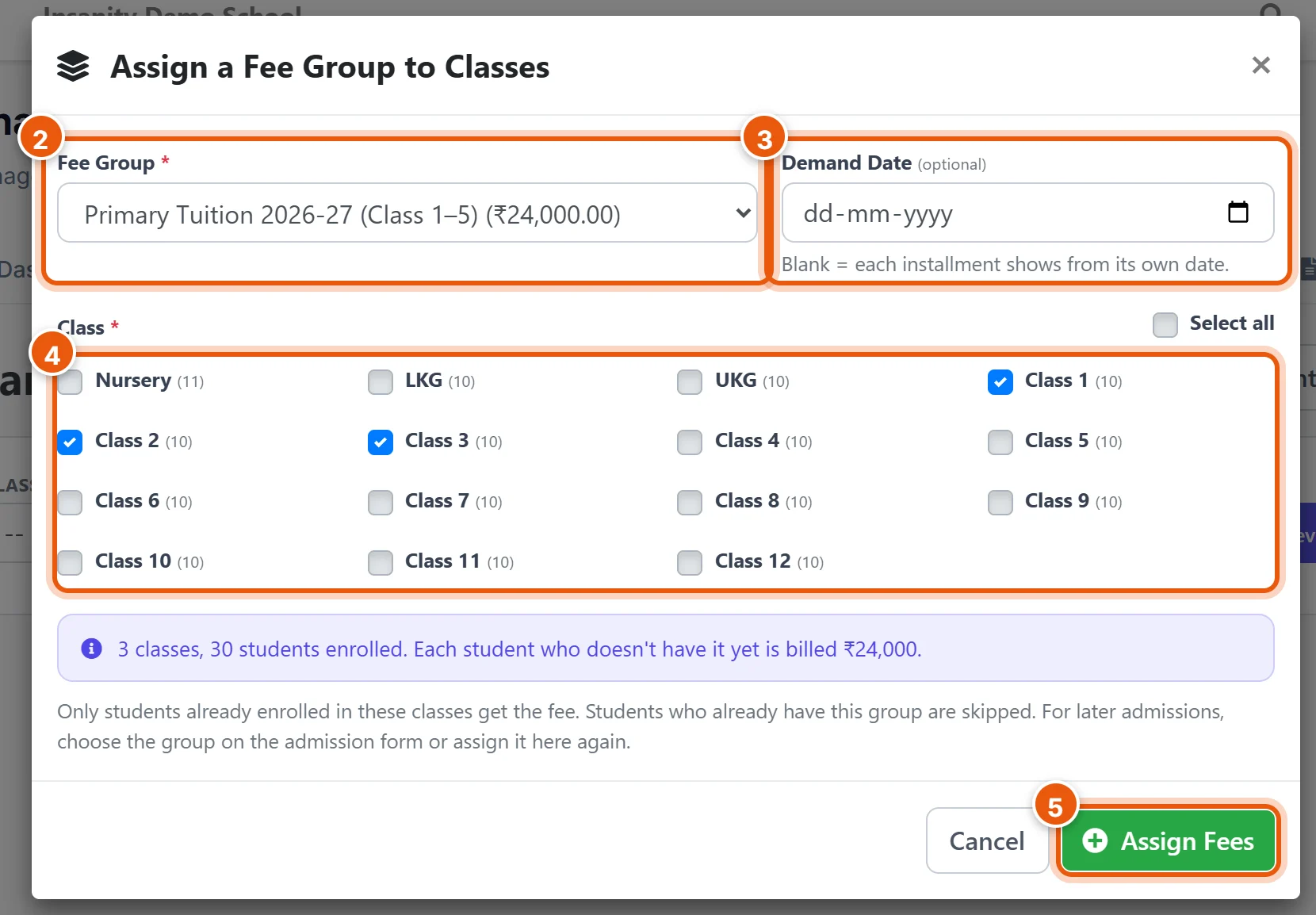
- Fee Group: choose the group, for example the tuition group for Classes 1 to 3.
- Demand Date: leave it blank, so each installment shows from its own date.
- Tick the classes that pay this fee. The box below shows how many students will get it and the yearly amount for each.
- Click Assign Fees.
Do this for every tuition group. Students who already have the group are skipped, so running it again is safe.
Do not assign the one-time admission group to whole classes. Give it to new students only, on the admission form (see the related guide below).
Check it worked
Open Collect Fees and find any student. Their months should be listed with the right amounts, and the months already due show as Unpaid.
Good to know
- Changing a group later: once a group is assigned to students, it is locked, so the fees students already have cannot change by accident.
- If nobody has paid yet, unassign it (Assign Fees → Unassign Mode), edit the group in Fee Groups, then assign it again.
- If payments have been taken, create a new group with a different name instead.
- Students who join later: tick their class's tuition group on the admission form. Months that have already passed fall due on their admission date.
- Started using SchoolAlgo mid-year? The fees still start in April. See the related guides to record what parents have already paid.
- Next year: create new groups with the new year in the name. Unpaid fees from this year stay on each student's record.
Related guides
- Add admission and registration fees for a new student
- Collect fees from a parent
- Enter old fee payments in bulk with the Collection Sheet
Still stuck? Send us a screenshot on WhatsApp and we will guide you.
Chat on WhatsAppLast updated 13 October 2026