
Who does this: the accountant, school admin or principal.
How long it takes: under a minute per payment.
Before you start
The student must already have fees assigned. If Collect Fees shows nothing for them, see the related guide on assigning fees below.
Step 1: Open Collect Fees
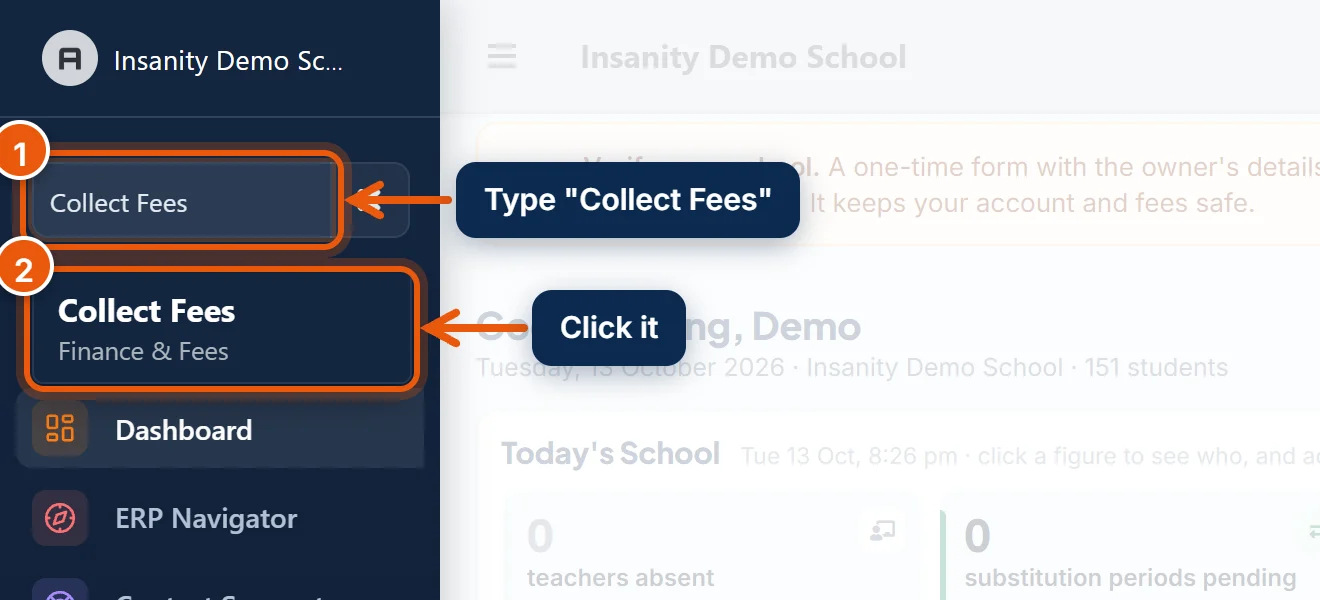
- In the search box at the top of the left menu, type Collect Fees.
- Click Collect Fees.
The page lists every student who has fees due, the highest dues first.
Step 2: Find the student
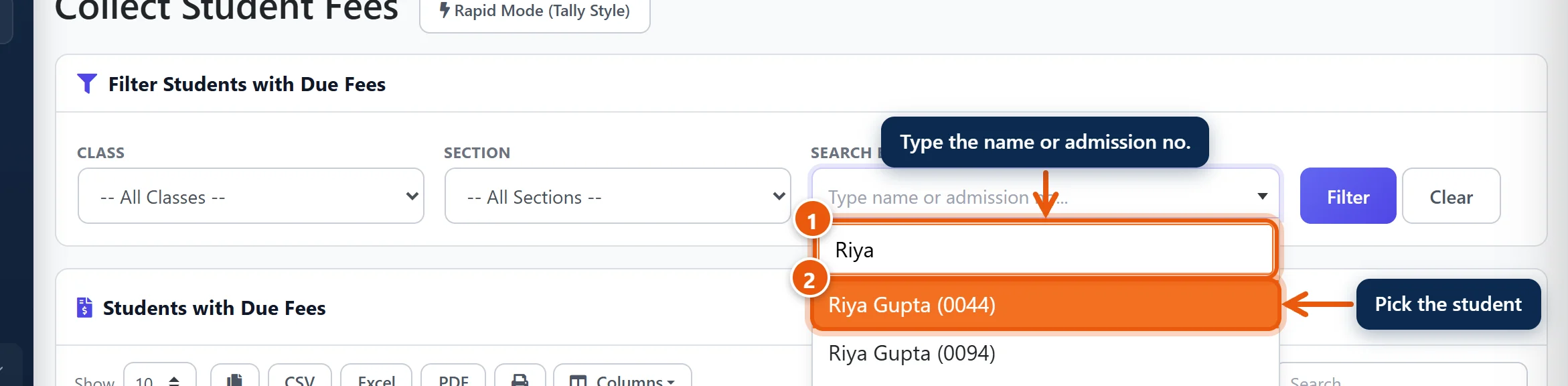
- Click Search by admission no or name and type the student's name or admission number.
- Pick the student from the list. Check the admission number in brackets if two students have the same name.

- Click Filter.
Tip: You can also click View & Collect next to any student in the list.
Step 3: Tick the months being paid
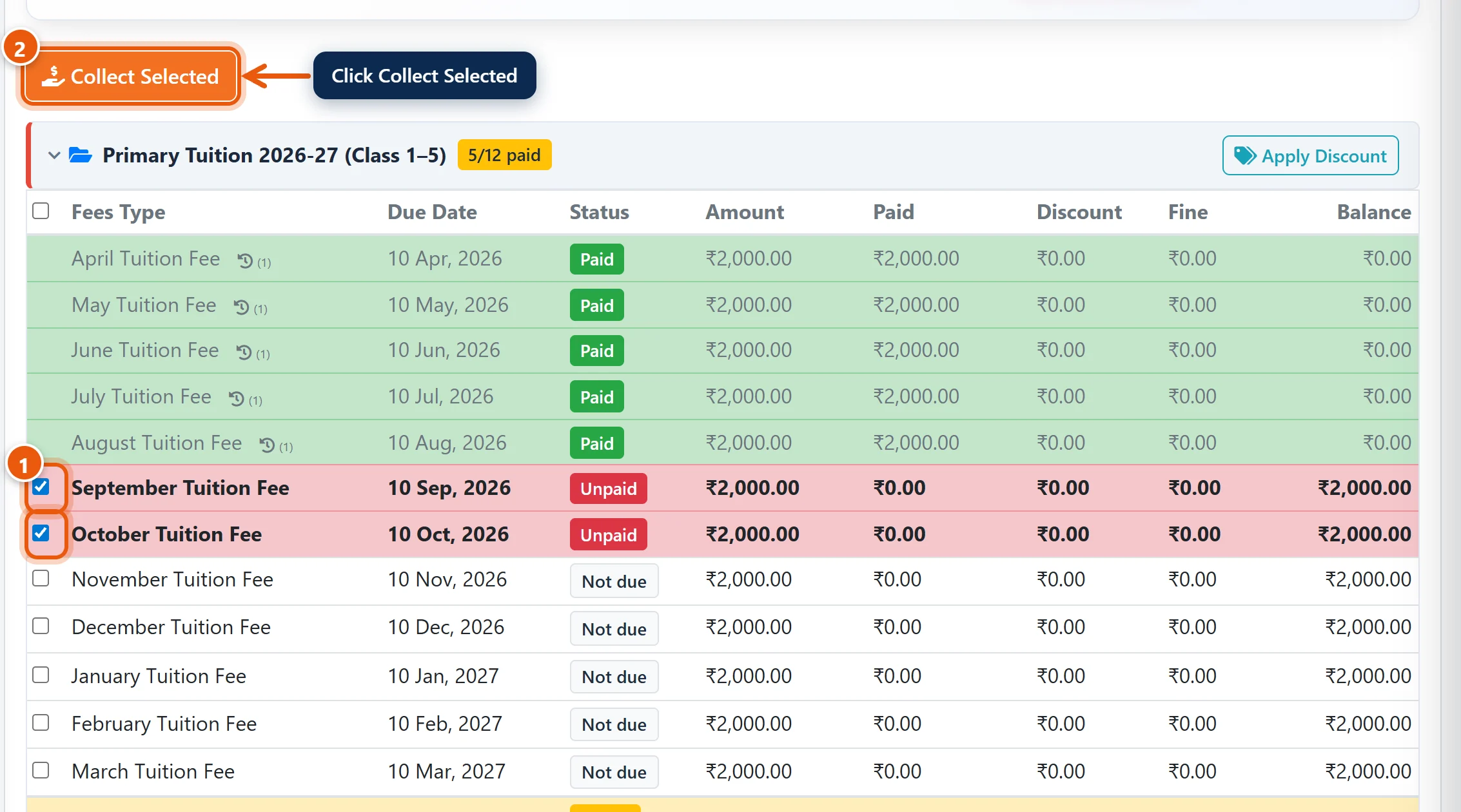
The student's fees are listed month by month. Green rows are paid, red rows are due now, and Not due rows are for later months.
- Tick each month the parent is paying for. Start with the oldest unpaid month.
- Click Collect Selected at the top.
Step 4: Check the payment form
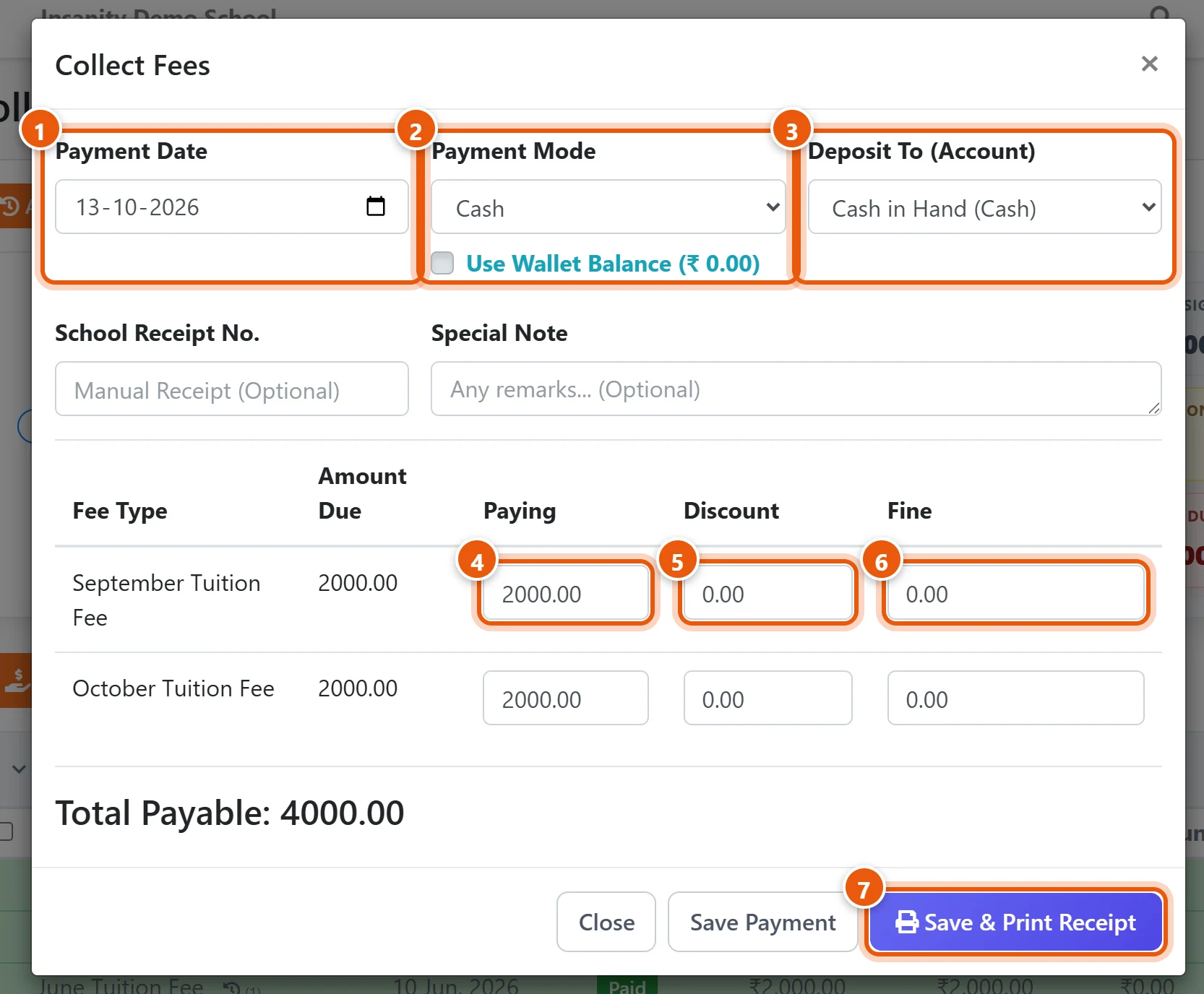
- Payment Date is today. Change it only if the money was received on another day.
- Payment Mode: Cash, Card / POS, QR / UPI, Cheque or Bank Transfer. For anything other than cash, type the UPI transaction ID or cheque number in the box that appears.
- Deposit To (Account): where the money goes. Keep Cash in Hand for cash. For UPI, cheque or transfer, choose your school's bank account.
- Paying: the amount for each month. To take a part payment, type the smaller amount. The rest stays due on that month.
- Discount: leave it at 0, unless the school has agreed to reduce this fee.
- Fine: the late fine, if your fee group has one. You can change it, or set it to 0 to excuse it.
Check Total Payable against the cash or the UPI screen.
Step 5: Save and print the receipt
- Click Save & Print Receipt. The receipt opens, ready to print or save as PDF. Save Payment saves without opening the receipt.
The months turn green, and the parent sees the payment in the Parent app straight away.
If you made a mistake
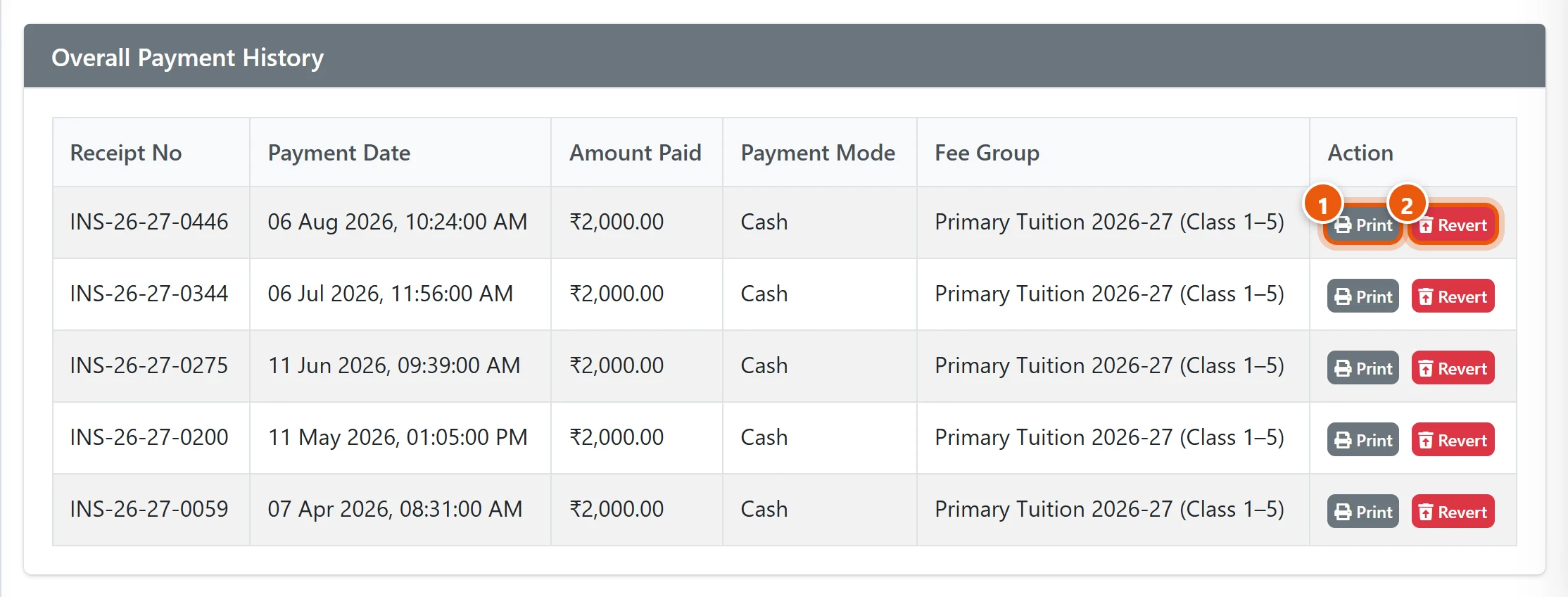
At the bottom of the student's page, Overall Payment History lists every receipt.
- Print opens the receipt again, for example when a parent asks for a copy.
- Revert cancels a wrong payment: the months become due again, and the receipt is marked as cancelled. You must choose a reason. Then collect again with the right details.
Only the school admin, or staff given the revert permission, can revert a payment.
Your school joined in the middle of the session
If your school started using SchoolAlgo in, say, October, the fee groups still start in April. So, at first, every student shows April to September as due, even though most parents paid those months in your old software or register.
Decide what you want first, then follow the matching option.
| What you want | What to do |
|---|---|
| A full record of the year in SchoolAlgo, with correct dues, reports and Parent app | Option A: enter the old payments |
| No old months in SchoolAlgo at all, because they are settled in the old software | Option B: remove or settle the old months |
| Some parents still owe for old months | Option A for those who paid. Leave the unpaid months as they are and collect them as usual. |
We recommend Option A if you have the old receipts or a register. Parents then see the whole year in the app, and dues reports are right from the first day.
Option A: Enter the old payments
For a few students, enter each old payment on Collect Fees, exactly as in Steps 2 to 5, but with the details of the old receipt:
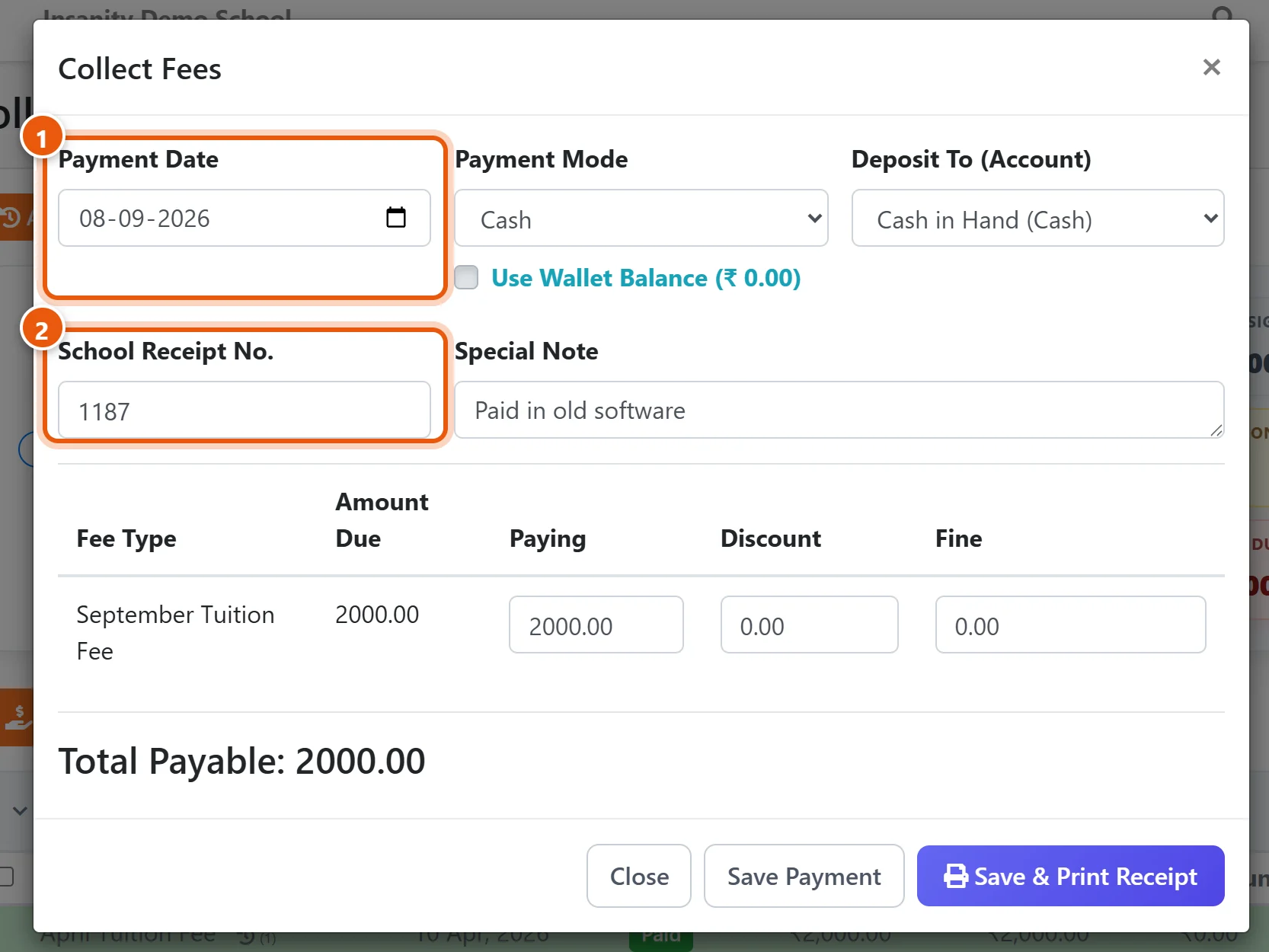
- Payment Date: the date on the old receipt, not today. Reports then show the money in the month it was really received.
- School Receipt No.: the old receipt number, so you can match the two later. A note such as Paid in old software helps too.
SchoolAlgo still gives the payment its own receipt number.
For many students, use the Collection Sheet instead of keying payments one by one:
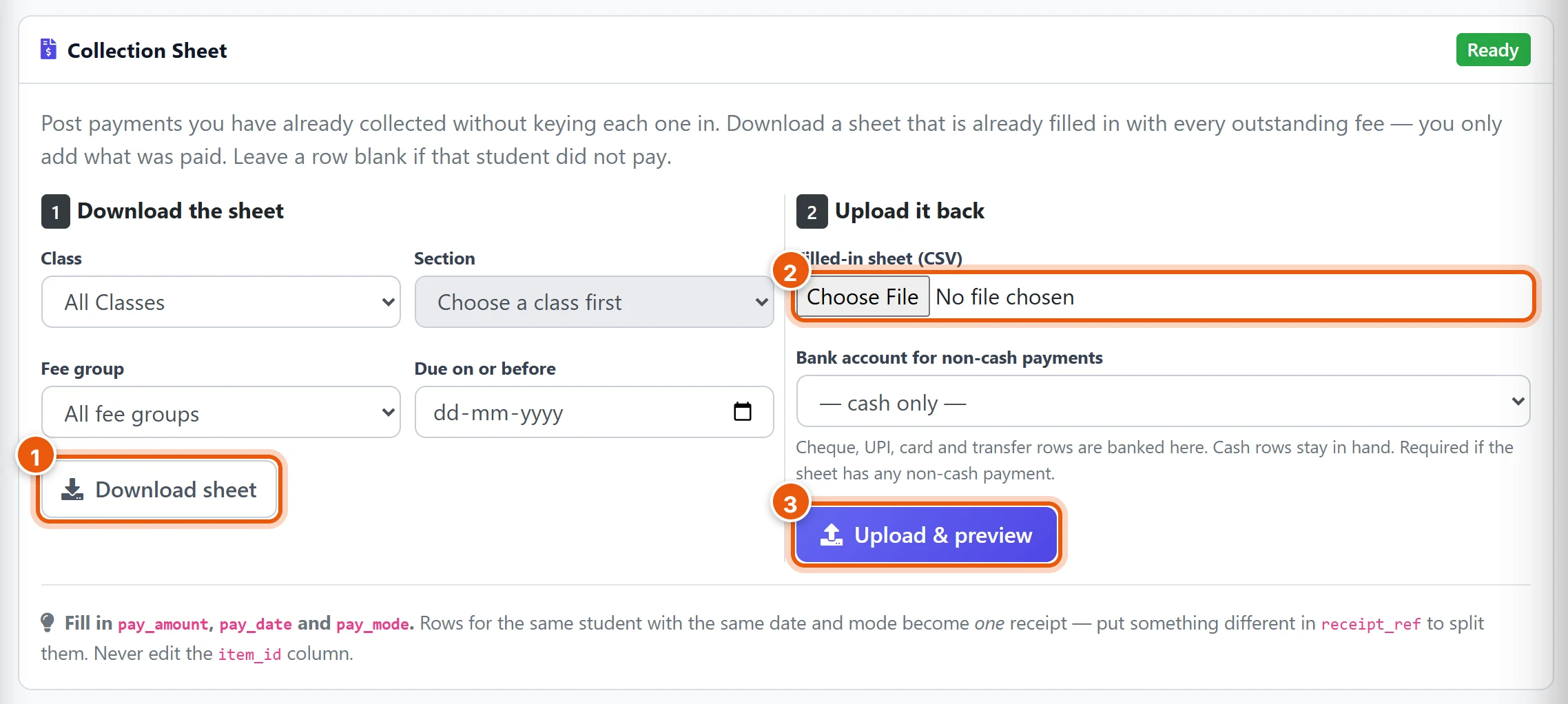
- Open Finance & Fees → Import Center. In the Collection Sheet box, choose a class (or leave All Classes) and click Download sheet. It lists every unpaid month for every student.
- Open the sheet in Excel. For each month a parent paid, fill in pay_amount, pay_date (as YYYY-MM-DD, for example 2026-07-08) and pay_mode (for example Cash). Leave the row blank if they did not pay. Do not change the item_id column. Save it as CSV, then click Choose File and pick it.
- Click Upload & preview. Nothing is saved yet: you see what will happen, row by row, and confirm it on the next page.
If a sheet went in wrong, you can roll the whole import back from the same page. The related guide below explains the Collection Sheet step by step.
Option B: Remove or settle the old months
This depends on whether the fees are already assigned and paid.
- Fees not assigned to students yet: open Finance & Fees → Fee Groups, click Edit on the tuition group, click Remove on the months you do not want (for example April to September), and save. Then assign the group. Students are charged only from October.
- Fees assigned, but nothing paid in that group yet: in Assign Fees, switch to Unassign Mode and unassign the group. Edit the group as above, then assign it again.
- Fees assigned and some payments already taken: a group cannot be changed once students have it, so settle the old months instead. Collect them as in Step 4 with a 100% discount:
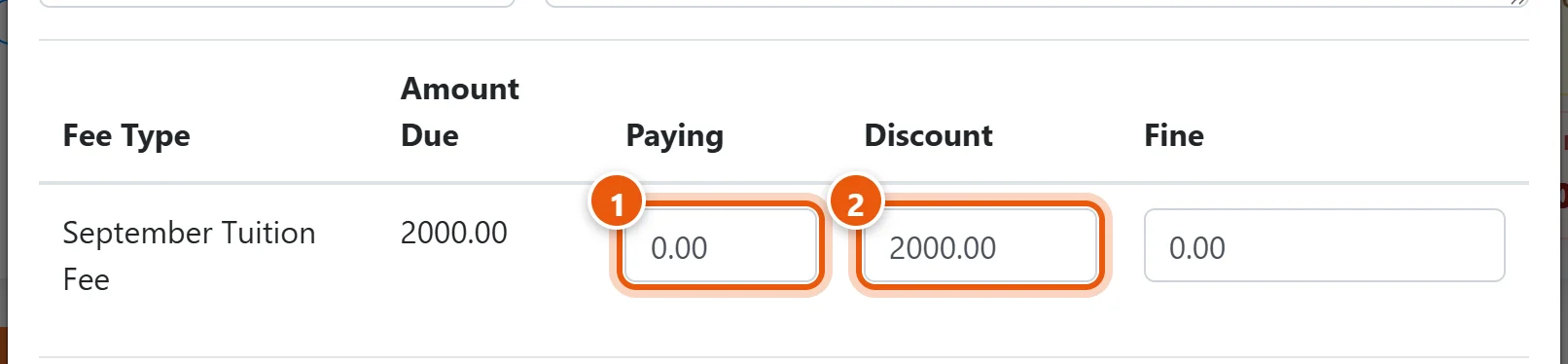
- Set Paying to 0.
- Set Discount to the full fee for that month.
The month turns green with a ₹0 receipt. To do this for many students at once, use the Collection Sheet from Option A: put the full amount in pay_discount, 0 in pay_amount, and still fill in pay_date and pay_mode.
Note: settled months appear as discount in fee reports. If you want reports to show only real discounts, enter the old payments (Option A) instead.
Good to know
- Paying ahead: a parent can pay Not due months too. Tick them like any other month.
- One receipt for several months: everything ticked together goes on one receipt.
- Wallet balance: if the student has money in their wallet (an advance), tick Use Wallet Balance on the form to use it first.
Related guides
- Enter old fee payments in bulk with the Collection Sheet
- Add admission and registration fees for a new student
Still stuck? Send us a screenshot on WhatsApp and we will guide you.
Chat on WhatsAppLast updated 13 October 2026