
Who does this: the accountant or school admin.
How long it takes: nothing at year end. About ten minutes for a new school's opening balances.
At the end of the year: nothing to carry forward
Unpaid fees stay on each student's record when the year changes. You do not need to "carry forward" anything.
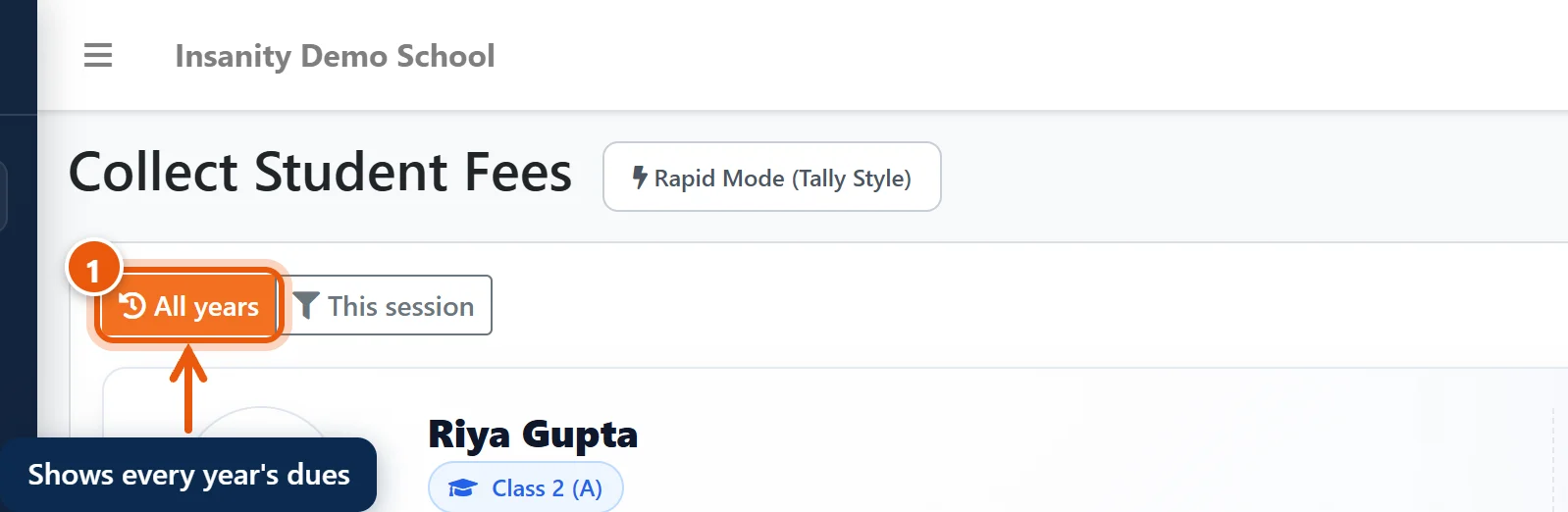
- In Collect Fees, a student's page shows All years by default. Last year's unpaid months are listed with this year's, and you collect them the same way.
Click This session to see only the current year's fees.
Starting the new year
- Promote the students to their new classes (Academics → Promote Students). Their unpaid fees go with them.
- Create the new year's fee groups, with the new year in the name, for example Tuition Class 1-3 2027-28 (see Set up your fee structure).
- Assign the new groups to the classes with Assign Fees → Assign to Classes.
The new year's fees are added next to any old dues. Nothing from last year is changed.
New to SchoolAlgo: bring in last year's dues
Use this when your school starts using SchoolAlgo and some students still owe money from a previous year in your old software, or have paid ahead.
For fees of the current year that were paid in the old software, use the Collection Sheet instead (see Enter old fee payments in bulk).
- Open Finance & Fees → Import Center. The Opening Balances box is at the top.
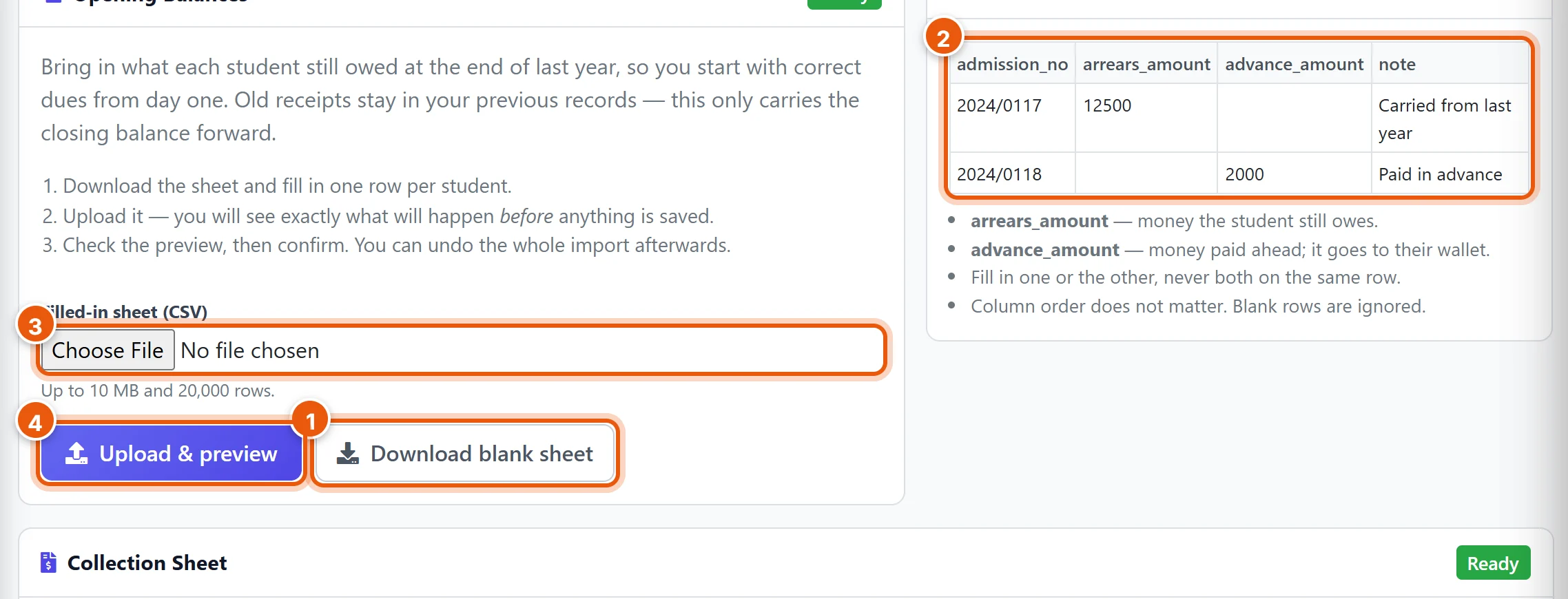
- Click Download blank sheet.
- Fill in one row per student, as in the example:
- admission_no: the student's admission number in SchoolAlgo.
- arrears_amount: what the student still owes from earlier years.
- advance_amount: money the student paid ahead. It goes into their wallet and is used for their next fees.
- note (optional): for example Dues from 2025-26. Fill in either the arrears or the advance on a row, never both. Leave out students who owe nothing. Save the file as CSV.
- Click Choose File and pick the sheet.
- Click Upload & preview.
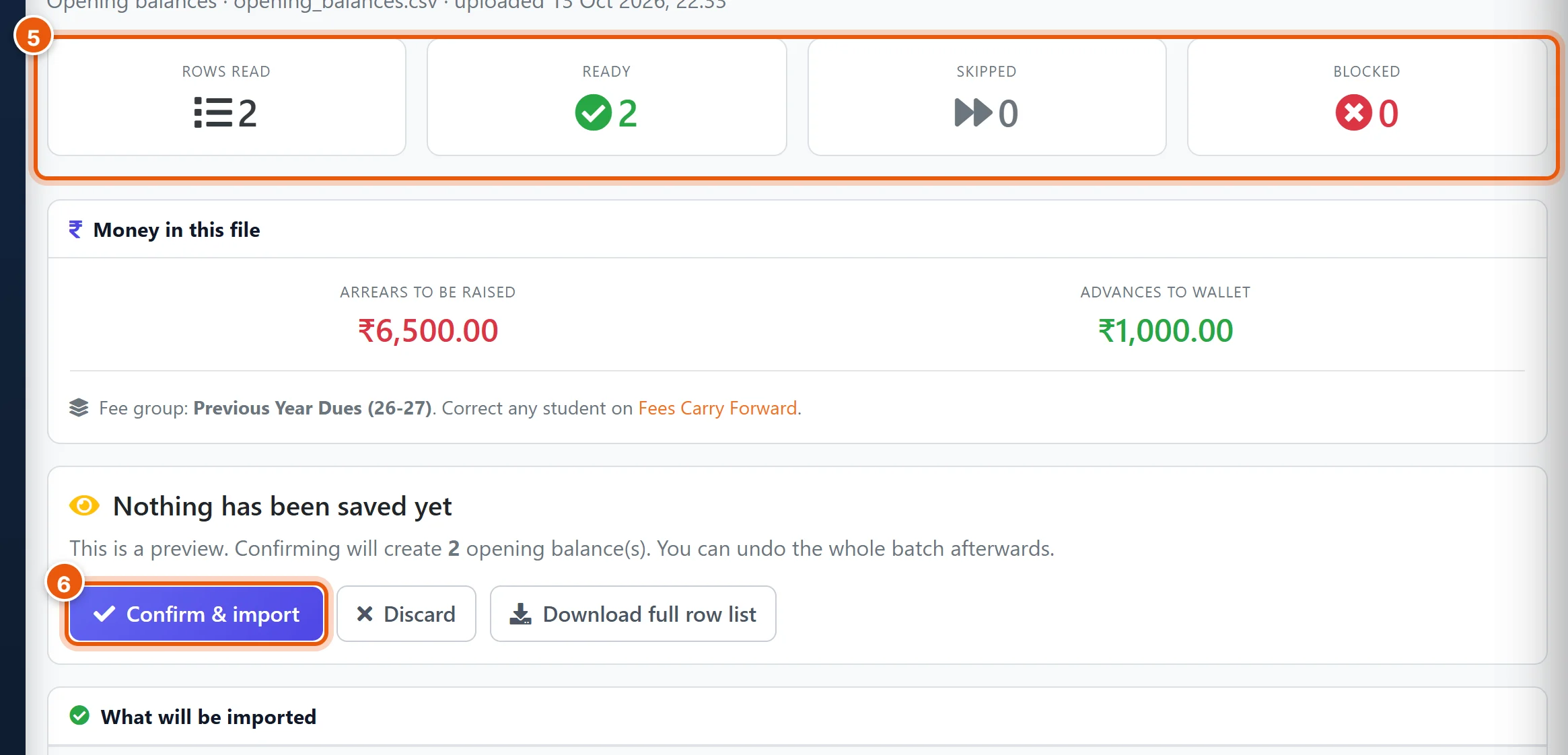
- Nothing is saved yet. Check the counts (any Blocked rows are listed below with the reason, usually an admission number that does not exist) and the totals of arrears and advances.
- Click Confirm & import.
The arrears go into one fee group called Previous Year Dues, and show on each student's page in Collect Fees, ready to collect. Parents see them in the app too.
If a sheet went in wrong, open it from Recent imports at the bottom of Import Center and use Undo this import.
Correct one student's opening balance
Open Finance & Fees → Fees Carry Forward, choose the class, section and the Previous Year Dues group, and change the amount for that student. An amount cannot be set below what the student has already paid against it.
Good to know
- Discounts and fines work on old dues as on any other fee.
- Reminders and due lists include old dues, so parents are reminded of them too.
Related guides
- Set up your fee structure
- Enter old fee payments in bulk with the Collection Sheet
- Collect fees from a parent
Still stuck? Send us a screenshot on WhatsApp and we will guide you.
Chat on WhatsAppLast updated 13 October 2026