
Who does this: the school admin or accountant.
How long it takes: a minute per student, once the discount is set up.
Which way to use
| What you want | How |
|---|---|
| A concession for the whole year: sibling, staff child, scholarship, RTE | Create a discount (Part 1), then give it to each student (Part 2) |
| To waive one fee for one student, for example the Registration Fee | A 100% discount, given to just that fee (Part 2, tick only that month) |
| A one-off reduction while taking a payment, for example rounding off | The Discount box on the payment form in Collect Fees (see Collect fees from a parent) |
Discounts are not given automatically. Each student who qualifies needs it given once. After that, the months show the reduced amount everywhere, including the Parent app and reminders.
Part 1: Create the discount (once)
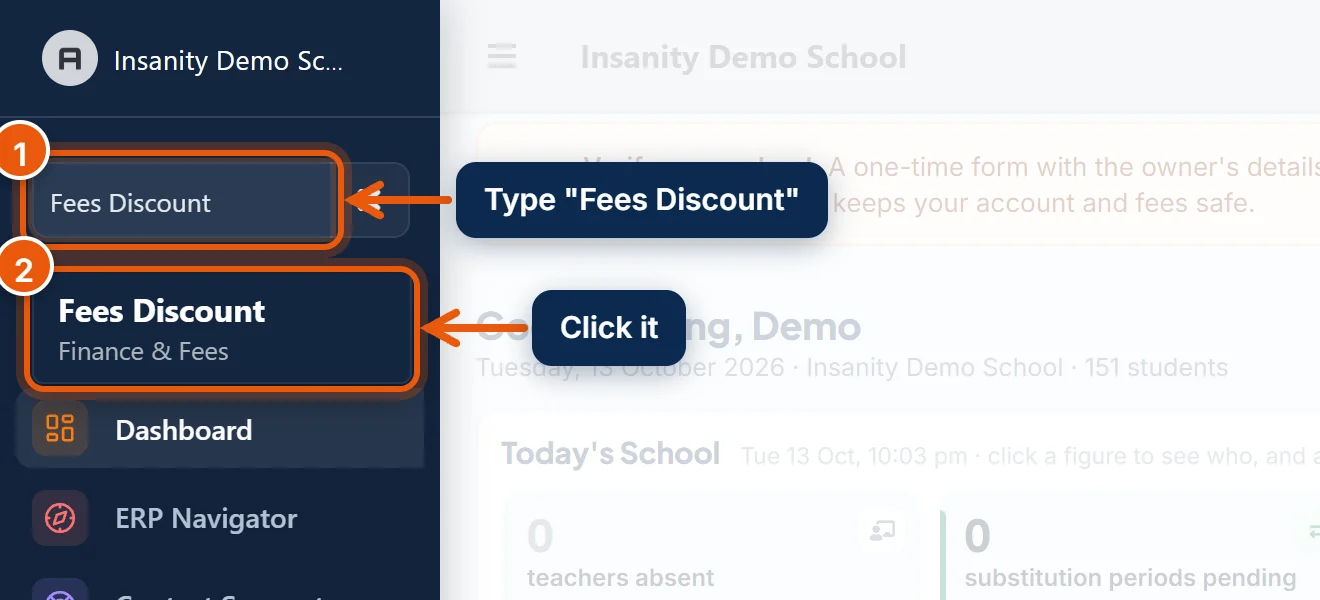
- In the search box at the top of the left menu, type Fees Discount.
- Click Fees Discount, then click Add New Discount.
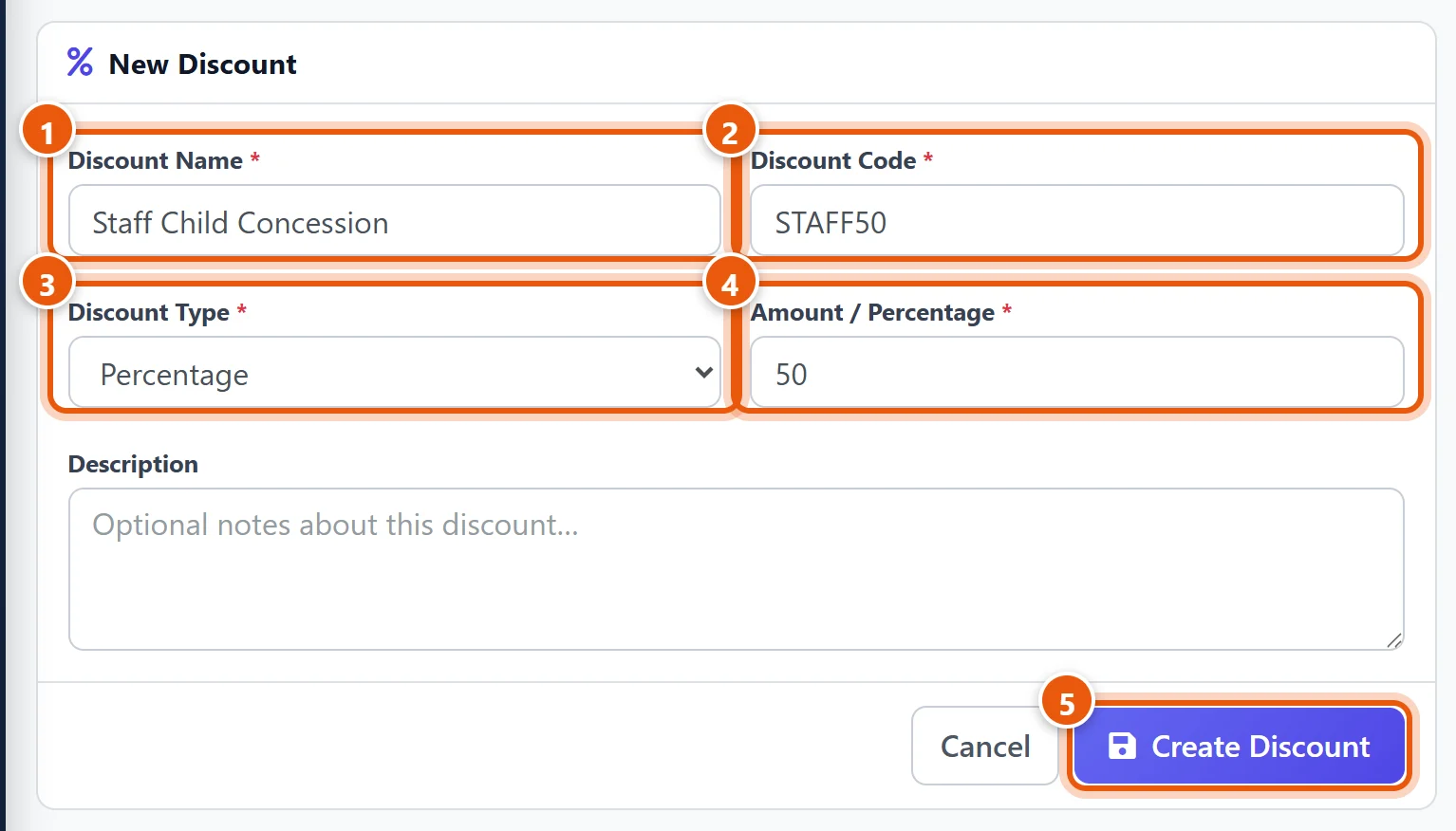
- Discount Name: what staff see when they give it, for example Sibling Discount or Staff Child Concession.
- Discount Code: a short code, for example SIBLING10. It must be unique.
- Discount Type:
- Percentage: takes that share off every month it is given for. 10% of ₹2,000 is ₹200 off each month.
- Fixed: takes one exact amount off in total, shared across the months it is given for. ₹1,200 over 12 months is ₹100 off each month.
- Amount / Percentage: for example 10 for 10%, or 1200 for ₹1,200.
- Click Create Discount.
Create one discount for each kind of concession your school gives.
Part 2: Give the discount to a student
- Open Collect Fees and find the student, as when collecting a payment.
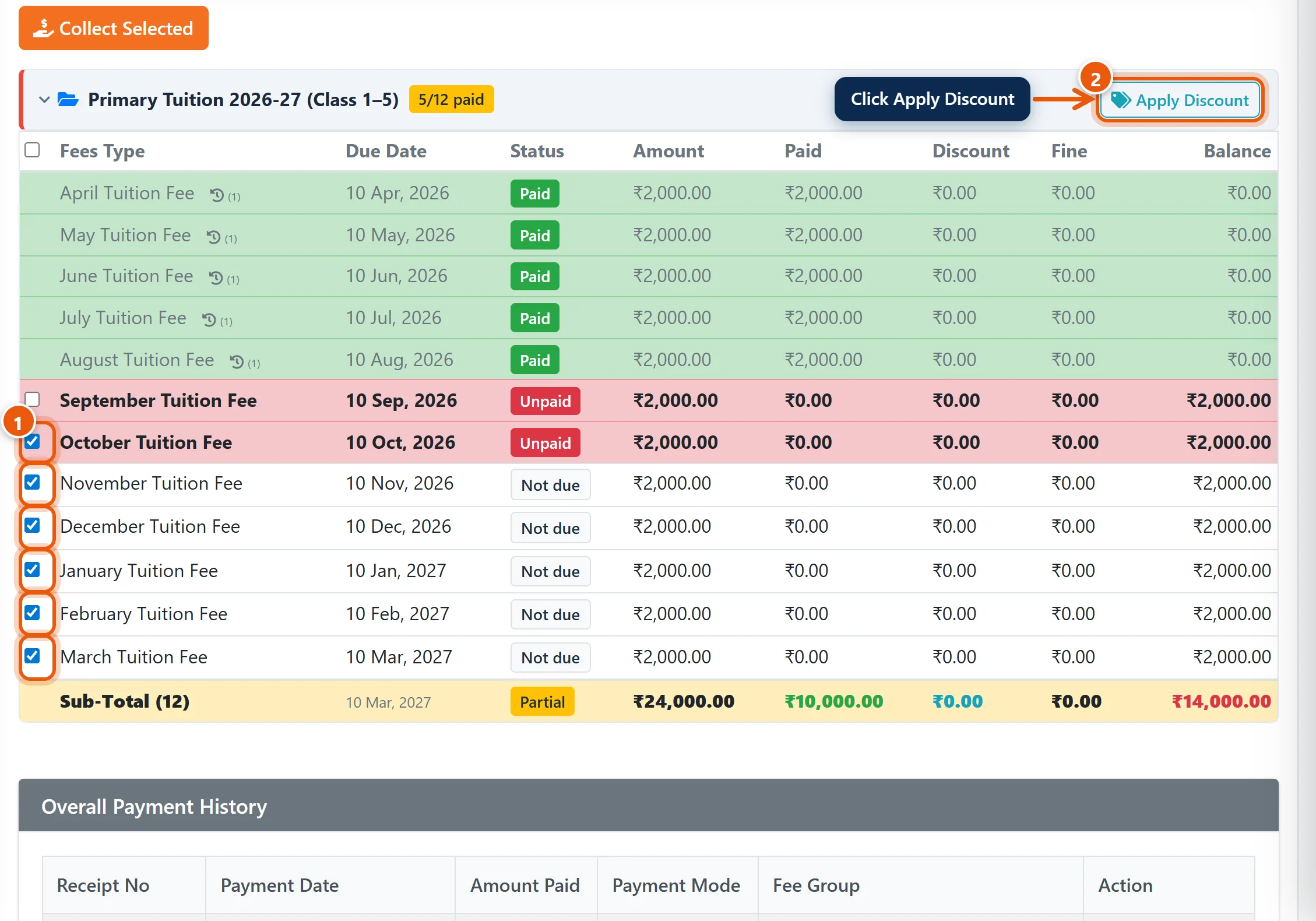
- Tick the months the discount covers. Untick everything to give it for all the months of that fee group.
- From now until March: tick the unpaid months only.
- To waive one fee, for example the Registration Fee: tick just that one.
- Click Apply Discount on that fee group's bar.
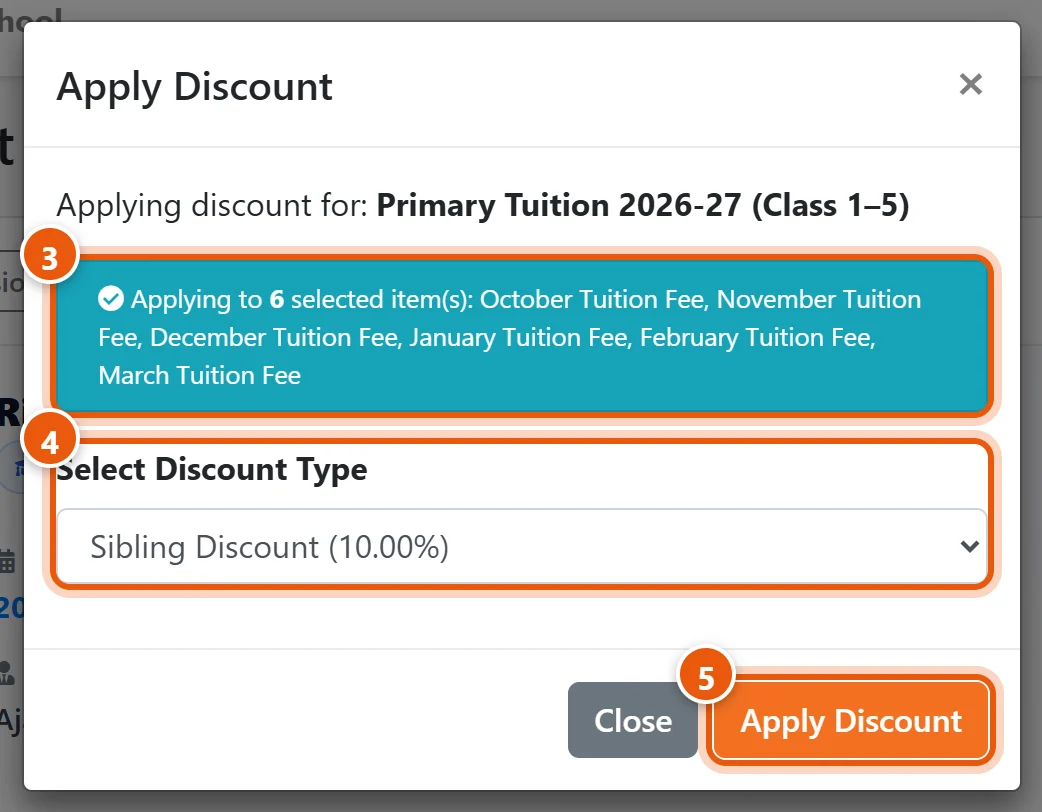
- Check the blue box. It lists the months the discount will be given for, or says all items.
- Select Discount Type: for example Sibling Discount (10%).
- Click Apply Discount.
The Discount and Balance columns update straight away, and the Concession total at the top shows the amount given.
Note: a month that is already fully paid is not changed. A discount reduces only what is still due.
A student with fees in more than one group
The discount is given per fee group. A student with tuition and transport fees who gets a sibling discount on both needs it given on each group's bar.
Remove a discount given by mistake

- In Collect Fees, click the small eye icon next to the month's discount amount. A line shows which discount it is and who gave it.
- Click Remove, then OK. That month is due again in full.
Do this for each month the discount was given on.
To change a discount, for example from 10% to 25%, give the new discount to the same months: it replaces the old one rather than adding to it.
A discount typed on a payment form belongs to that receipt. To undo it, revert the receipt (see Collect fees from a parent) and collect again.
Good to know
- Reports: discounts are shown as Concession in fee reports, separate from money collected.
- New admissions: give the discount when you first collect their fees, so the parent sees the right amount from the start.
- Changing a discount's percentage in Fees Discount does not change discounts already given. Give it again to update a student.
Related guides
- Set up your fee structure
- Collect fees from a parent
- Add admission and registration fees for a new student
Still stuck? Send us a screenshot on WhatsApp and we will guide you.
Chat on WhatsAppLast updated 13 October 2026