
Who does this: the accountant, principal or owner.
How long it takes: a minute.
All collection figures go by the payment date on the receipt. Old payments entered later, for example with the Collection Sheet, are counted on the day they were really paid, not on the day they were typed in.
The quick view: Fees Dashboard
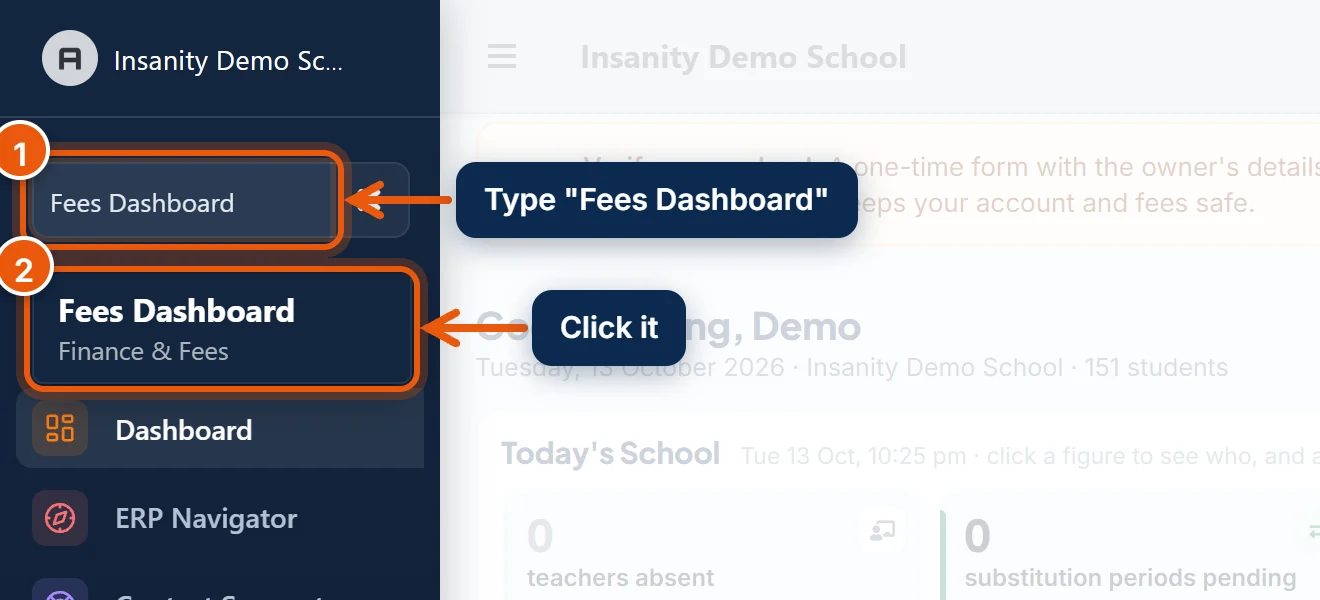
- In the search box at the top of the left menu, type Fees Dashboard.
- Click Fees Dashboard.

- Total Collected: all fees received so far, with this month's amount underneath.
- Total Due: what students still owe, and how many students.
- Collected Today: today's total. It updates as soon as a payment is saved.
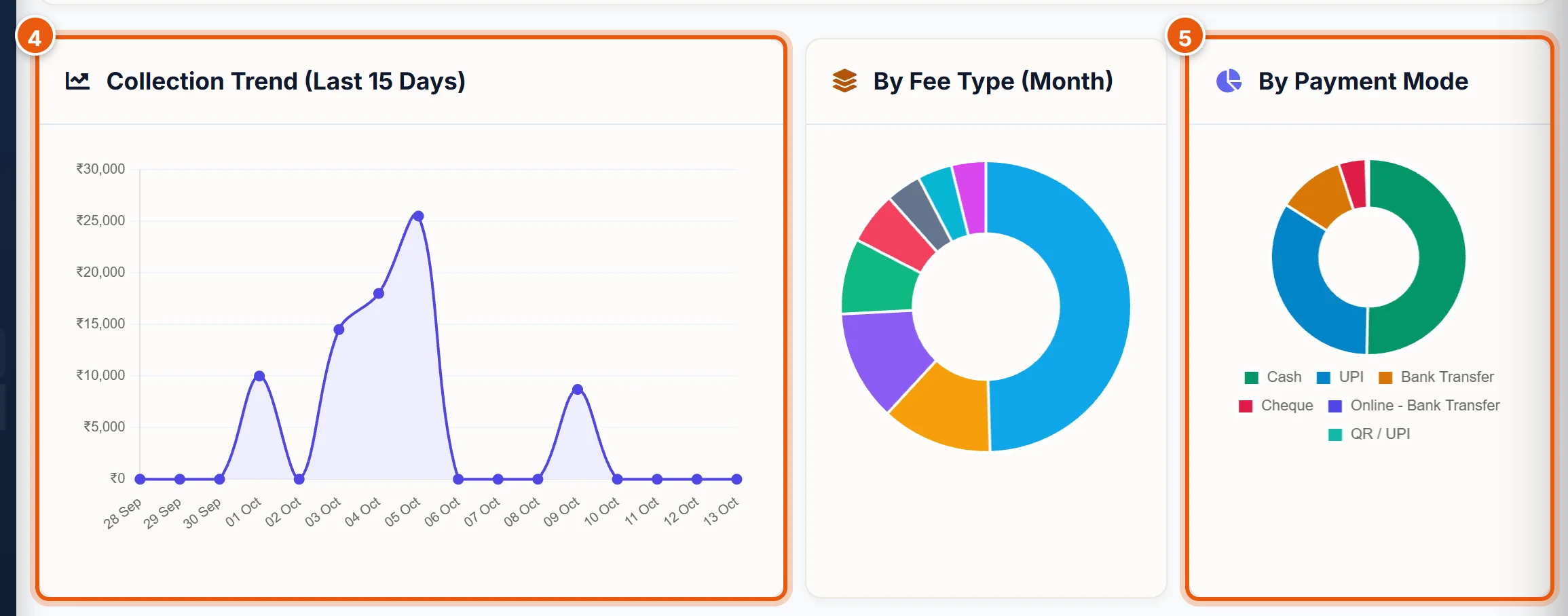
- Collection Trend: how much came in on each of the last 15 days.
- By Payment Mode: how much has come in by cash, UPI, cheque and so on.
The total for any day: All Transactions
Use this at the end of the day to match the counter's cash, or for any date range.
- Open Finance & Fees → All Transactions.

- From: the first day, for example 05-10-2026.
- To: the last day. For a single day, choose the same date in both.
- Collected in these dates shows the total received. Failed or pending online payments are not counted.
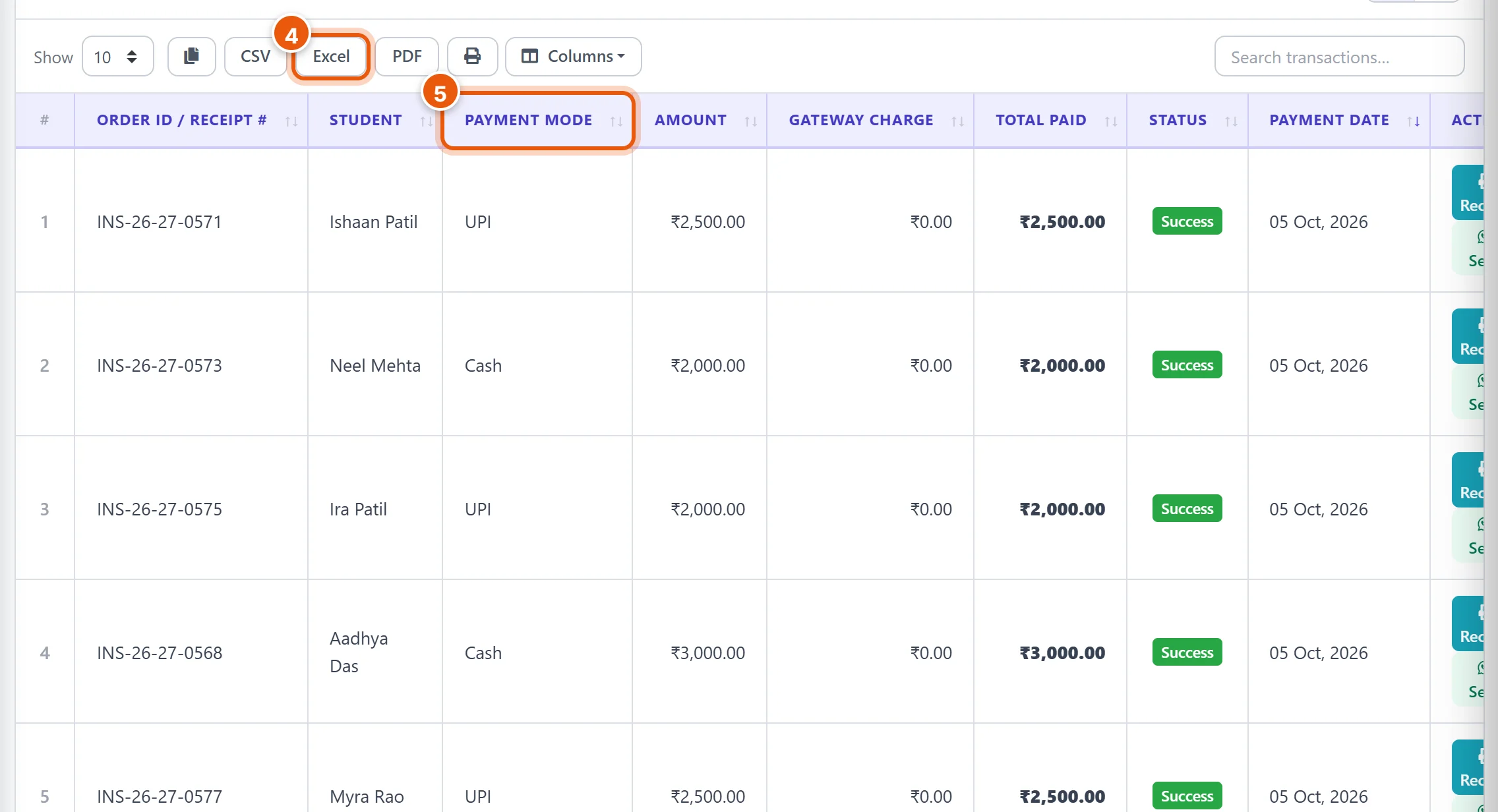
- Excel (or CSV, PDF, or the printer) downloads the list, for example for your accounts book.
- Payment Mode shows cash, UPI, cheque and so on for each receipt. To see only one mode, type it in Search transactions…, for example Cash.
At the end of each row, Receipt opens the receipt, and Send shares a thank-you message on WhatsApp.
End-of-day check
- In All Transactions, set From and To to today.
- Type Cash in the search box and add up the cash receipts, or download them to Excel.
- Match that with the cash at the counter. UPI and bank payments are checked against the bank statement instead.
Good to know
- Which receipts are counted: every payment saved in Collect Fees, imported with the Collection Sheet, or paid online by parents.
- A reverted receipt is removed from all totals.
- Who collected what: the Today's Cashier box on the Fees Dashboard lists today's collections by staff member.
- Dues, not collections: to see who still has to pay, use Search Due Fees (see the related guide).
Related guides
- Collect fees from a parent
- See who hasn't paid, and send reminders
- Enter old fee payments in bulk with the Collection Sheet
Still stuck? Send us a screenshot on WhatsApp and we will guide you.
Chat on WhatsAppLast updated 13 October 2026