
Who does this: the school admin, once. After that, the accountant approves UPI and bank payments.
How long it takes: five minutes to set up.
Choose how parents will pay
| Option | What you need | How the payment is recorded |
|---|---|---|
| UPI QR | Your school's UPI ID, for example school@okaxis | The parent pays by UPI and uploads the screenshot. You approve it, and the receipt is made then. |
| Bank Transfer | Your school's bank account details | The parent transfers the fee and uploads proof. You approve it, as with UPI. |
| Payment gateway: Razorpay, Cashfree, PayU, PhonePe, Paytm or Instamojo | A merchant account with that company, and its API keys | The parent pays by card, UPI or net banking. The receipt is made automatically, with nothing to approve. |
UPI QR is the easiest way to start: no merchant account, and no charges on the money you receive. A payment gateway saves the approval work, but the gateway company charges a small fee on each payment.
Only one option can be on at a time.
Part 1: Turn on online payment
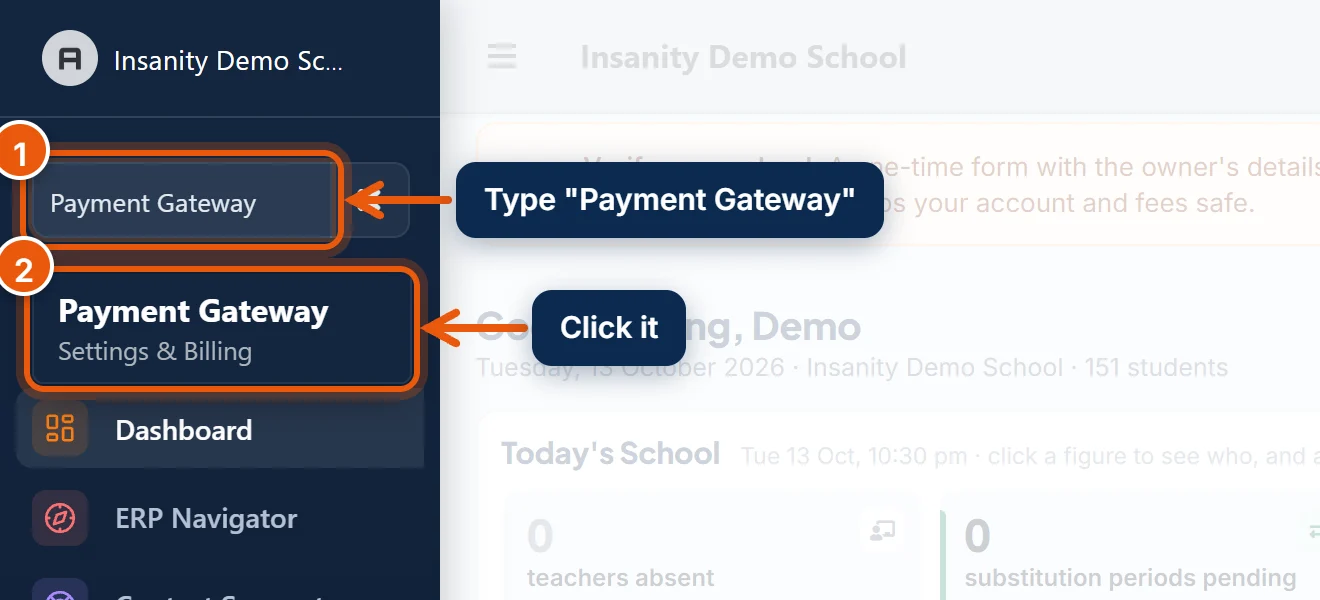
- In the search box at the top of the left menu, type Payment Gateway.
- Click Payment Gateway.
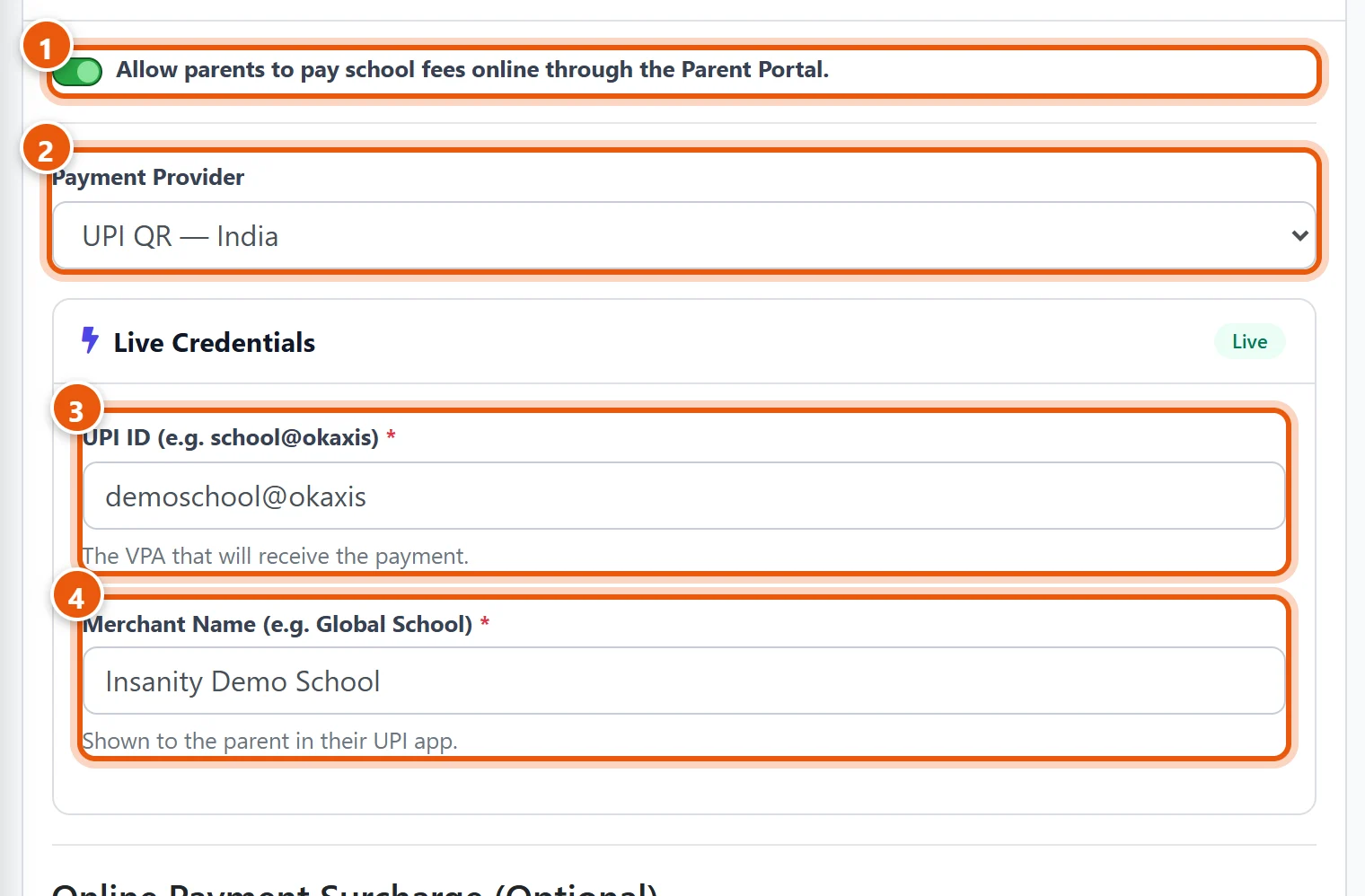
- Turn on Allow parents to pay school fees online.
- Payment Provider: choose UPI QR — India (or another option from the table).
- UPI ID: the school's UPI ID that receives the money. Check it carefully: a wrong ID sends parents' money to someone else.
- Merchant Name: the school's name, shown to parents in their UPI app.
For a payment gateway, type the keys from your gateway account instead. The setup steps for that gateway appear on the right of the page.
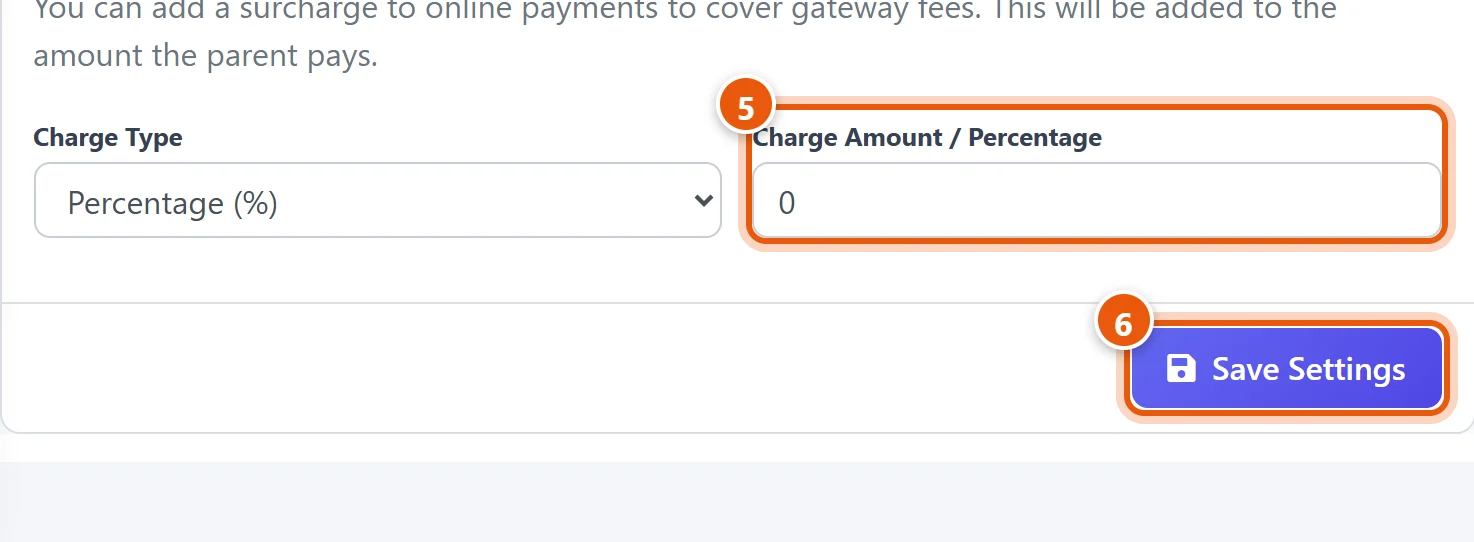
- Online Payment Surcharge (optional): an extra amount parents pay to cover gateway charges. Leave it at 0 for UPI QR.
- Click Save Settings.
Parents now see a Pay button for their dues in the Parent app.
What the parent does
- In the Parent app, the parent opens Fees and taps Pay on the fees they want to pay.
- With UPI QR, they scan the QR or tap to open their UPI app, pay, and then upload the payment screenshot with the UPI reference number.
- With a payment gateway, they pay on the gateway's page and get the receipt straight away.
Part 2: Approve UPI and bank payments
When a parent uploads proof, the payment waits in Online Transactions until you check it.
- Open Finance & Fees → Online Transactions.

- Click View to see the parent's screenshot, and check that the money has really reached your bank or UPI account, with the same amount and reference.
- If it has, click the green tick to approve. If not, click the red button to reject, and type the reason, for example Amount not received. The parent can then pay again.
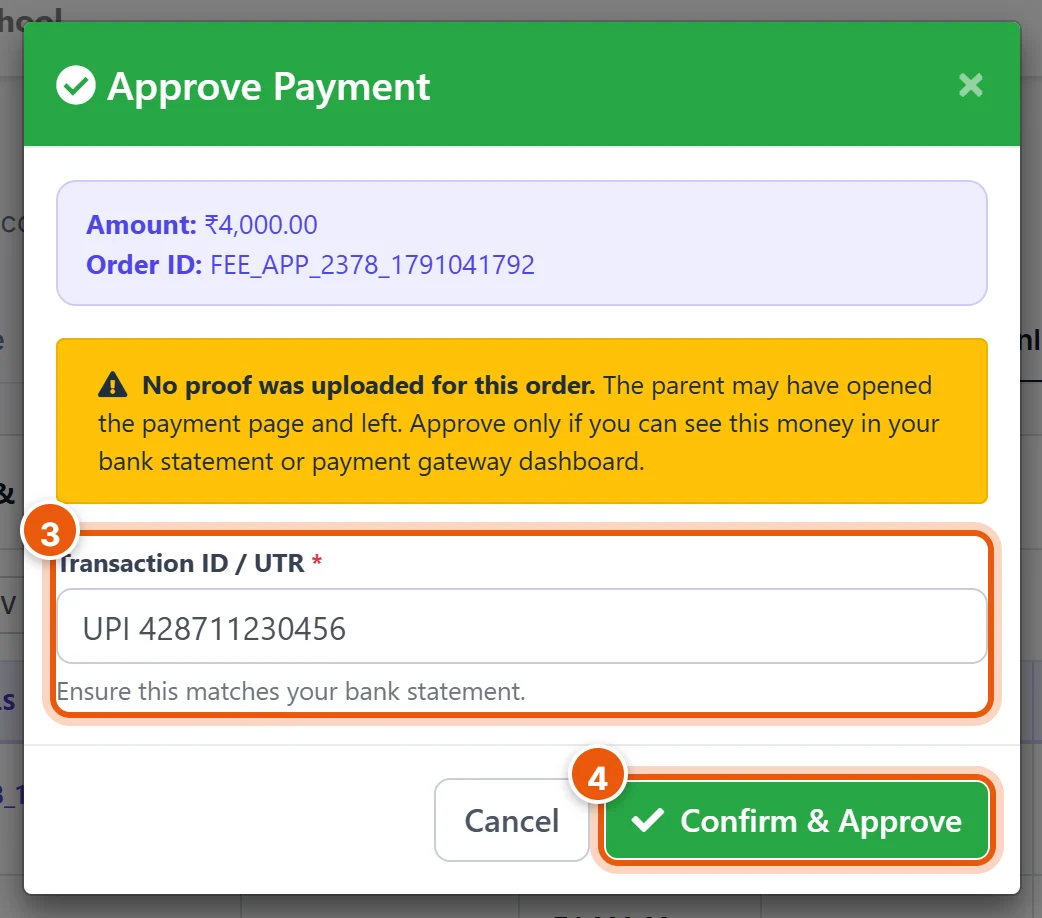
- Transaction ID / UTR: the reference from your bank statement or UPI app. It is filled in from the parent's upload. Correct it if needed.
- Click Confirm & Approve. The receipt is made, the months turn green, and the parent is told in the app.
Important: approve only money you can see in your account. A screenshot alone is not proof: check the bank or UPI app every time.
Good to know
- Receipt date: an approved payment's receipt is dated the day you approve it. Approve payments daily, so the receipt dates match when the money arrived.
- Reports: online payments are counted in All Transactions and the Fees Dashboard, with payment mode Online.
- Testing a gateway: gateways have a Sandbox (Test Mode). Make one test payment, then switch Payment Mode to Live to accept real money.
- Turning it off: turn off the switch in Part 1 and save. Parents can still see their dues, but the Pay button disappears.
Related guides
Still stuck? Send us a screenshot on WhatsApp and we will guide you.
Chat on WhatsAppLast updated 13 October 2026