
Who does this: the school admin or transport in-charge.
How long it takes: ten minutes to set up, then a few seconds per student.
How bus fees work
You do not type bus fees month by month. You:
- set up transport billing once (Part 1);
- give each stop its monthly fare (Part 2);
- put each student on a route and stop (Part 3).
When a student is put on a stop, SchoolAlgo adds their bus fee for every remaining month of the year, from the month they join up to March. A student who joins in November is billed November to March only. The bus fee shows in Collect Fees as its own fee group, next to tuition, and parents see it in the app.
Part 1: Transport fee settings (once)
Open Transport → Fee Settings.
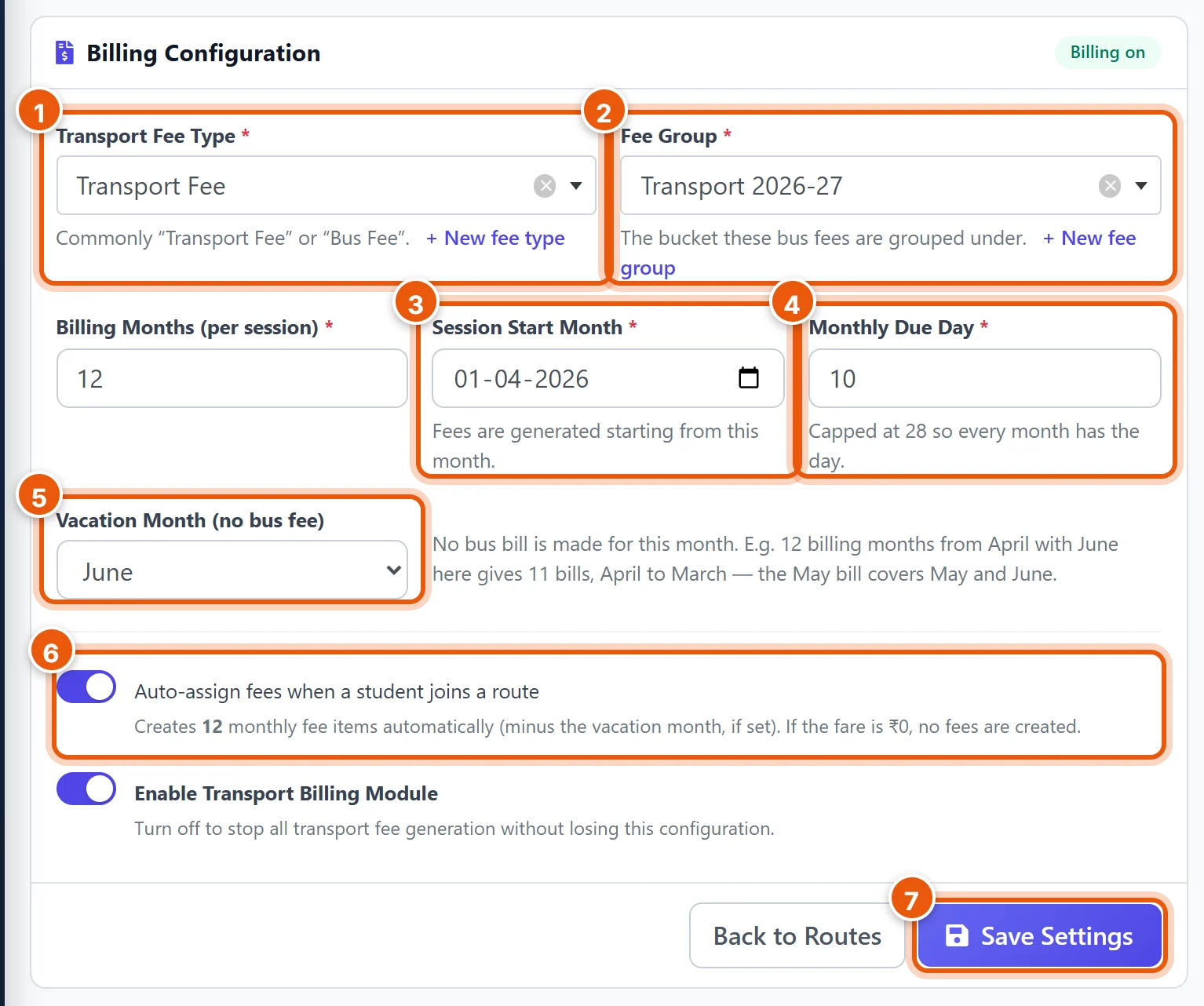
- Transport Fee Type: for example Transport Fee. If you have none, click + New fee type. This is the name parents see on receipts.
- Fee Group: for example Transport 2026-27. Click + New fee group to create one.
- Session Start Month: the first month of your school year, for example 01-04-2026.
- Monthly Due Day: the day of the month each bus fee is due, for example 10.
- Vacation Month (optional): a month with no bus fee, for example June. That month is skipped, giving 11 bills instead of 12.
- Keep Auto-assign fees when a student joins a route turned on. This is what adds the fees by itself.
- Click Save Settings.
Part 2: Add stops with their fares
- Open Transport → Manage Routes and open the route, or add a new route first.
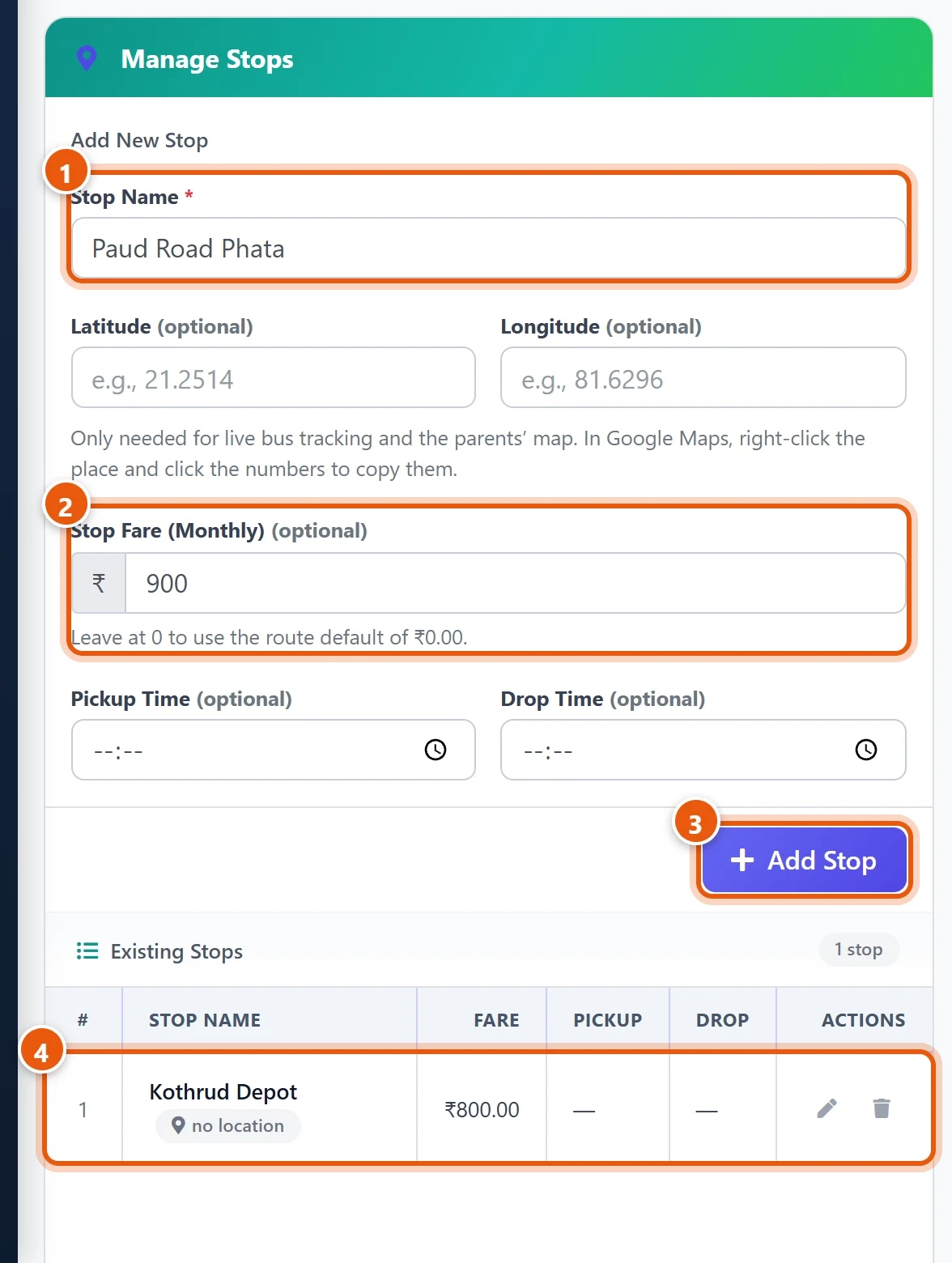
- Stop Name: for example Paud Road Phata.
- Stop Fare (Monthly): the bus fee per month for students at this stop, for example 900. Leave it at 0 to use the route's own fare instead.
- Click Add Stop.
- The stop appears in Existing Stops with its fare. Add every stop on the route.
Latitude, longitude and timings are only needed for live bus tracking. You can add them later.
Two buses on the same route
Each route has one bus. If two buses go through the same villages, you do not need to type the stops again:
- In Transport → Manage Routes, click the Copy icon (two pages) next to the route.
- The new route form opens already filled in. Change the Route Name if you like, for example Nigohi - Bus 2, and choose the second bus in Assign Vehicle.
- Click Create Copy.
The new route gets all the stops with the same fares and times. Students are not copied: put each student on the route of the bus they actually travel in (Part 3).
Part 3: Put students on the bus
On the same route page, use Assign Students:
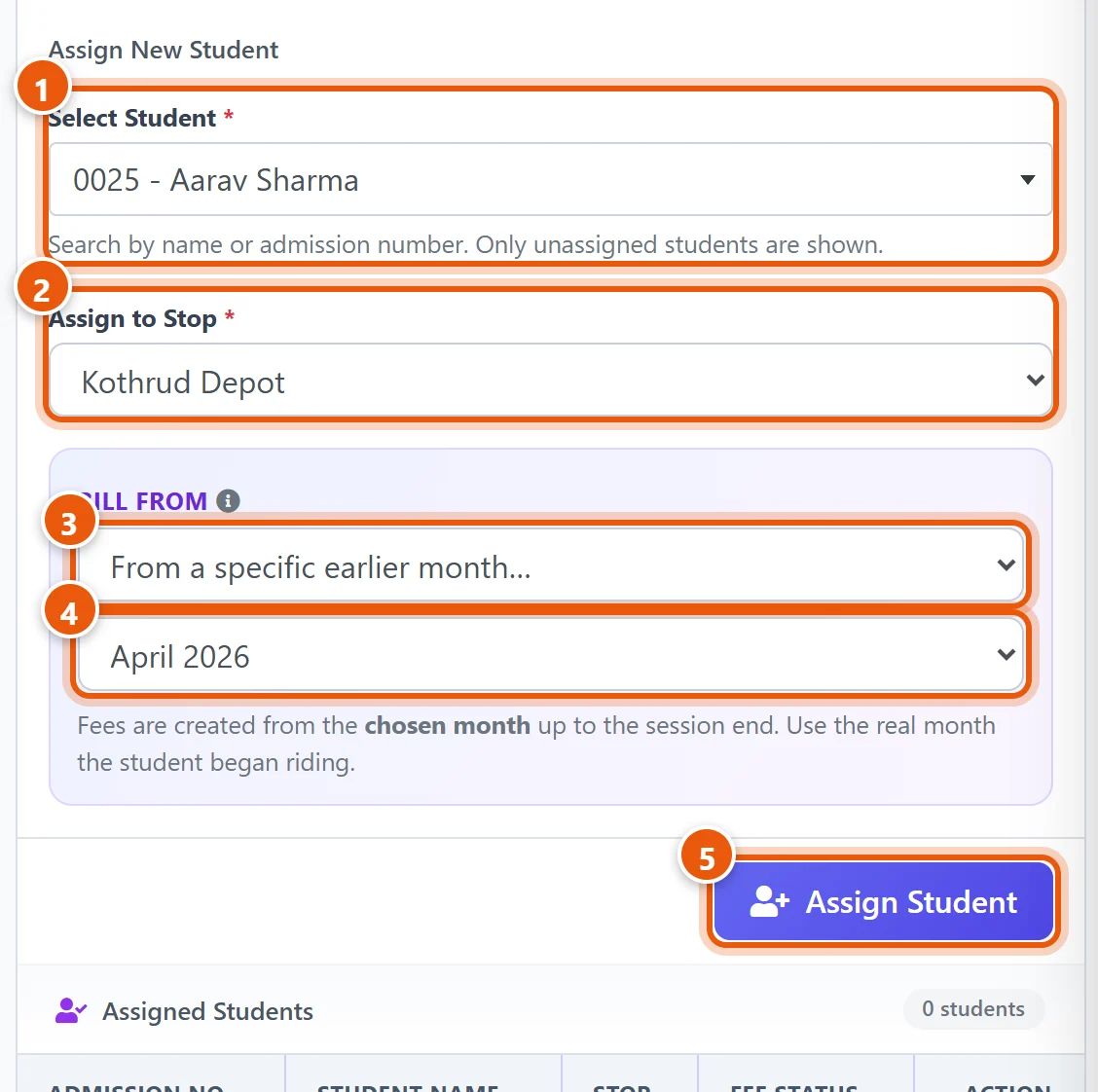
- Select Student: type the name or admission number. Only students not yet on a route are listed.
- Assign to Stop: the student's stop.
- Bill from: when the bus fee starts.
- This month onwards (normal): for a student who starts using the bus now.
- From session start: for a student who has used the bus since April.
- From a specific earlier month: for a student who started earlier in the year, entered late.
- If you chose a specific month, pick it, for example April 2026.
- Click Assign Student.
The student's bus fees are added at once. Check them in Collect Fees.
Tip: starting SchoolAlgo mid-year? Choose From session start for students who used the bus from April. Then enter the bus fees they already paid with the Collection Sheet, as for tuition.
When a student stops using the bus
In the route's Assigned Students list, click the remove icon (a person with a minus sign) next to the student. In Stop Transport, enter the last day of transport. A preview shows which months stay payable (the months they used the bus) and which future months are cancelled. Click Stop Transport, and the future months are removed from their dues.
To change a student's stop, stop their transport, then assign them again to the new stop with Bill from set to this month.
Good to know
- Free transport (staff child, scholarship): set that stop's fare to 0, or put the student on a stop with fare 0. No bus fee is created.
- Sibling or other concessions on bus fees: give a discount on the transport fee group, as for tuition (see Give a discount or concession).
- Changing a fare later applies only to students assigned after the change. Students already on the bus keep their fare.
- Different fares for pickup only, or for part of a month, are not automatic. Add those as a manual fee for that student.
Related guides
Still stuck? Send us a screenshot on WhatsApp and we will guide you.
Chat on WhatsAppLast updated 24 October 2026