
Who does this: the school admin, principal or accountant.
How long it takes: under a minute per student.
A new student usually needs two fee groups:
- your one-time admission group, for example New Admission 2026-27 with the Admission Fee and Registration Fee; and
- their class's tuition group, for example Tuition NC-UKG 2026-27.
The easiest way is to tick both on the admission form. If the student is already admitted, use Assign Fees (Option B below).
Before you start
The fee groups must already exist. Your one-time admission fees should be in a group of their own, separate from the monthly tuition, so they are charged only to new students. Check in Finance & Fees → Fee Groups.
Option A: While admitting the student
Step 1: Open the admission form
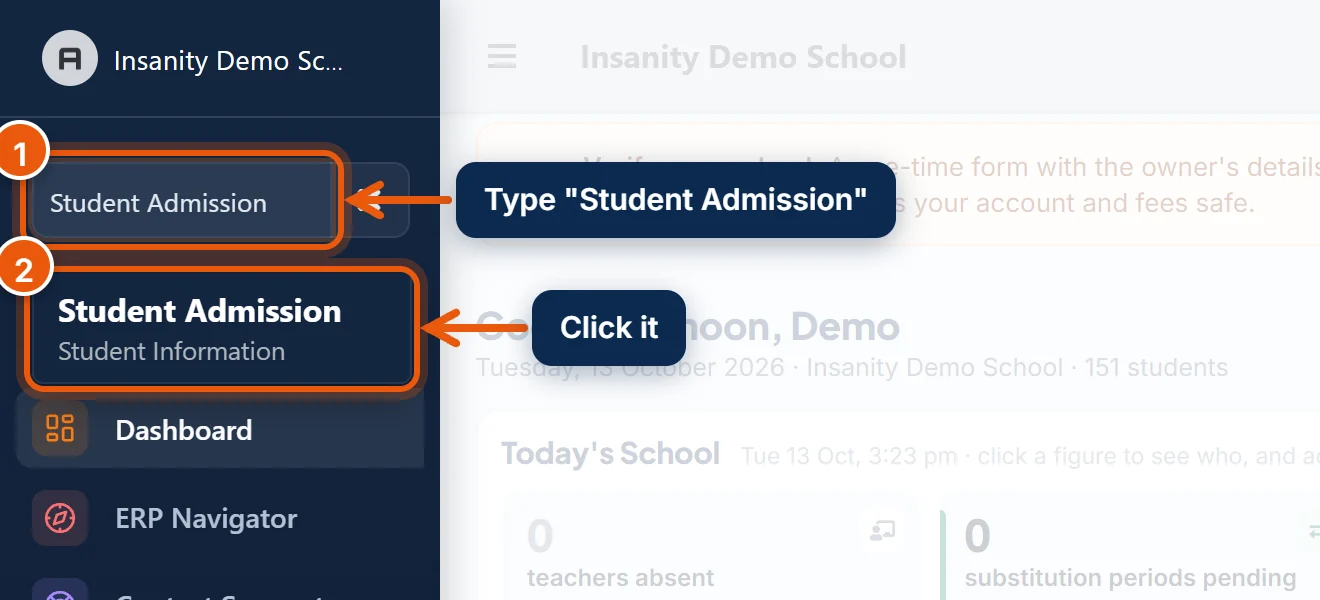
- In the search box at the top of the left menu, type Student Admission.
- Click Student Admission.
Fill in the student's details on the first tabs as usual (Academic, Personal Info, Parents).
Step 2: Tick the fee groups
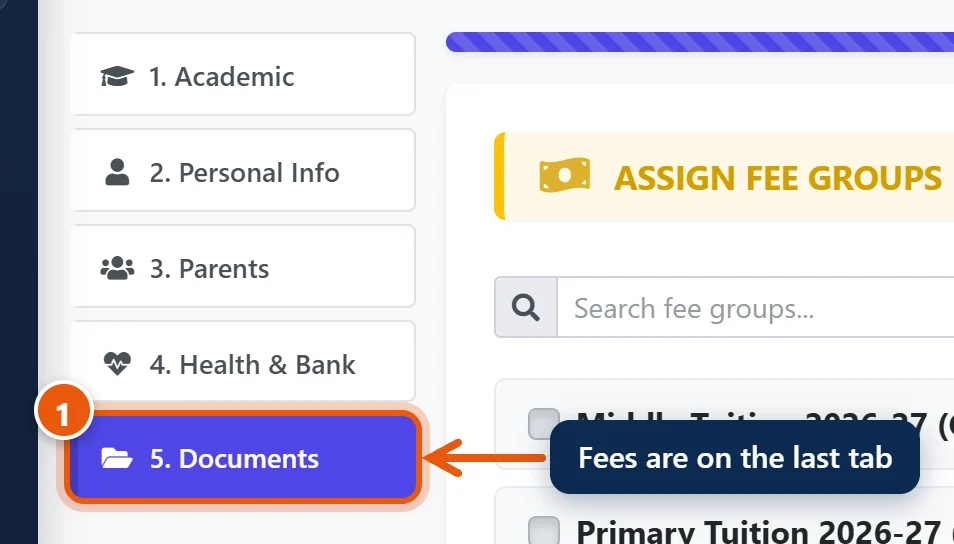
- Open the last tab, 5. Documents. The Assign Fee Groups list is at the top of it.
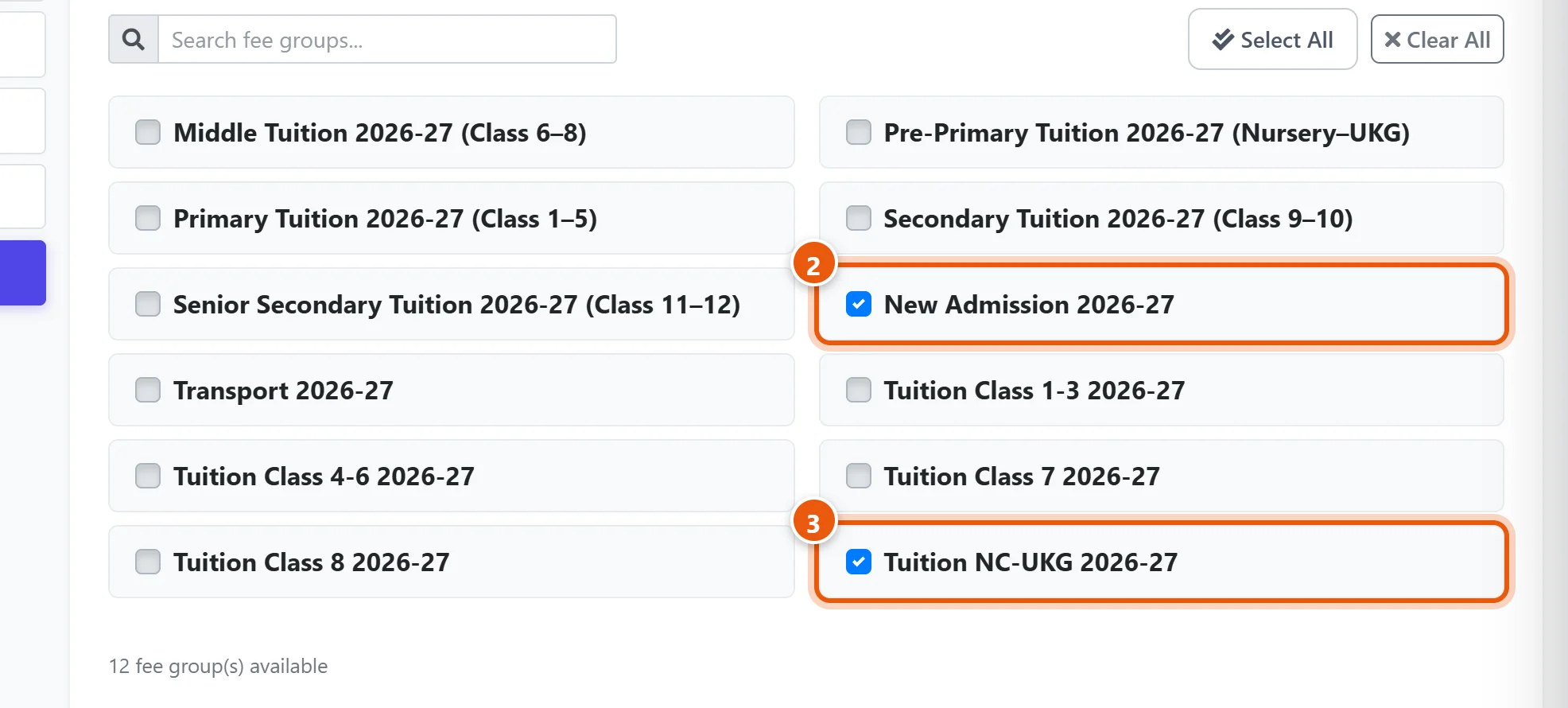
- Tick your admission group (here New Admission 2026-27).
- Tick the tuition group for the student's class (here Tuition NC-UKG 2026-27). Type in Search fee groups… if the list is long.
Step 3: Admit the student

- Click Admit Student.
The fees are added straight away. Open Collect Fees for the student to see them and take the payment.
Tip: Joining mid-year? Months that have already passed are due on the admission date, not back in April, so no late fine is charged for months before the child joined.
Option B: The student is already admitted
Use this when you forgot to tick a group on the admission form, or the student was imported.
- Open Finance & Fees → Assign Fees, choose the student's Class (and section, if you like), then click Retrieve.
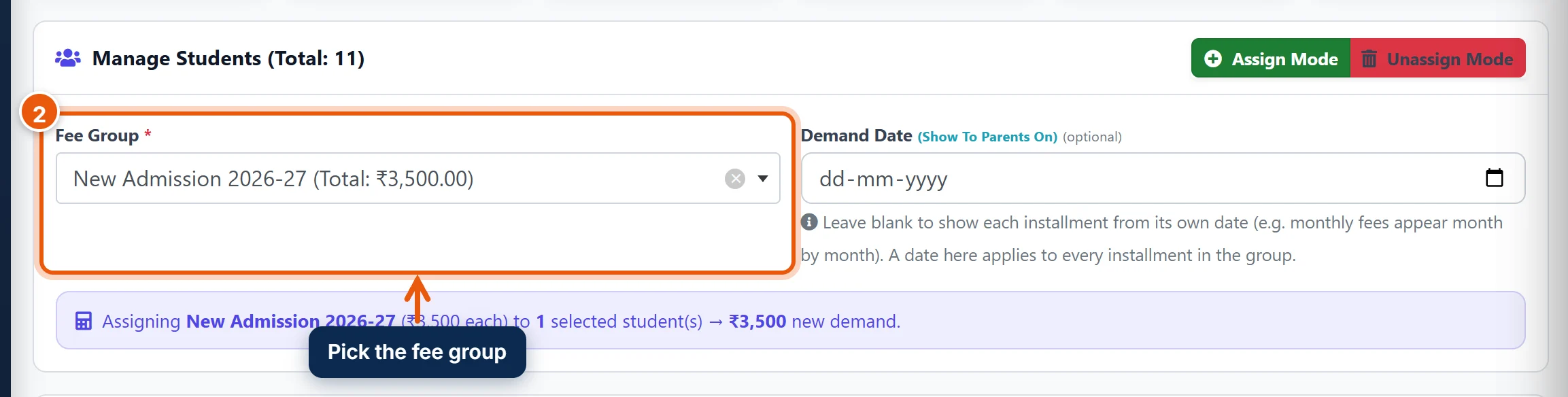
- In Manage Students, make sure Assign Mode is on (green), then pick the Fee Group. Leave Demand Date blank: each fee then shows from its own date.
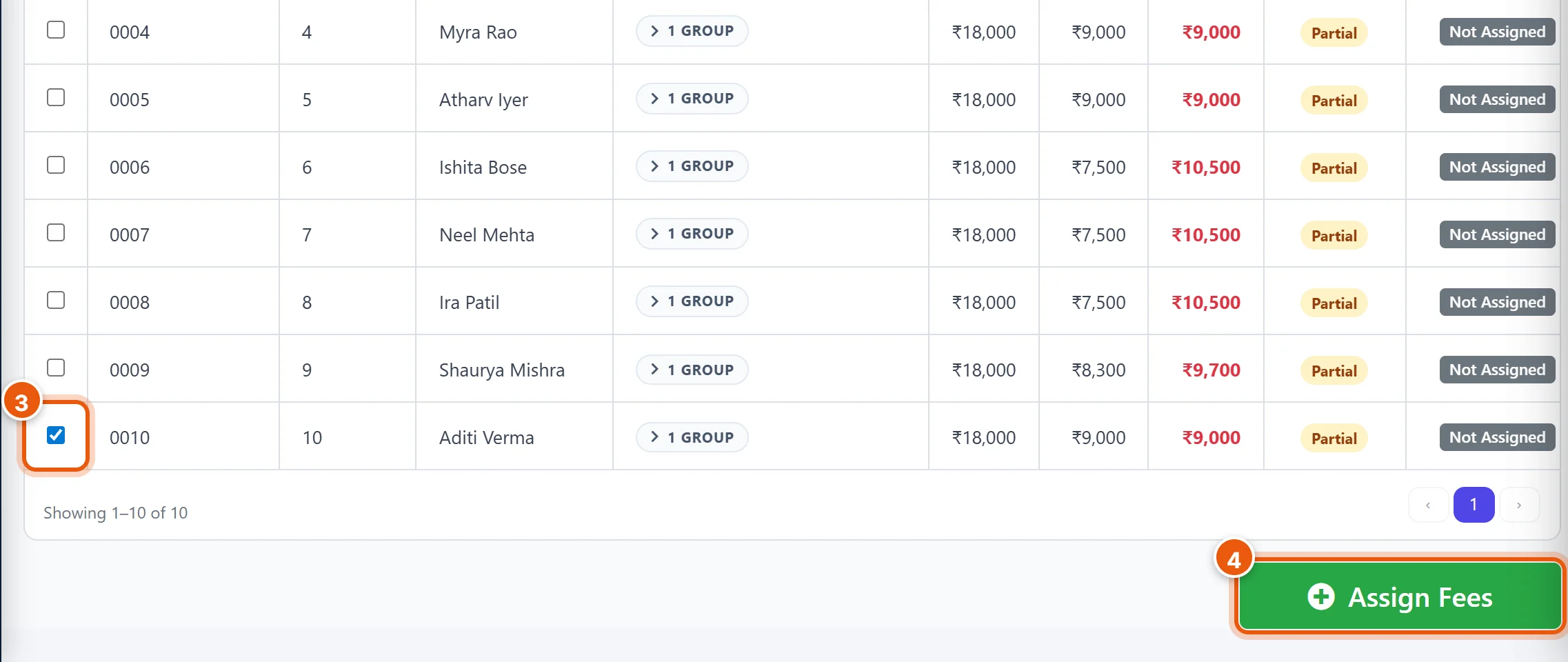
- Tick the new student. The last column shows whether each student already has this group (Assigned).
- Click Assign Fees.
Important: Do not tick students who are not new. The admission group charges the Admission and Registration fees to everyone you tick.
Good to know
- Waiving a fee: to excuse one student from a fee, for example the Registration Fee, give them a 100% discount on that fee instead of leaving the group out. Set up the discount in Finance & Fees → Fees Discount.
- Ticked the wrong group: in Assign Fees, switch to Unassign Mode, pick the group, tick the student, and click the button. This works only while nothing has been paid against that group.
- The parent sees it too: the fees appear in the Parent app and the parent portal, with each month shown from its own date.
Related guides
Still stuck? Send us a screenshot on WhatsApp and we will guide you.
Chat on WhatsAppLast updated 13 October 2026