
Who does this: the accountant or school admin.
How long it takes: a few minutes to download and upload. Filling in the sheet depends on how many payments you have.
The Collection Sheet is an Excel-ready file that lists every unpaid month for your students. You fill in only what each parent paid, upload it back, check a preview, and SchoolAlgo creates all the receipts at once.
Use it when your school starts using SchoolAlgo in the middle of the session and most parents have already paid some months. For just a few payments, it is quicker to enter them one by one on Collect Fees (see the related guide below).
Before you start
- Fees must already be assigned to the students, so the months show as due.
- Keep your old receipts, register or old software's report next to you. You need the date, amount and payment mode of each payment.
- Parents are not sent a message for imported payments, so you can import old payments without worrying about notifications.
Step 1: Open Import Center
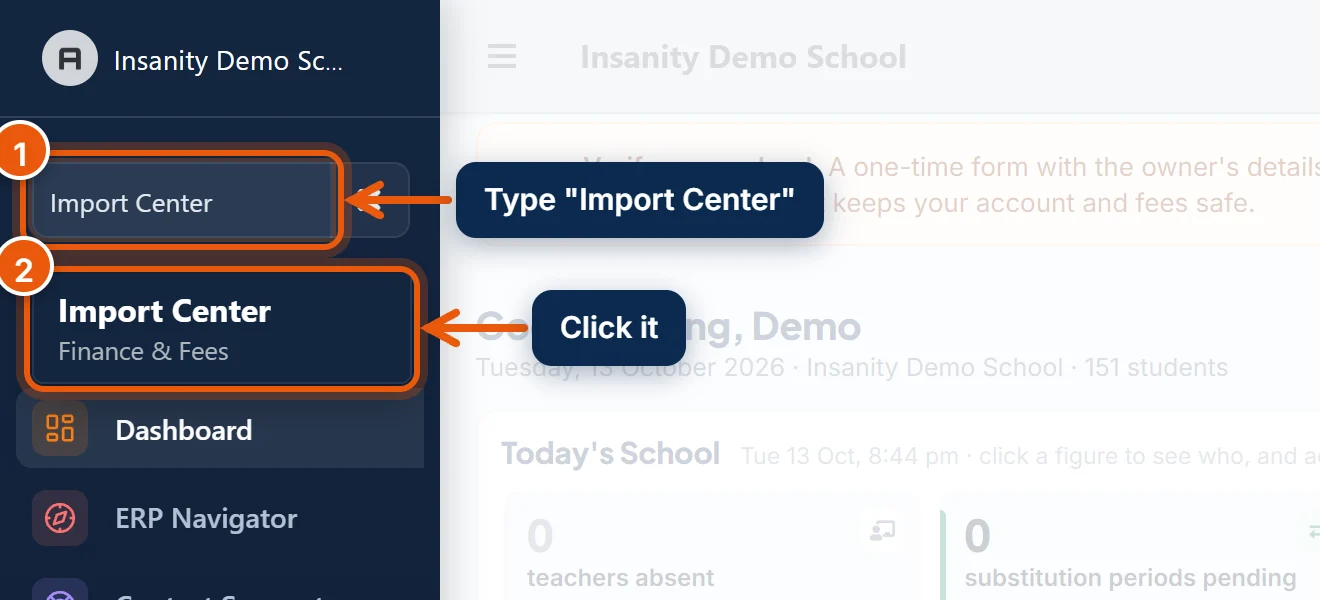
- In the search box at the top of the left menu, type Import Center.
- Click Import Center. Scroll down to the Collection Sheet box.
Step 2: Download the sheet
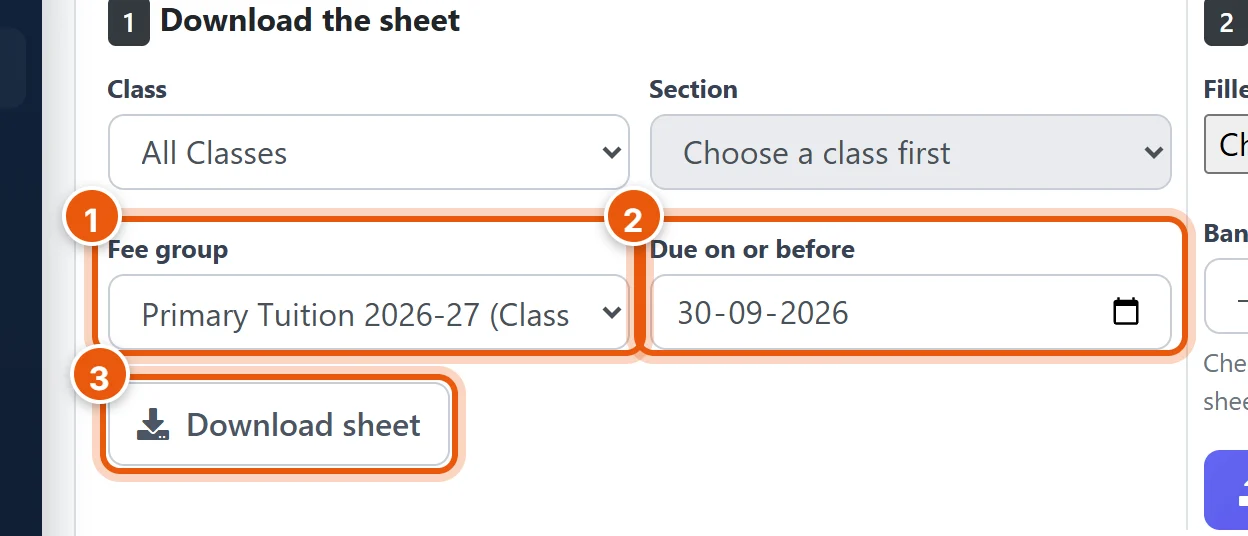
- Narrow the sheet down, so it is easier to fill in. Choose a Class, or a Fee group (for example your tuition group), or leave both as All.
- In Due on or before, pick the last date you collected in your old software, for example 30-09-2026. The sheet then lists only the months up to then, not the whole year.
- Click Download sheet. A CSV file downloads, which opens in Excel.
Tip: One sheet per class keeps things manageable. You can upload as many sheets as you like.
Step 3: Fill in what each parent paid
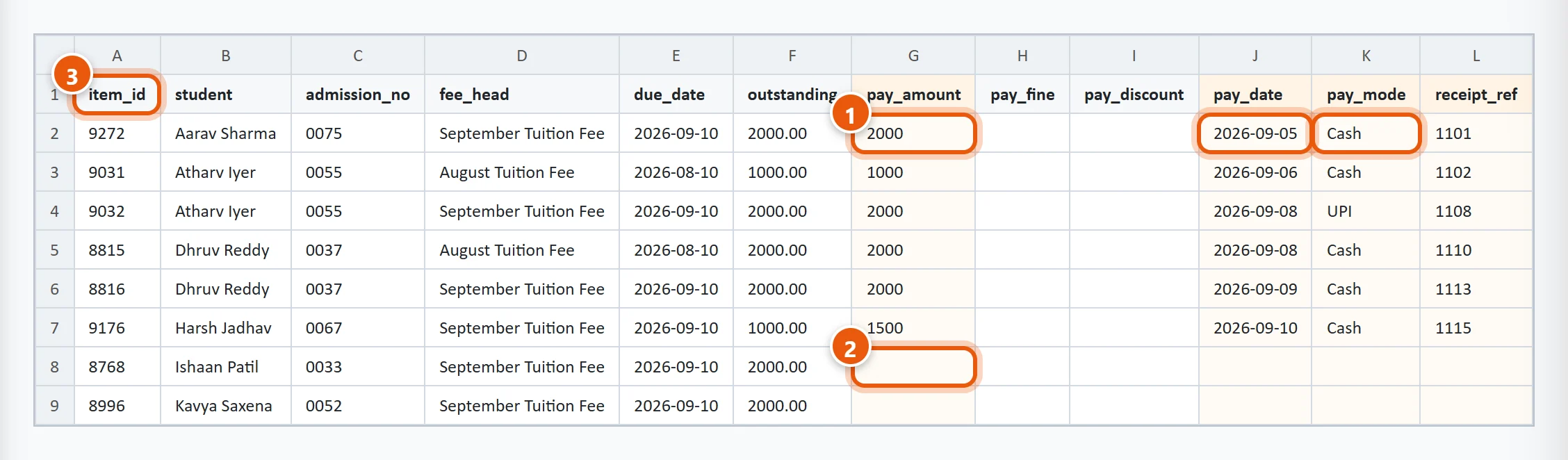
Each row is one month for one student. The columns on the left (student, admission no., fee head, due date, outstanding) tell you which month it is.
- For each month a parent paid, fill in:
- pay_amount: how much they paid for that month, for example 2000;
- pay_date: the date on the old receipt, for example 2026-09-05 or 05/09/2026 (day first);
- pay_mode: Cash, UPI, Cheque, Card or Bank Transfer;
- receipt_ref (optional): the old receipt number, so you can match it later.
- If a parent did not pay that month, leave the row empty. It is skipped and stays due.
- Do not change the item_id column. It tells SchoolAlgo exactly which month of which student the row is for. Do not add or move rows either.
Also useful:
- pay_fine: a late fine the parent paid, if any.
- pay_discount: a concession for that month. To mark an old month as settled without money, put the full fee in pay_discount, 0 in pay_amount, and still fill in pay_date and pay_mode.
- One receipt per payment: rows for the same student with the same date and mode become one receipt. If a parent paid twice on the same day, give the two payments different receipt_ref values.
When you are done, save the file in Excel as CSV (Comma delimited). If Excel warns that some features may be lost, click Yes to keep the CSV format.
Step 4: Upload the sheet
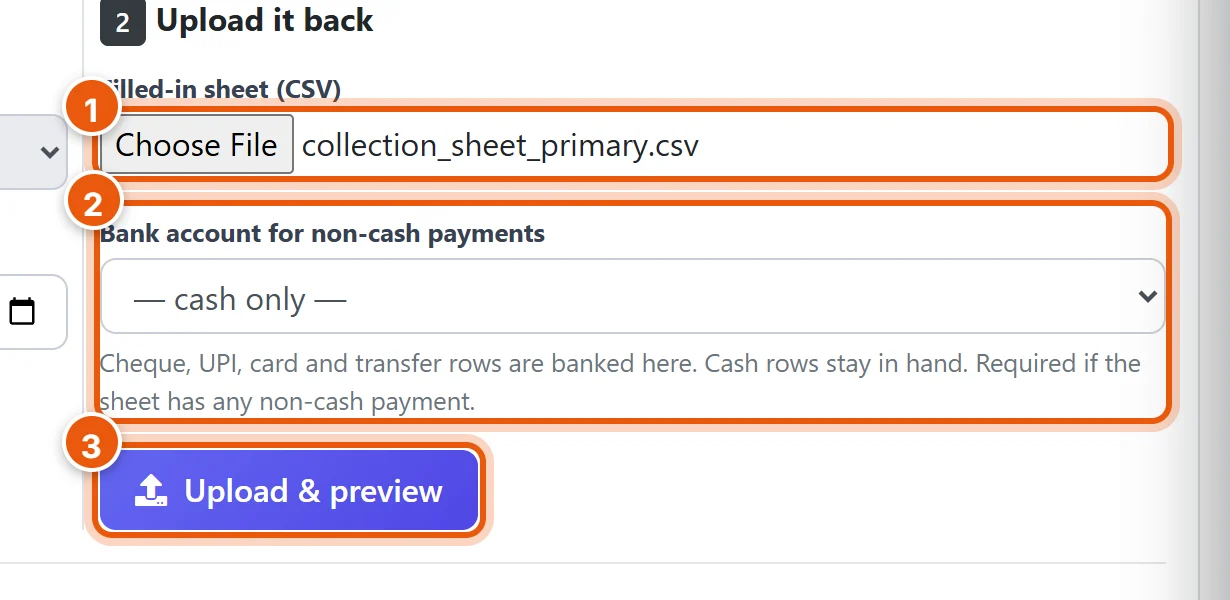
- Under Upload it back, click Choose File and pick your filled-in sheet.
- Bank account for non-cash payments: if any row is UPI, cheque, card or bank transfer, choose your school's bank account. If every row is cash, leave cash only.
- Click Upload & preview.
Step 5: Check the preview, then confirm
Nothing is saved yet. SchoolAlgo reads every row and shows you what will happen.
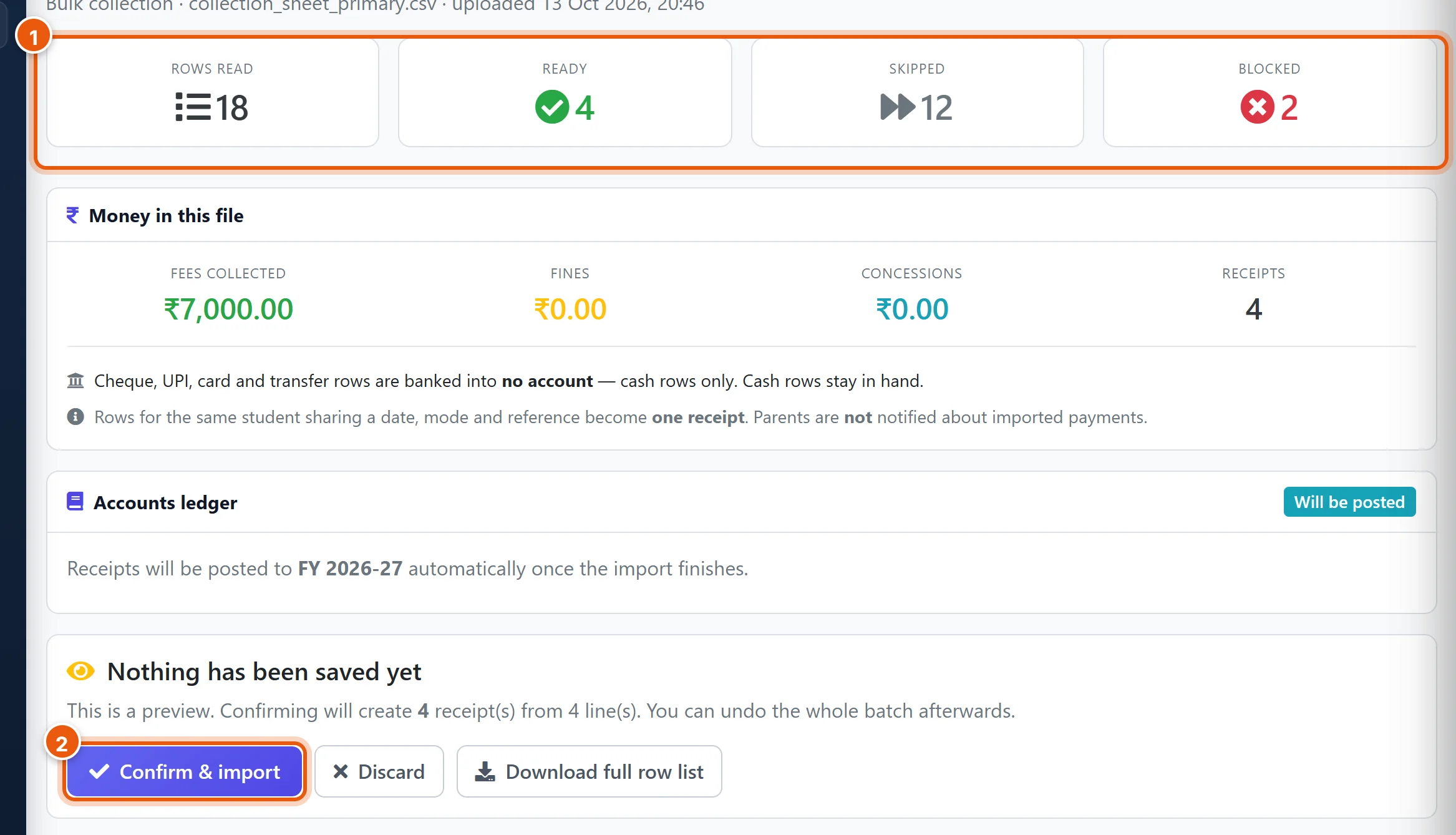
- Check the counts and the money:
- Ready: rows that will be imported.
- Skipped: empty rows (months that were not paid). This is normal.
- Blocked: rows with a problem. They are not imported.
- Fees collected should match the total in your old register for these payments.
- If it looks right, click Confirm & import. The import runs in the background, which takes a few seconds for a few hundred rows. If it looks wrong, click Discard, fix the sheet and upload again.
Blocked rows
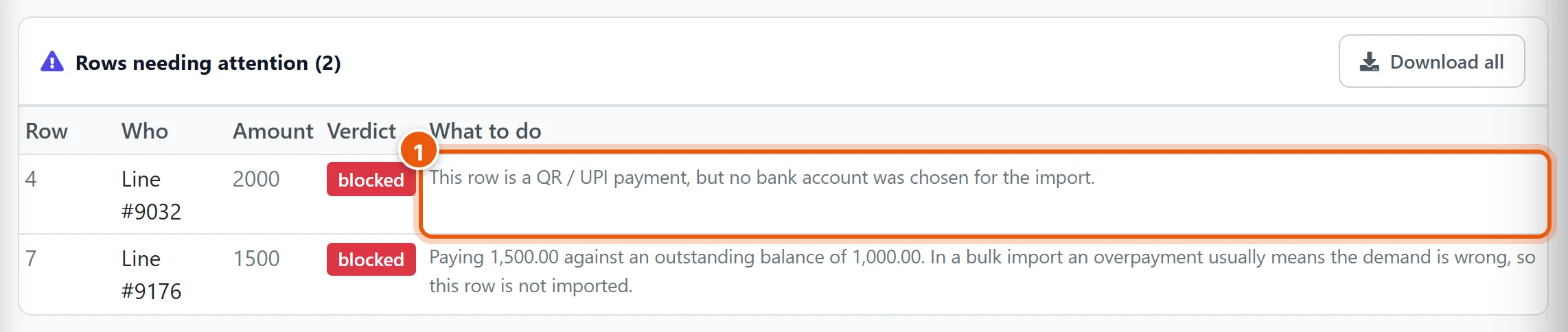
Scroll down to Rows needing attention. The row number matches the row in your Excel sheet, and What to do says what is wrong. Common reasons:
- No bank account chosen for a UPI, cheque or transfer row: go back and choose the bank account in Step 4.
- Paying more than the balance: the amount is more than that month's fee. Check the amount, and check that the right fee is assigned to the student.
- No payment date, or a date in the future.
- Payment mode not recognised: use one of Cash, UPI, Cheque, Card or Bank Transfer.
You can confirm the ready rows now and deal with the blocked ones later. Afterwards, download a new sheet: the months you have just imported are no longer in it, so you fill in only the ones that were blocked.
Check the result
Open Collect Fees for a few students from the sheet. The imported months are green, with the old payment dates, and Overall Payment History shows the new receipts. The receipts also appear in the Parent app and the fee reports.
Undo an import

If a whole sheet went in wrong, for example for the wrong class or the wrong year, open it from Recent imports at the bottom of Import Center and use Undo this import:
- Type why you are undoing it.
- Type the import's code (for example FI-00373) to confirm.
- Click Undo import. Every receipt from that import is removed, and the months are due again.
Undo is possible only while nothing else has been done to those fees since the import, for example no new payment was collected on them. If it is not possible, the box says why.
Good to know
- The same file twice: SchoolAlgo refuses a file that has already been imported, so a double upload cannot create duplicate receipts.
- Receipt numbers: every imported payment gets a SchoolAlgo receipt number, as usual. The old receipt number is kept as the reference.
- Dues from last year: money a student still owed from the previous year is not entered here. Use Opening balances in the same Import Center.
Related guides
Still stuck? Send us a screenshot on WhatsApp and we will guide you.
Chat on WhatsAppLast updated 13 October 2026