
Who does this: the accountant or school admin.
How long it takes: a few minutes.
Part 1: See who hasn't paid
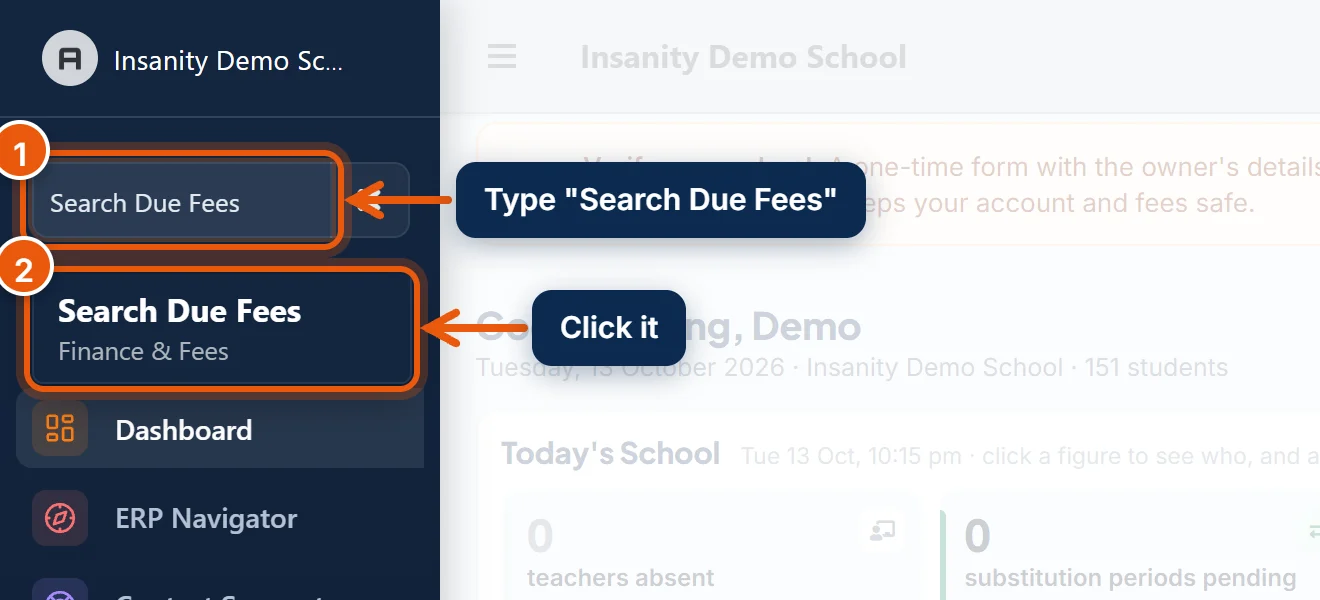
- In the search box at the top of the left menu, type Search Due Fees.
- Click Search Due Fees.

- Class (and section): leave empty for the whole school, or choose one class.
- Filter Due Date: what to count as "not paid".
- Due by end of this month (incl. older dues): everything that should have been paid by the end of this month, including earlier months. Use this one for chasing payments.
- Due on or before a date I choose: the same, up to a date you pick.
- Whole year, incl. months not yet due: everything still to be paid this year, including later months. This makes every student look like they owe a lot, so don't use it for reminders.
- Click Search.
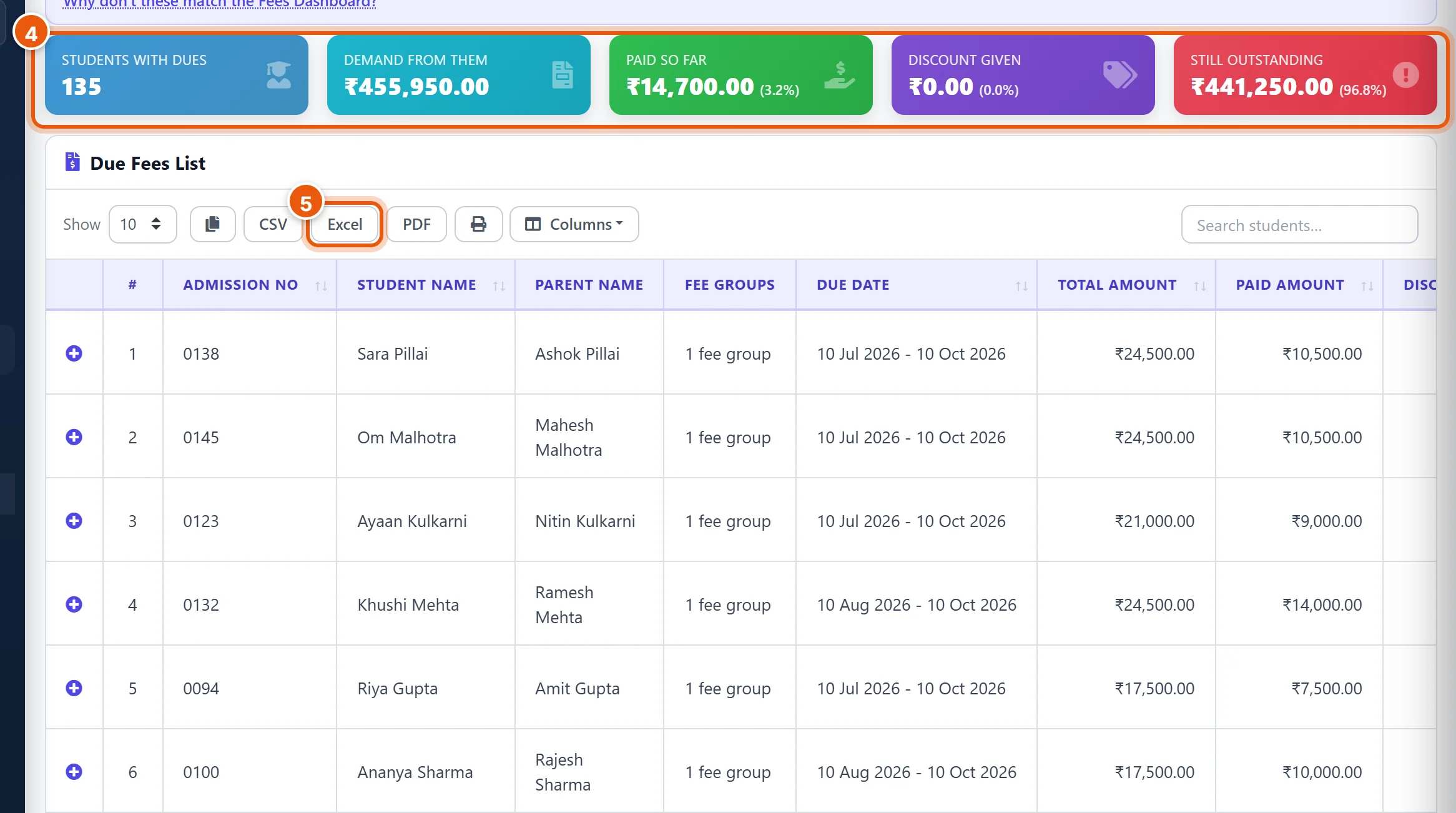
- The boxes at the top show how many students owe, how much was asked of them, how much they have paid, and what is still outstanding.
- Each row is one student, with the parent's name and the amount due. Click Excel (or PDF, or the printer) to download or print the list, for example to call parents.
Tip: this list covers only students who still owe, so its totals are lower than the Fees Dashboard. That is expected.
To collect from a student on the list, open Collect Fees and search for them (see Collect fees from a parent).
Part 2: Print or send due slips
A due slip is a one-page note for the parent: the student, the months unpaid, and the total.
- Open Finance & Fees → Generate Due Slip.

- Month and 2. Year: for example October 2026.
- Due Basis:
- Till this Month (arrears + current): earlier unpaid months plus this month. Usually the right choice.
- Current Month only: just this month's fee.
- Full Outstanding (all unpaid): everything still to pay this year.
- Click Generate. One row appears for each class and section with dues.

- Download PDF: slips for every student in that class who owes, ready to print and send home.
- Send to Parents: sends each parent their slip in the Parent app (and by email or WhatsApp, if your school has them).
Send to Parents works only when Due Slip Generated is switched on (Part 3). If it is off, the page tells you that nothing was sent.
Part 3: Switch on reminders
Open Notification Settings (type it in the menu search).

- Fee Reminder Due: the automatic monthly reminder. On the 1st of every month at 9 am, every parent with unpaid fees gets one message with the total due up to the end of that month. Nothing to do each month once it is on.
- Due Slip Generated: needed for Send to Parents in Part 2.
For each, turn on Push (the Parent app). Turn on Email too if your school sends email. Then scroll down and click Save Notification Preferences.
Note: if Push cannot be switched on, app notifications are not yet enabled for your school. Contact SchoolAlgo support and we will turn them on. SMS and WhatsApp need their own setup, so they show as Locked until then.
Good to know
- Reminders go to the parent's login: parents must have the Parent app installed and be signed in to get push messages.
- Discounts are counted: the lists, slips and reminders all show the amount after discounts.
- Late fines are not included in reminders and slips. They are added on the payment form when you collect, if your fee structure has a fine.
- One message per child: a parent with two children gets one reminder for each child.
Related guides
Still stuck? Send us a screenshot on WhatsApp and we will guide you.
Chat on WhatsAppLast updated 13 October 2026